| title | subtitle | url | filter |
|---|---|---|---|
| Morning Drive | A bright synth-pop instrumental | https://example.com/audio/morning-drive.mp3 | Electronic |
| Blue Room Sessions | A laid-back jazz trio | https://example.com/audio/blue-room.mp3 | Jazz |
| Open Highway | Guitar-driven rock with a steady backbeat | https://example.com/audio/open-highway.mp3 | Rock |
How to Create an Audio Player Playlist
A step by step walkthrough for turning a spreadsheet of titles and audio links into a published, embeddable playlist in PlotSet, with play buttons, progress bars and category filters.
Cerca de 6 minutosA list of tracks with play buttons, progress bars and category filters, built from a spreadsheet and ready to embed: that is what you will have. Each row becomes one playable track, and adding a track later means adding a row.
If you already have direct links to your audio files, it takes about six minutes. The one prerequisite is hosting, since PlotSet streams from the links you give it rather than storing the files.
Os dados que você precisa
One row per track with up to four columns: title, an optional description, a direct audio file URL, and an optional category used for filtering and colour.
The URL must point directly at an audio file such as an MP3, OGG or WAV, not at a page that contains a player.
A row with a title but no link still appears, dimmed and not playable. A row with neither title nor link is dropped.
Keep category spellings identical, or the filter will list the same group twice.
The hosting server must allow direct linking and, ideally, range requests so seeking and the buffered bar work.
Os passos
O caminho exato no PlotSet, de um modelo em branco até o gráfico finalizado.
- 01
Open the Audio template
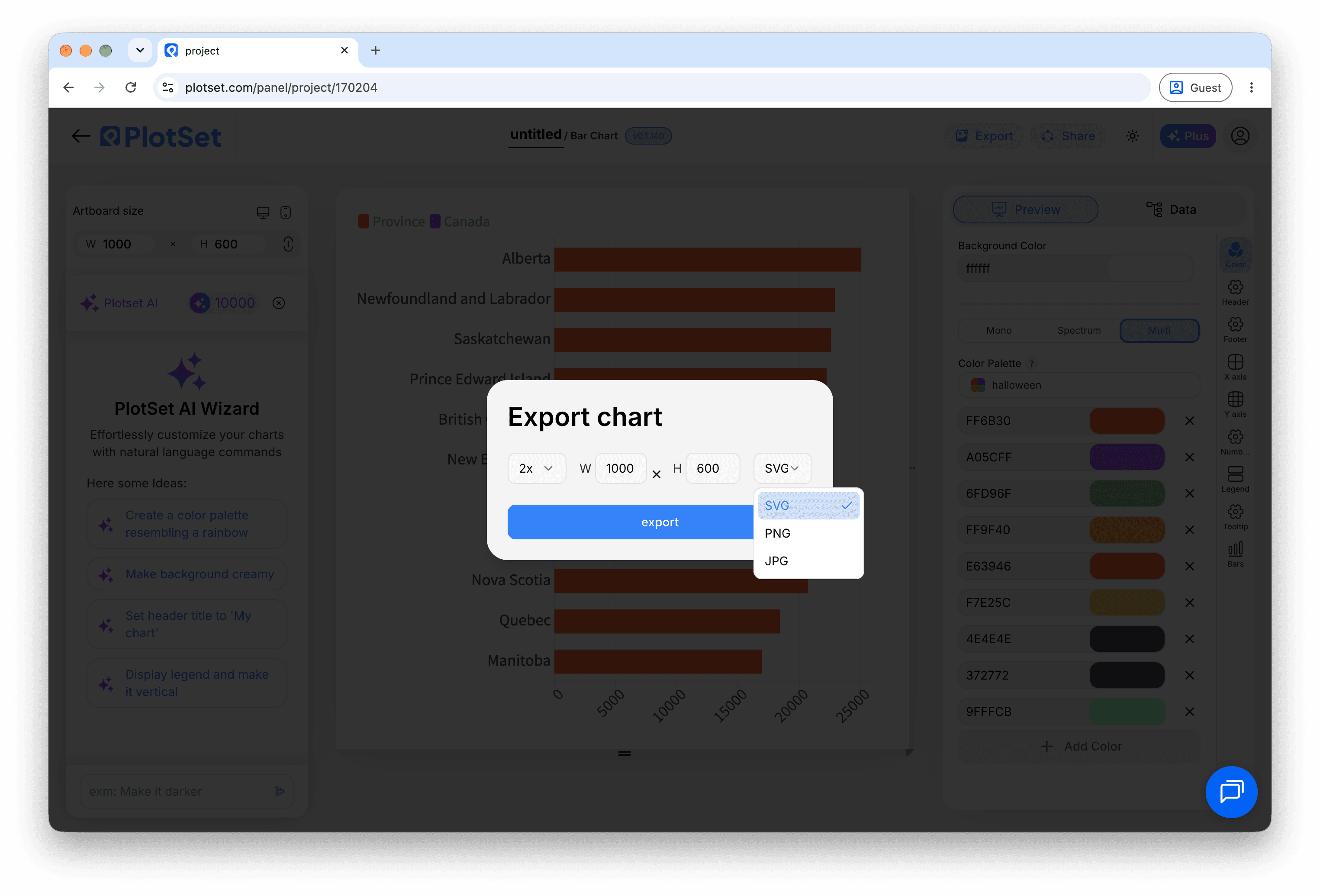
From the PlotSet dashboard, start a new project and choose Audio from the Other category. It loads with a sample playlist so you can see how each row becomes a track.

Todo guia começa aqui. Escolha a categoria e depois o modelo: a grade é a mesma, seja qual for o tipo de gráfico que você quer. - 02
Prepare your track list
Give each track a title and a direct file link, plus a description and category if you want them. Open each link in a browser tab first to confirm it plays.
- 03
Upload the file, or connect it live
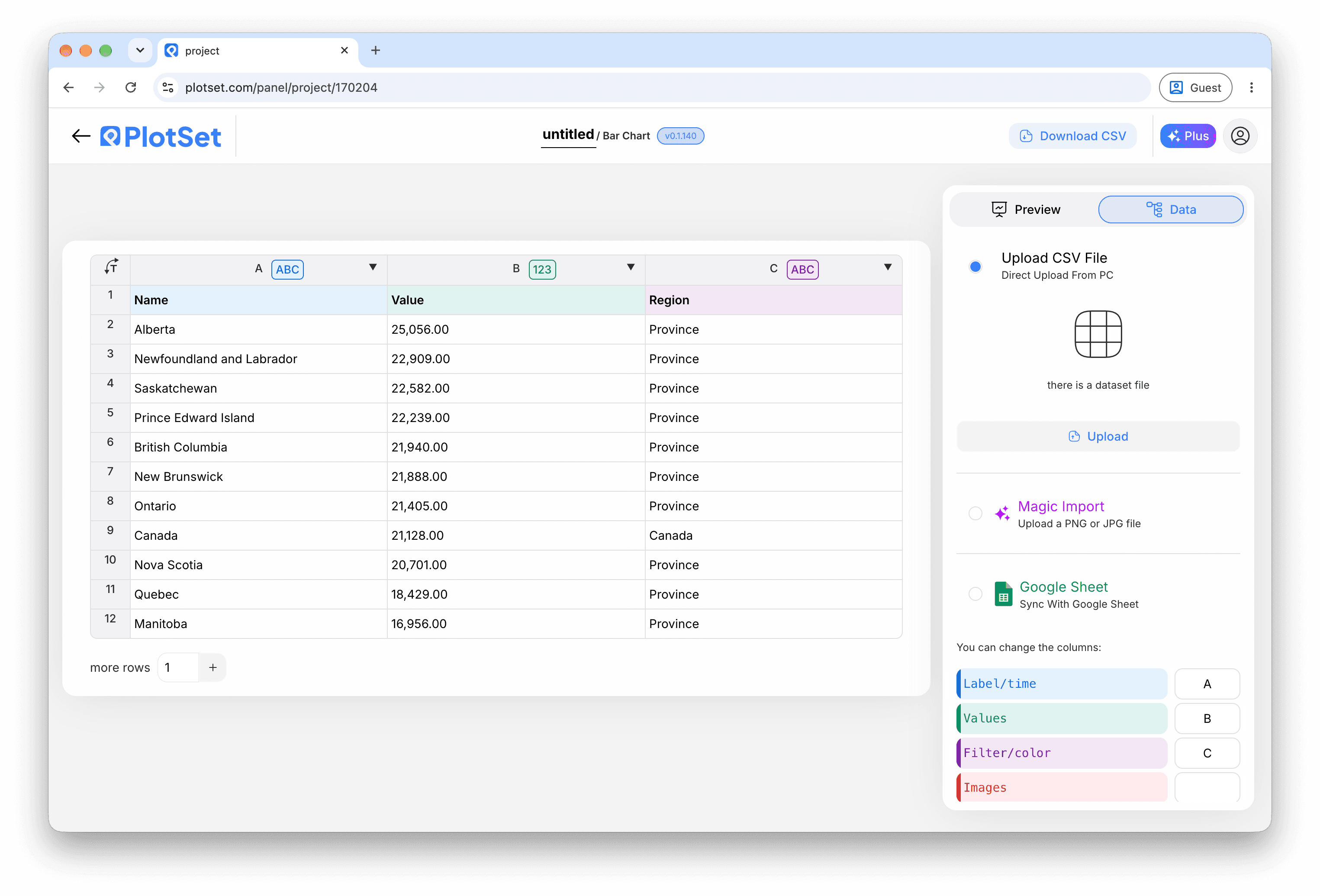
Import a CSV or .xlsx file from the data panel, paste rows from a spreadsheet, or connect a Google Sheet so new tracks appear without re-embedding. The first row is read as the headers.

A visualização de dados, aqui em um projeto de gráfico de barras. Envie um CSV, extraia os números de uma imagem com o Magic Import ou sincronize um Google Sheet. O painel é idêntico para todos os tipos de gráfico. - 04
Check the column bindings
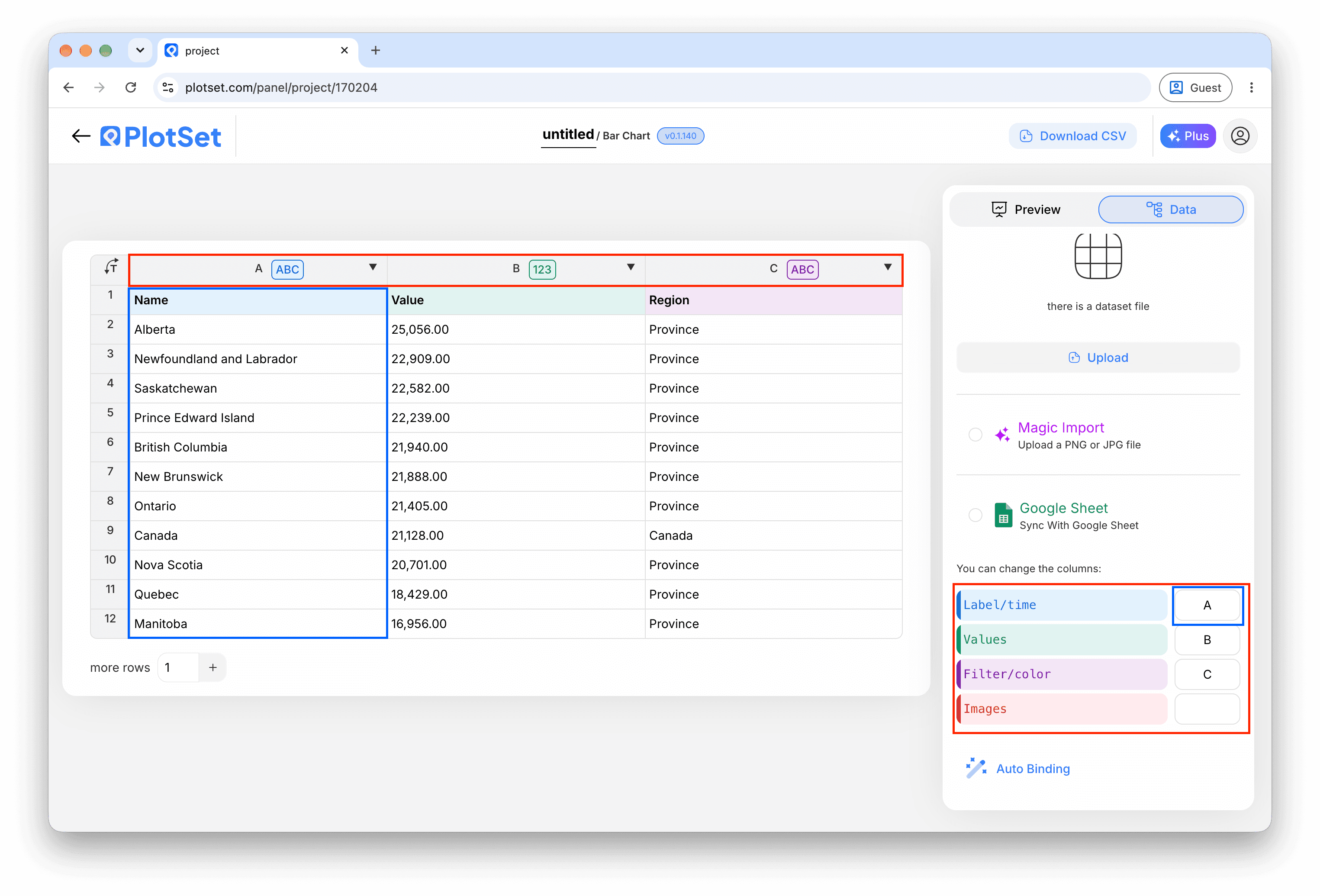
Confirm which column is the title, the description, the audio URL and the category. This is usually right automatically when the headers are clear.

Os vínculos definem qual coluna vira o rótulo, qual fornece os valores e qual comanda a cor. O Auto Binding tenta adivinhá-los a partir dos seus cabeçalhos, então confira o resultado em vez de dar como certo. - 05
Style the player
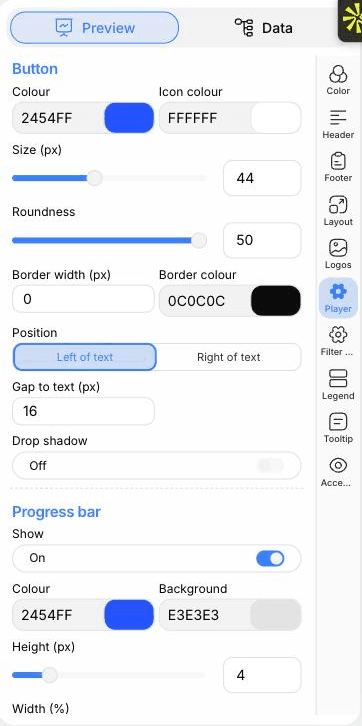
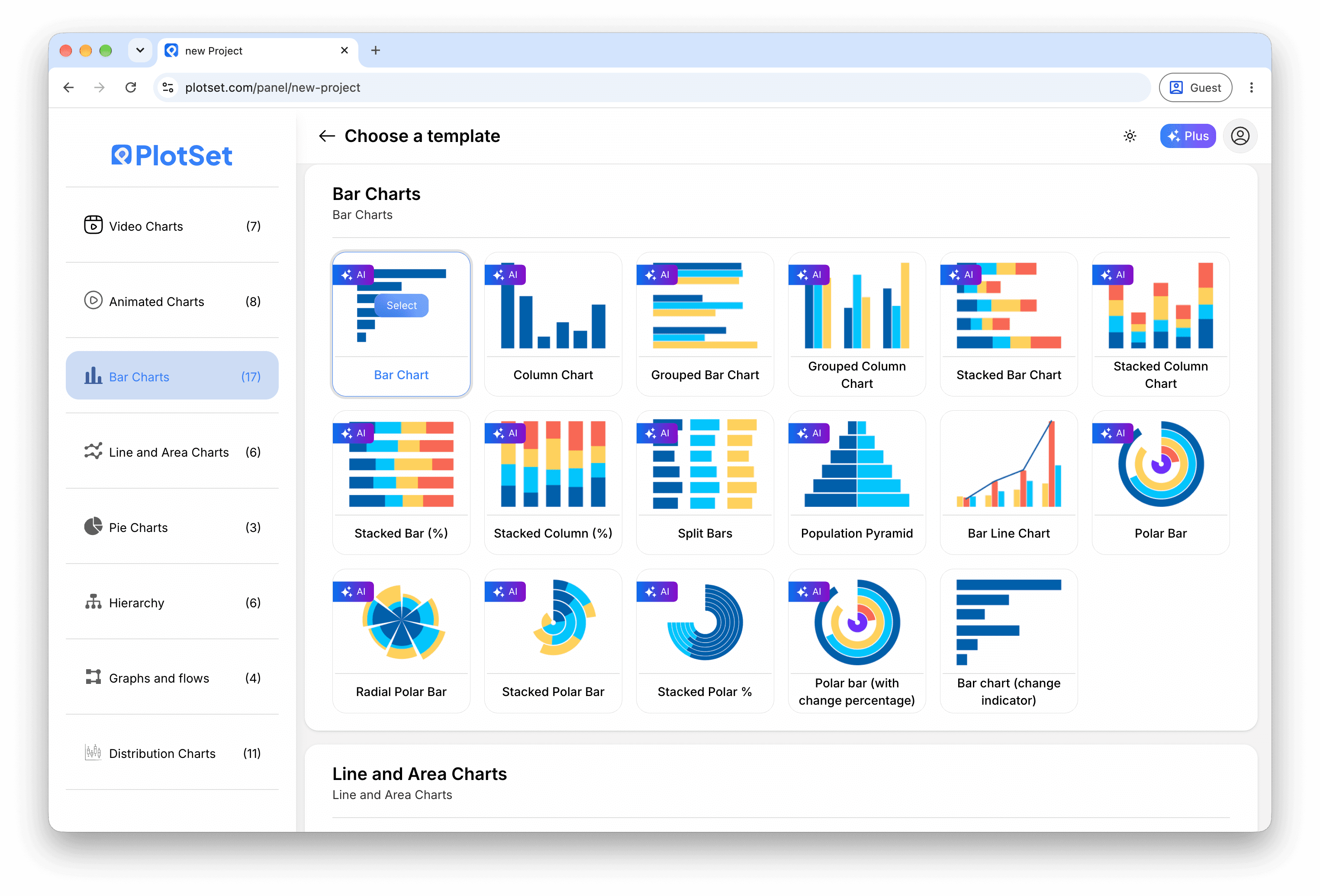
Open the Player tab to set the button colour, size and roundness, put it left or right of the text, and show or hide the progress bar. You can also choose one, two or three columns.

A aba Preview de um gráfico do tipo Audio Player. Todos os controles de estilo ficam no painel contornado em vermelho: aparência, cabeçalho, rodapé e as opções específicas desse tipo de gráfico. Cada grupo fica em sua própria aba. - 06
Add category filters
In the Filter controls tab choose pill buttons, a dropdown or a stepped slider. In the Color tab you can tint the rows by category too.
- 07
Set the size and pagination
Adjust the artboard height so the rows you want fit. Longer lists are paginated with a pager underneath rather than scrolled.
- 08
Publish it or embed it
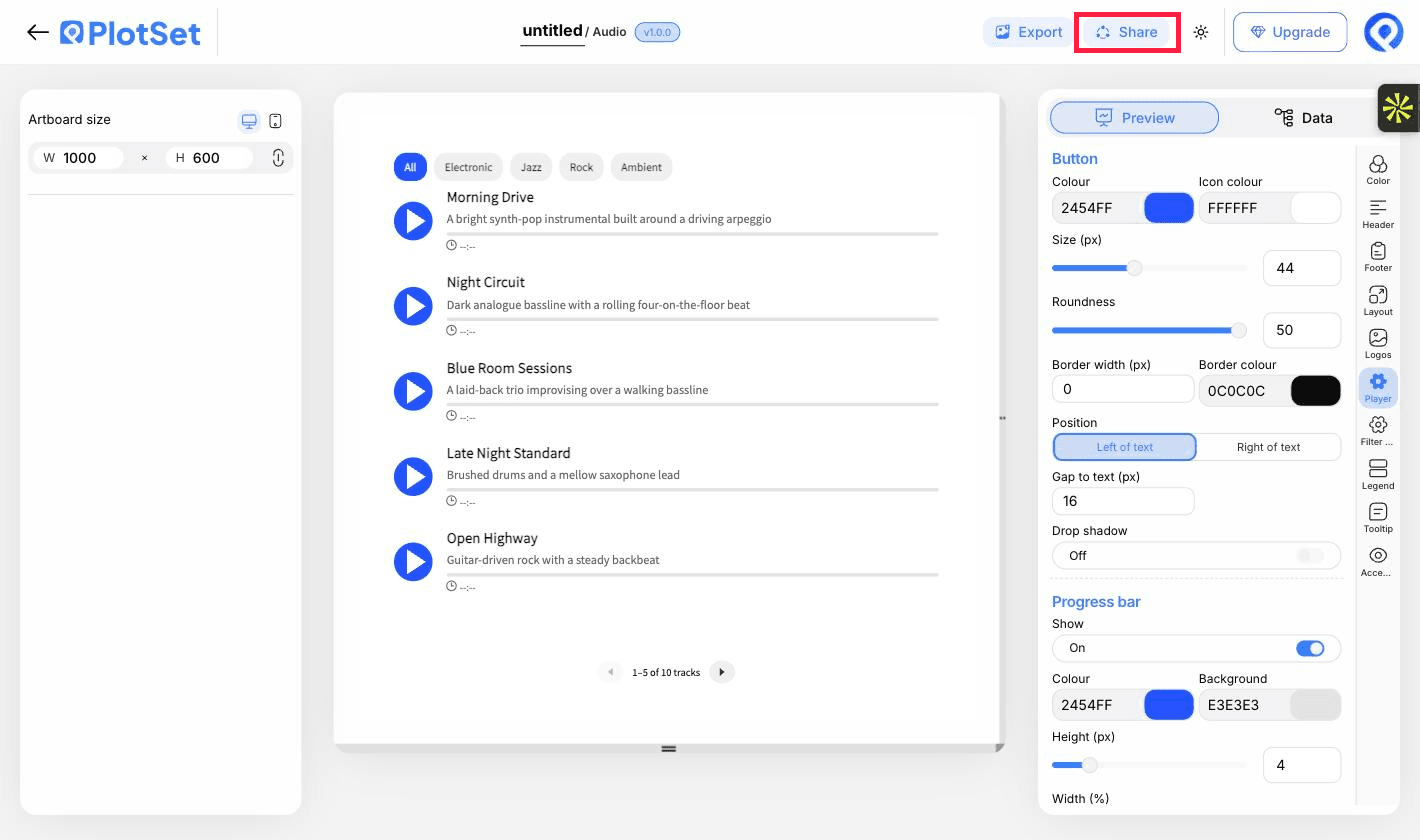
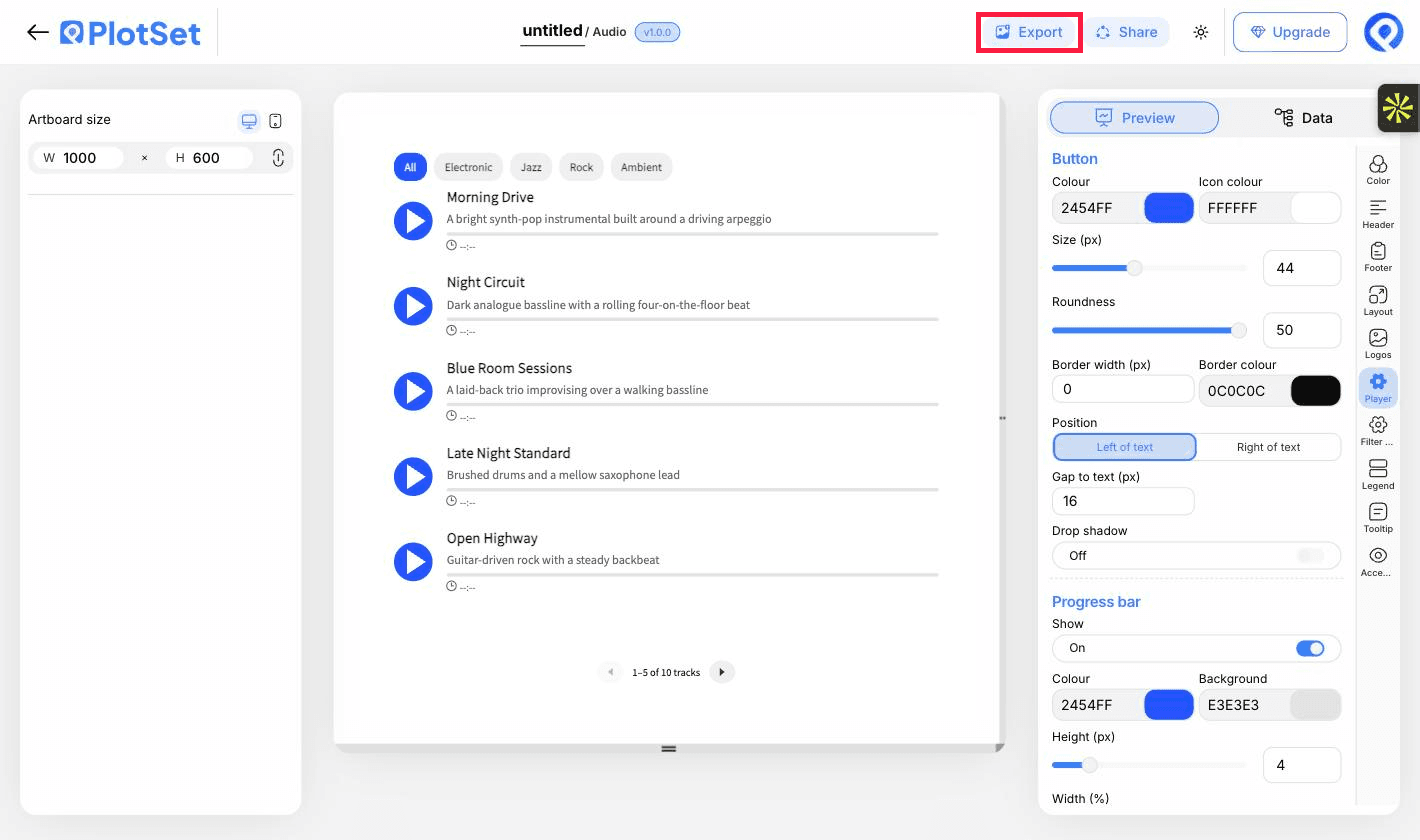
Publish for a live playlist and copy the embed code for your page. A PNG or PDF export captures only the page of tracks currently showing.

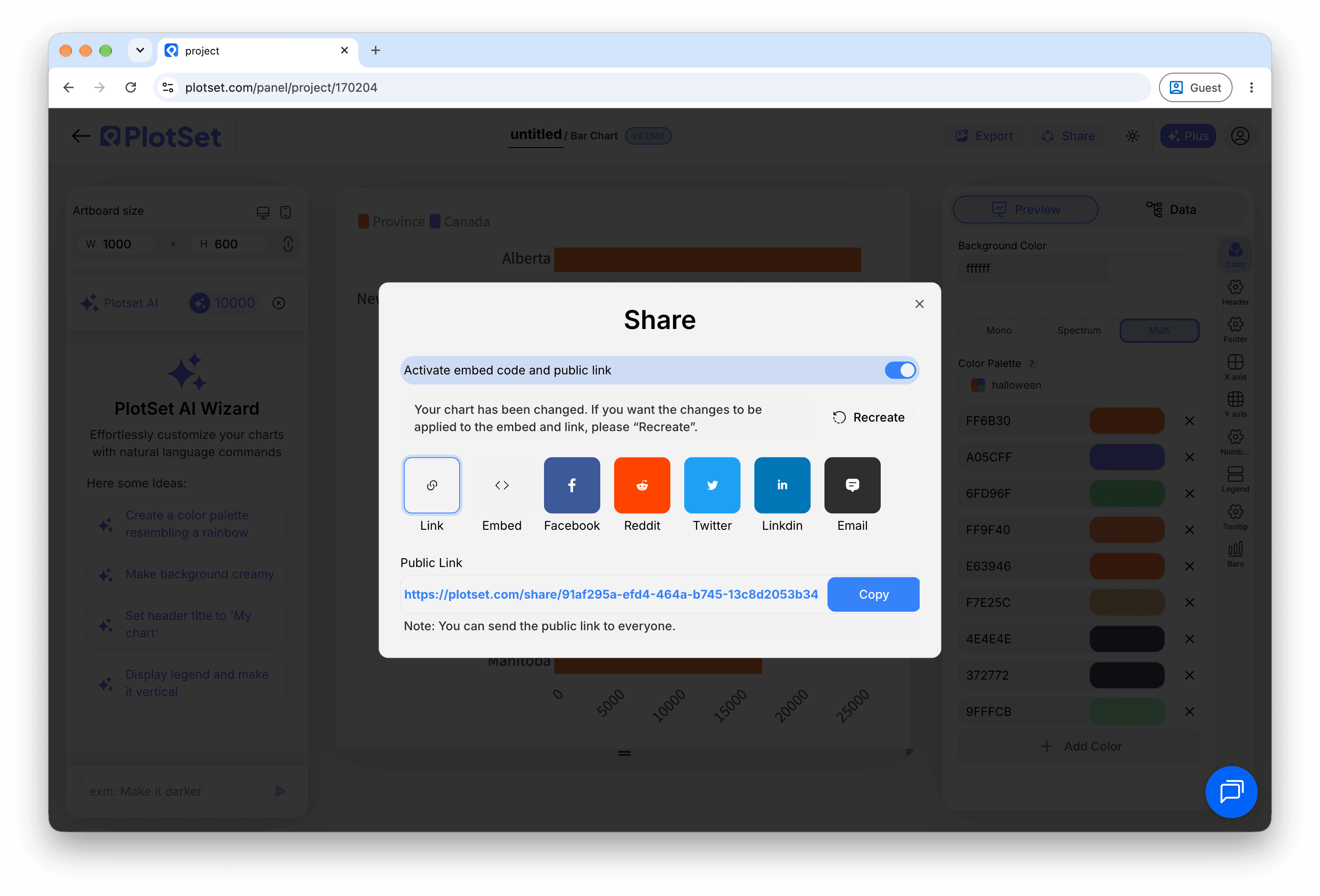
É pelo Share que um gráfico finalizado vira um link público e um código de incorporação.
Comece pelo modelo de Audio Player com dados de exemplo já carregados, depois substitua-os pelos seus.
Abrir o modeloDicas de estilo para um Audio Player
Write short titles
Titles and descriptions truncate to a set number of lines. Keep titles short and let the description carry the detail; the full text appears on hover.
Colour by category
Tinting play buttons by category makes groups recognisable at a glance and makes the legend useful.
Match button size to the page
A larger button is easier to tap on mobile. Check the preview at the phone artboard size.
Order tracks deliberately
Rows play in sheet order, so put the clip you most want heard first.
Erros comuns ao fazer um Audio Player
A track is dimmed and will not play
The row has a title but no usable link. Check the URL column for blanks, and that it ends in a real audio file.
Clicking play does nothing
The link probably points to a web page, or the host blocks direct linking. Open the URL on its own in a browser tab to test it.
The seek bar will not jump ahead
The server may not support range requests. Host the files somewhere that does, or accept that seeking is limited.
Saiba mais sobre o Audio Player
Não tem certeza se o Audio Player é a escolha certa? Veja o que é, quando usar e quando evitar.
Audio Player: perguntas frequentes
A title and a direct audio file link for each track. A description and a category are optional.
Crie seu Audio Player agora
Grátis para começar com mais de 300 modelos. Sem cartão de crédito.