PlotSet LogoPlotSet

How to Create an Audio Player Playlist

A step by step walkthrough for turning a spreadsheet of titles and audio links into a published, embeddable playlist in PlotSet, with play buttons, progress bars and category filters.

约 6 分钟

A list of tracks with play buttons, progress bars and category filters, built from a spreadsheet and ready to embed: that is what you will have. Each row becomes one playable track, and adding a track later means adding a row.

If you already have direct links to your audio files, it takes about six minutes. The one prerequisite is hosting, since PlotSet streams from the links you give it rather than storing the files.

你需要的数据

One row per track with up to four columns: title, an optional description, a direct audio file URL, and an optional category used for filtering and colour.

示例 CSV
titlesubtitleurlfilter
Morning DriveA bright synth-pop instrumentalhttps://example.com/audio/morning-drive.mp3Electronic
Blue Room SessionsA laid-back jazz triohttps://example.com/audio/blue-room.mp3Jazz
Open HighwayGuitar-driven rock with a steady backbeathttps://example.com/audio/open-highway.mp3Rock
备注

The URL must point directly at an audio file such as an MP3, OGG or WAV, not at a page that contains a player.

A row with a title but no link still appears, dimmed and not playable. A row with neither title nor link is dropped.

Keep category spellings identical, or the filter will list the same group twice.

The hosting server must allow direct linking and, ideally, range requests so seeking and the buffered bar work.

操作步骤

PlotSet 中从空白模板到完成图表的具体点击路径。

  1. 01

    Open the Audio template

    From the PlotSet dashboard, start a new project and choose Audio from the Other category. It loads with a sample playlist so you can see how each row becomes a track.

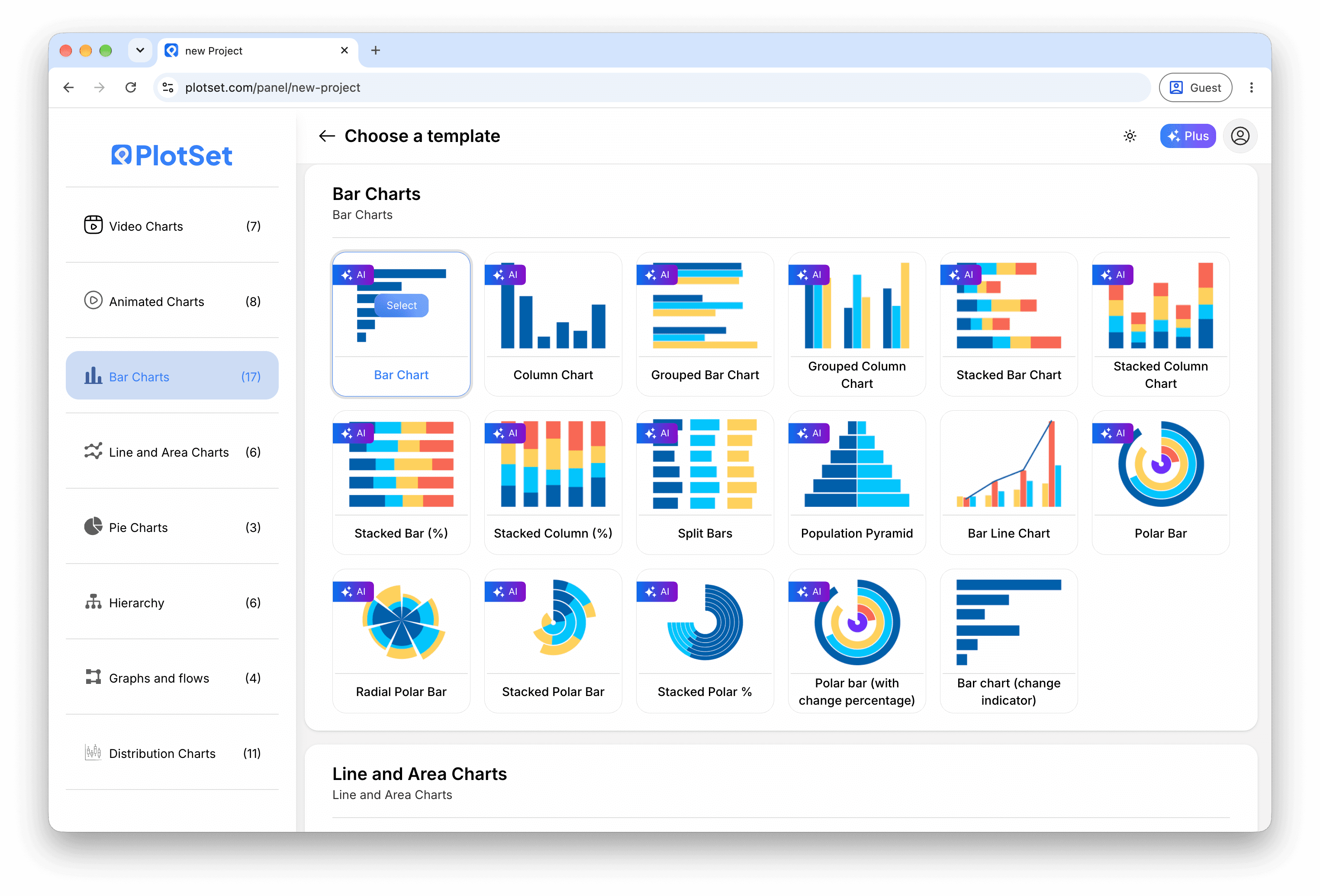
    PlotSet 的模板选择界面:左侧是图表分类列表,中间展开 Bar Charts 分类的模板网格,Bar Chart 模板卡片上显示「Select」按钮。
    每份指南都从这里开始:先选分类,再选模板,不管你要做哪种图表,用的都是同一个网格。
  2. 02

    Prepare your track list

    Give each track a title and a direct file link, plus a description and category if you want them. Open each link in a browser tab first to confirm it plays.

  3. 03

    Upload the file, or connect it live

    Import a CSV or .xlsx file from the data panel, paste rows from a spreadsheet, or connect a Google Sheet so new tracks appear without re-embedding. The first row is read as the headers.

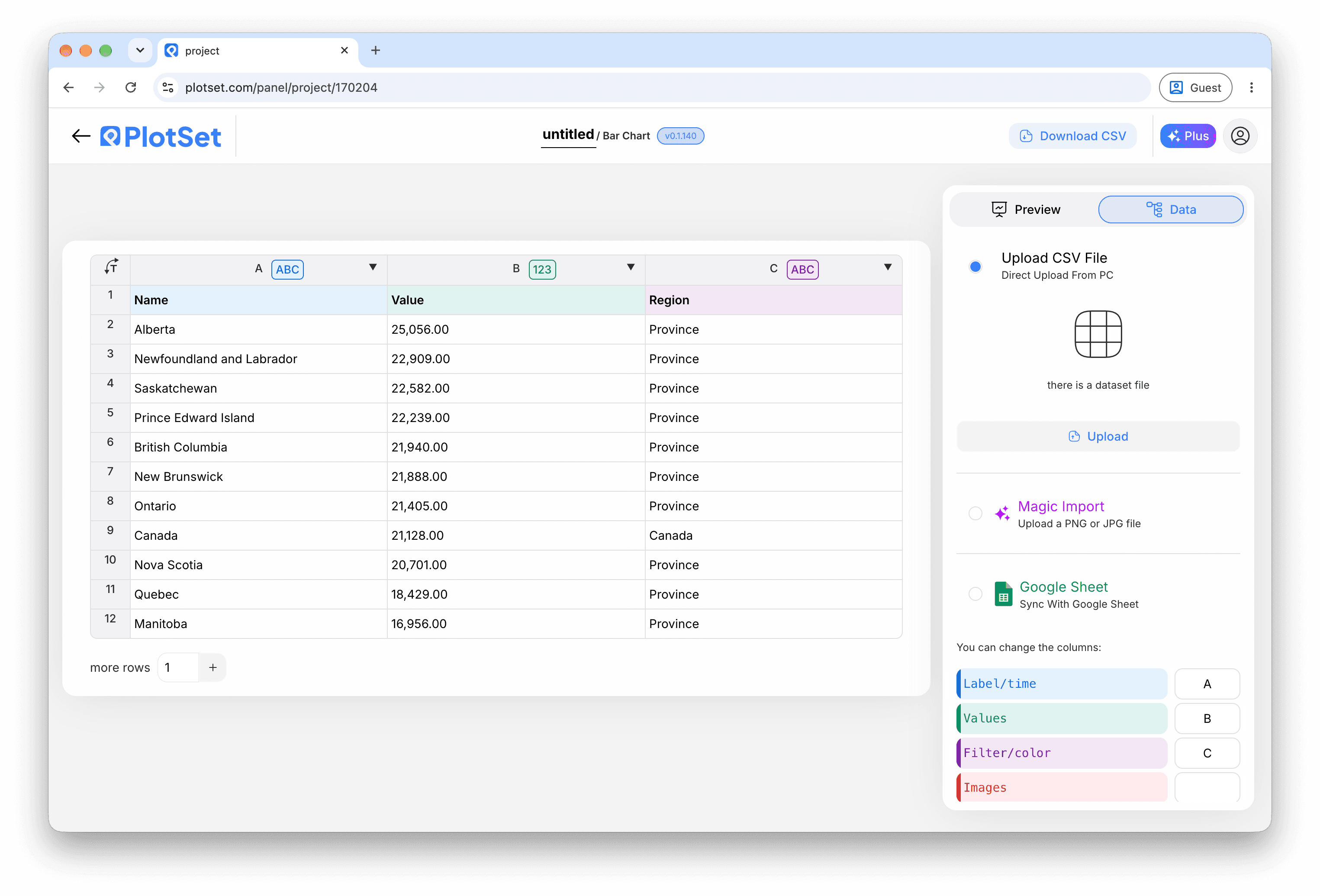
    PlotSet 编辑器的数据视图:表格中 Name、Value、Region 三列填着加拿大各省的数据,旁边的「Data」面板提供 CSV 上传、「Magic Import」和 Google Sheet 同步。
    这里的数据视图取自一个条形图项目。你可以上传 CSV、用「Magic Import」从图片里提取数字,或同步 Google Sheet,每种图表类型的面板都一样。
  4. 04

    Check the column bindings

    Confirm which column is the title, the description, the audio URL and the category. This is usually right automatically when the headers are clear.

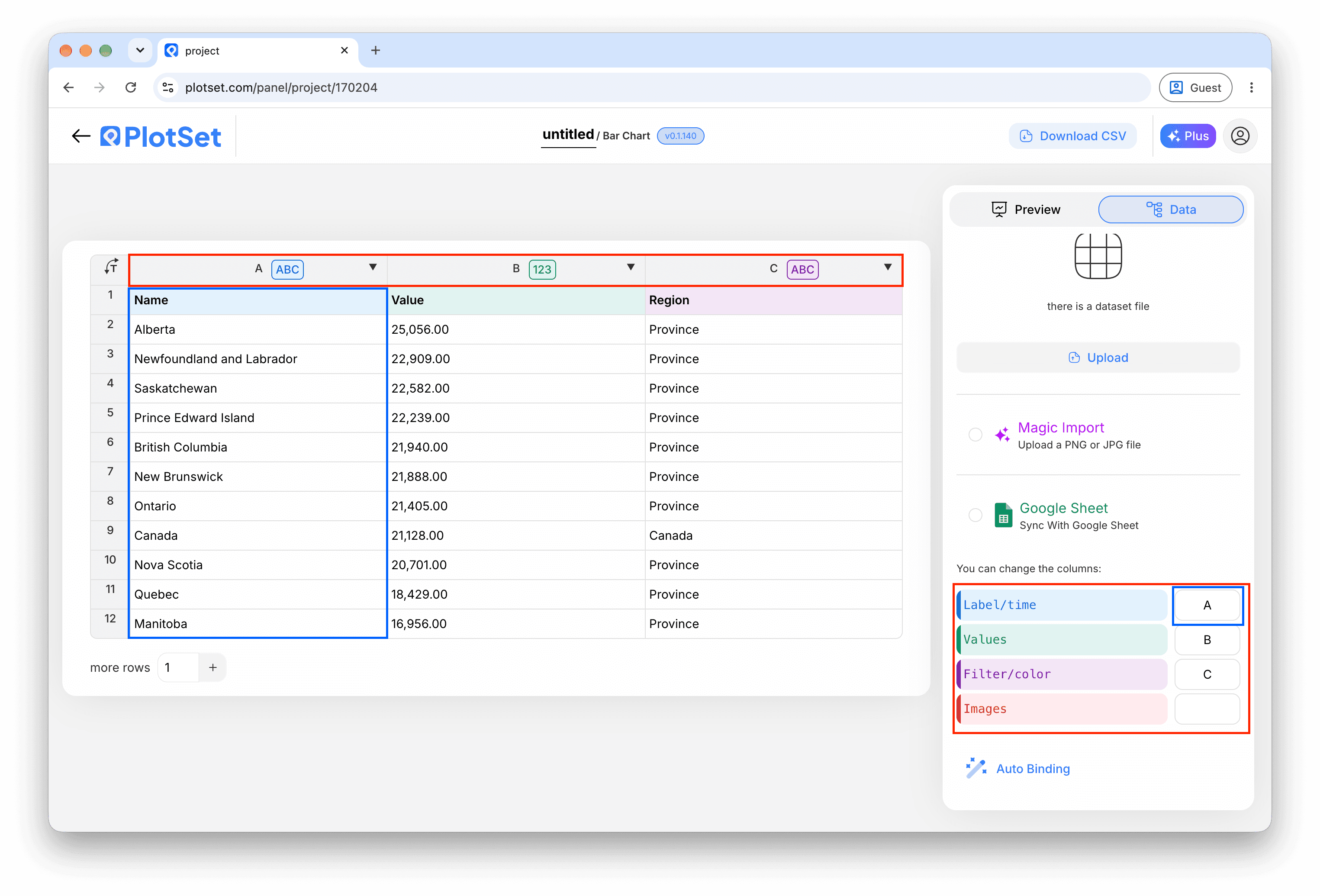
    PlotSet 数据面板中高亮的列绑定:「Label/time」对应 A 列,「Values」对应 B 列,「Filter/color」对应 C 列,下方是「Auto Binding」按钮。
    绑定决定哪一列作标签、哪一列提供数值、哪一列决定颜色。「Auto Binding」(自动绑定)会根据表头推测,所以要核对一遍,别想当然。
  5. 05

    Style the player

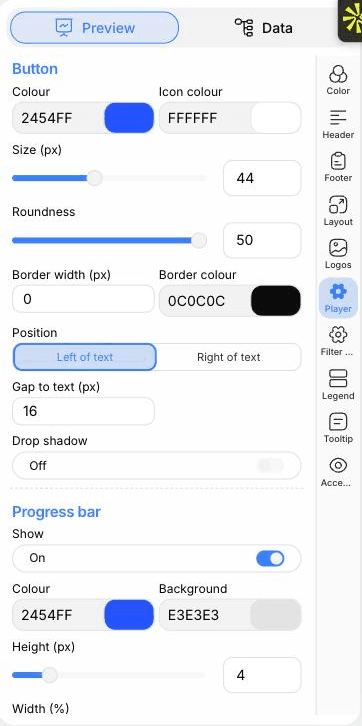
    Open the Player tab to set the button colour, size and roundness, put it left or right of the text, and show or hide the progress bar. You can also choose one, two or three columns.

    PlotSet 编辑器停在「Preview」标签页:画布上是做好的 Audio Player,右侧的设置面板用红框标出。
    Audio Player 的「Preview」标签页。所有样式设置都在红框标出的这个面板里,每个设置各自占一个标签页:外观、标题、脚注,以及这种图表类型特有的选项。
  6. 06

    Add category filters

    In the Filter controls tab choose pill buttons, a dropdown or a stepped slider. In the Color tab you can tint the rows by category too.

  7. 07

    Set the size and pagination

    Adjust the artboard height so the rows you want fit. Longer lists are paginated with a pager underneath rather than scrolled.

  8. 08

    Publish it or embed it

    Publish for a live playlist and copy the embed code for your page. A PNG or PDF export captures only the page of tracks currently showing.

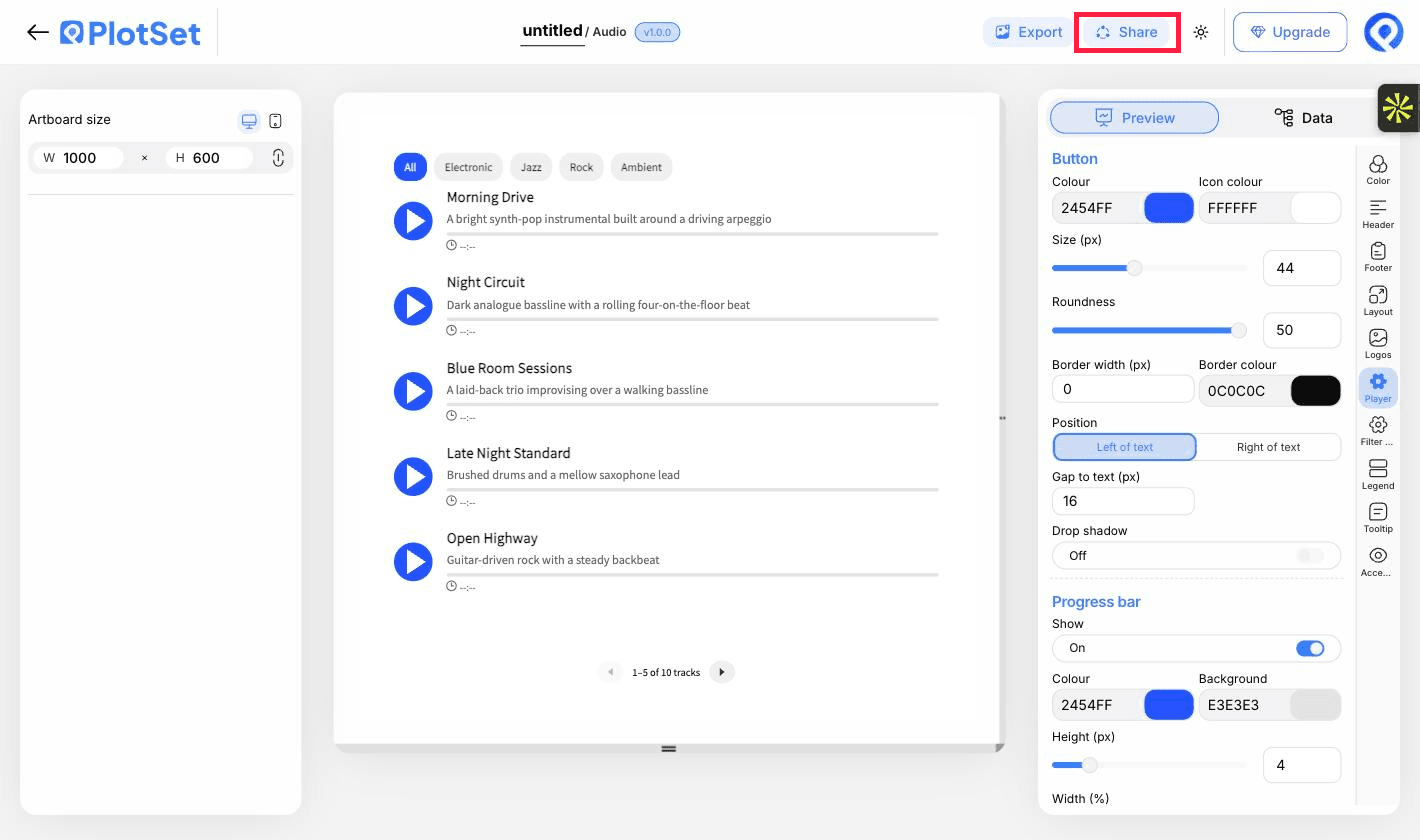
    PlotSet 编辑器工具栏中高亮的「Share」按钮,紧挨着「Export」按钮。
    点「Share」,完成的图表就会变成一个公开链接和一段嵌入代码。

从已加载示例数据的 Audio Player 模板开始,再替换成你自己的数据。

打开模板

发布、嵌入或导出

最后一段路对每种图表都一样:「Share」(分享)把图表变成一个在线的公开链接和一段嵌入代码,「Export」(导出)把它输出成静态文件。

Share:公开链接与嵌入代码

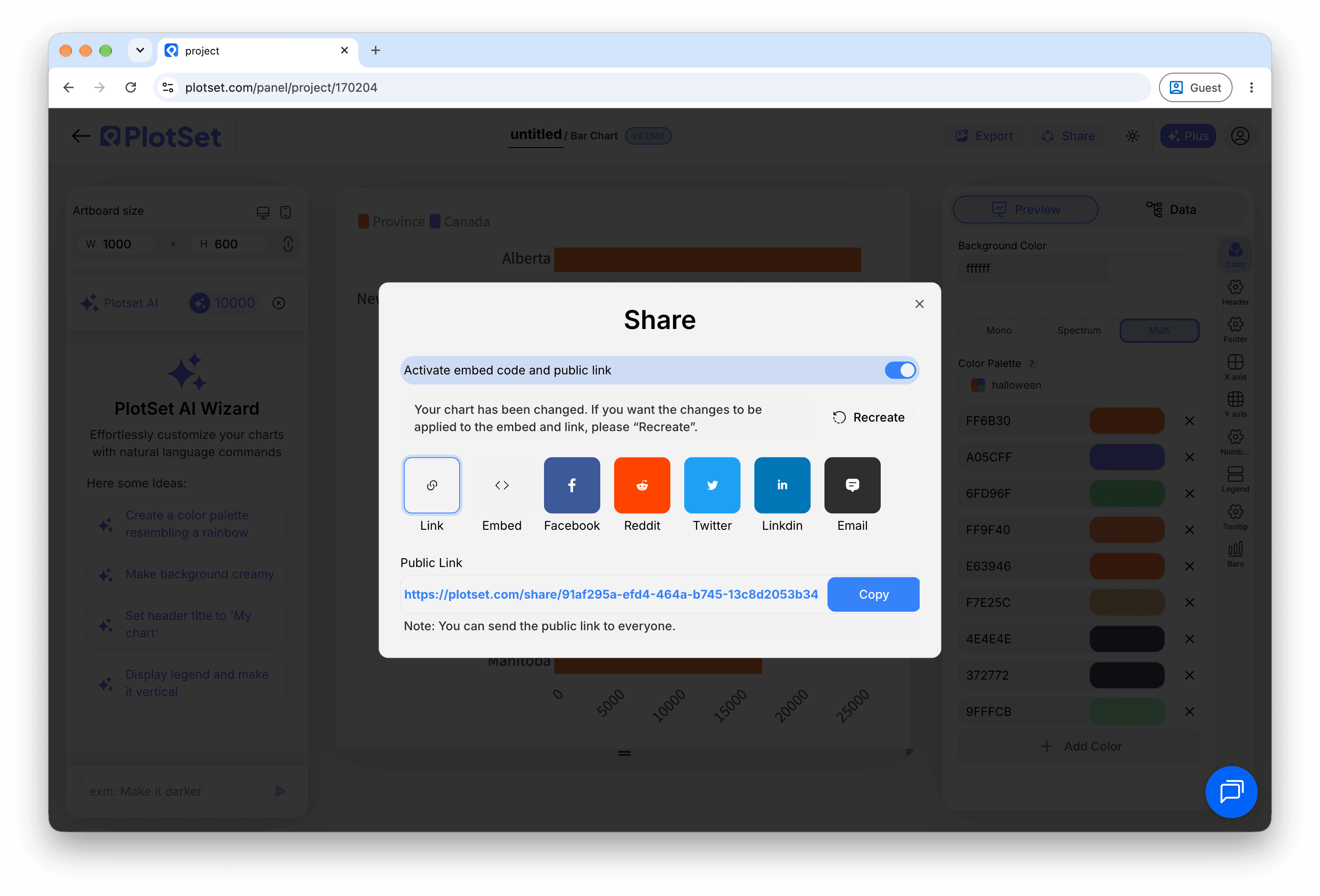
打开嵌入代码和公开链接的开关,图表就发布出去了。链接可以放心发给任何人;嵌入代码以 iframe 的形式放进任意页面,悬停提示和交互效果都会保留。之后修改了图表,点「Recreate」就能把改动同步到链接和嵌入代码两边。

PlotSet 编辑器工具栏中高亮的「Share」按钮,紧挨着「Export」按钮。
点「Share」,完成的图表就会变成一个公开链接和一段嵌入代码。
PlotSet 的「Share」对话框:用于启用嵌入代码和公开链接的开关,「Link」「Embed」「Facebook」「Reddit」「Twitter」「LinkedIn」「Email」几个按钮,以及带「Copy」按钮的图表公开链接。
打开嵌入代码和公开链接的开关,然后复制链接或取用 iframe。之后再修改图表,点「Recreate」就能把改动同步给所有已拿到链接的人。

Export:SVG、PNG 或 JPG

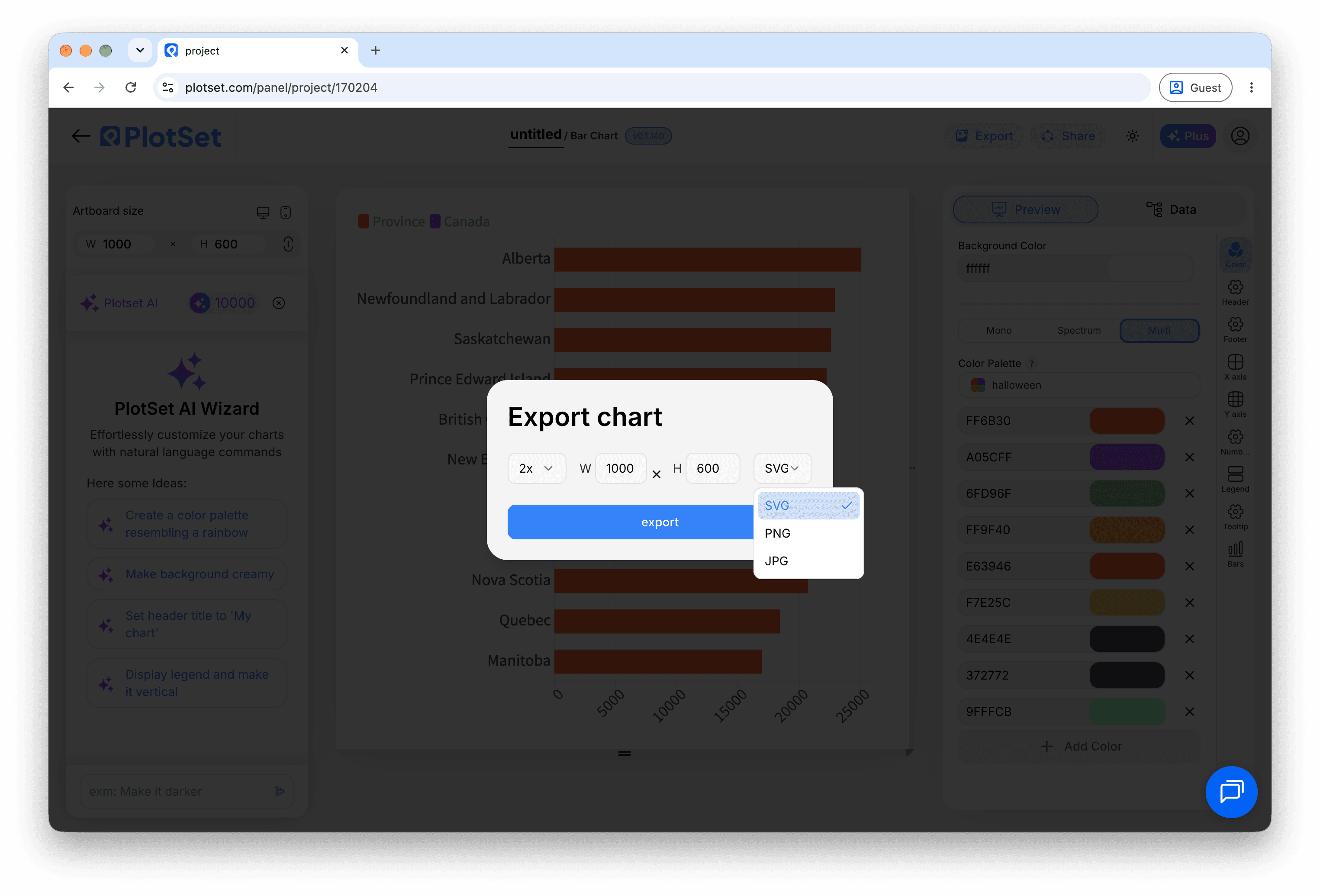
「Export」会按你需要的尺寸输出一份静态副本。SVG 放到多大都清晰,还能在设计工具里继续编辑;幻灯片和文档用 PNG 或 JPG 最稳妥。想让图片在高分屏上够锐利,关键就是那个倍数设置。

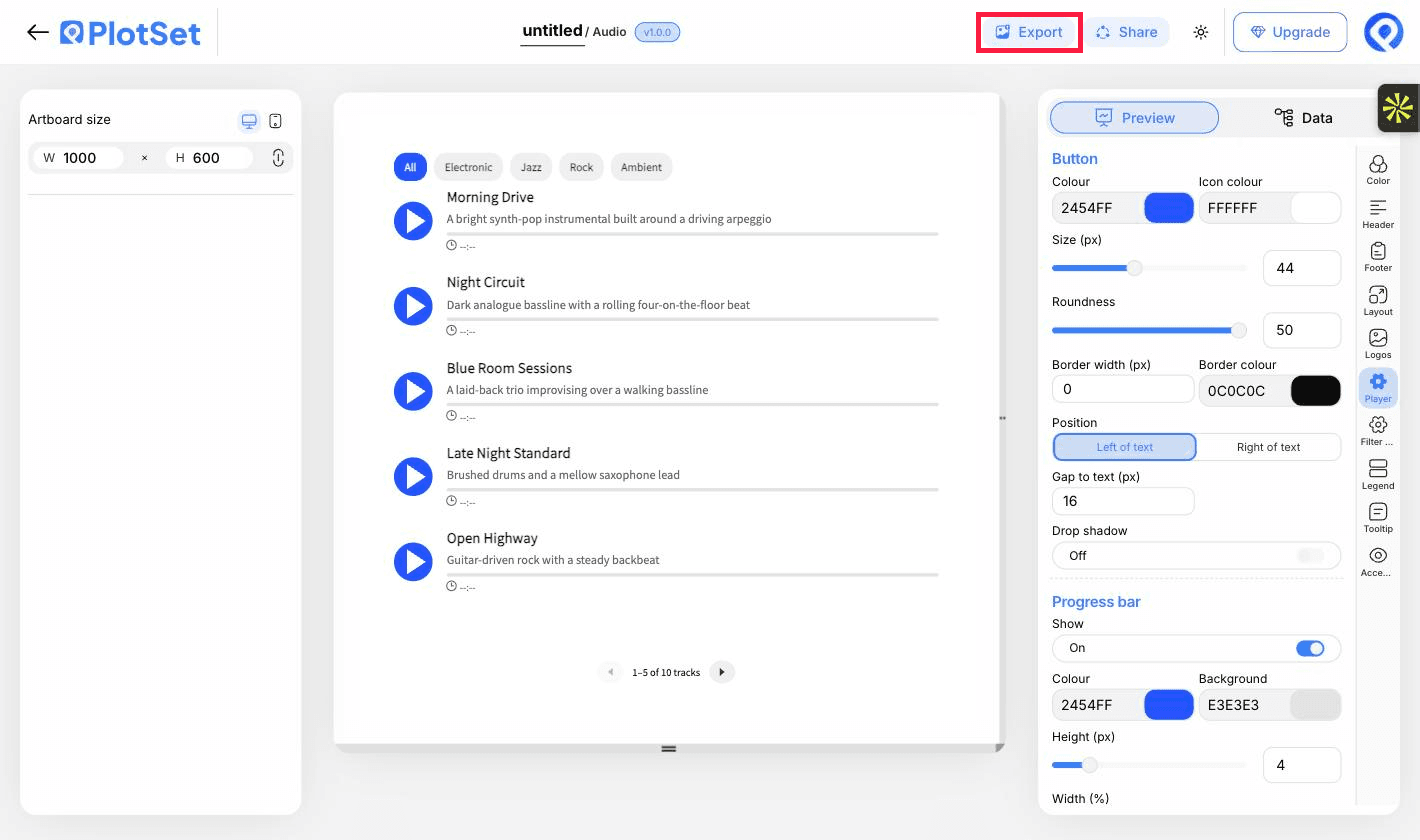
PlotSet 编辑器工具栏中高亮的「Export」按钮。
要做成幻灯片或报告里的静态文件,就走「Export」这条路。
PlotSet 的「Export chart」对话框:倍数选择器设为 2x,宽高输入框填的是 1000 和 600,展开的格式菜单里列出 SVG、PNG 和 JPG。
SVG 放到多大都清晰,还能在设计工具里继续编辑;做幻灯片用 PNG 或 JPG 最稳妥。导出前先设好倍数,图片在高分屏上才够锐利。

Audio Player 的样式提示

Write short titles

Titles and descriptions truncate to a set number of lines. Keep titles short and let the description carry the detail; the full text appears on hover.

Colour by category

Tinting play buttons by category makes groups recognisable at a glance and makes the legend useful.

Match button size to the page

A larger button is easier to tap on mobile. Check the preview at the phone artboard size.

Order tracks deliberately

Rows play in sheet order, so put the clip you most want heard first.

制作 Audio Player 时的常见错误

A track is dimmed and will not play

The row has a title but no usable link. Check the URL column for blanks, and that it ends in a real audio file.

Clicking play does nothing

The link probably points to a web page, or the host blocks direct linking. Open the URL on its own in a browser tab to test it.

The seek bar will not jump ahead

The server may not support range requests. Host the files somewhere that does, or accept that seeking is limited.

深入了解 Audio Player

不确定 Audio Player 是否是正确选择?查看它是什么、何时使用以及何时不使用。

关于 Audio Player

Audio Player:常见问题

A title and a direct audio file link for each track. A description and a category are optional.

现在制作你的 Audio Player

免费开始,300+ 模板任选。无需信用卡。