PlotSet LogoPlotSet

How to Create a Quiz

A step by step walkthrough for building a graded quiz in PlotSet, with slider and multiple choice questions, feedback on each answer and a result at the end.

约 10 分钟

You will end up with an embeddable quiz that grades each answer, shows feedback and closes with a result for the reader's score.

Expect about ten minutes. Most of it goes on writing the questions and feedback in the sheet.

你需要的数据

One sheet with one row per question, feedback line or result band, told apart by a type column.

示例 CSV
TypeQuestionInput typeCorrect answerMultiple choice optionsAnswer / PointsText
questionHow many planets are in our solar system?slider8
questionWhich planet is the hottest?multiple choiceVenusMercury :: Venus :: Mars
scoreWhich planet is the hottest?VenusCorrect!
result0-3Keep exploring.
备注

The type column holds question, score or result. Leave it unbound and every row is a question.

A number is the answer for a slider. Exact text is the answer for a choice.

Separate multiple choice options with a double colon.

A score row names its question and the answer it answers. Write *-* for any answer.

A result band stops just before its upper number, so 0-3 and 3-5 do not overlap.

操作步骤

PlotSet 中从空白模板到完成图表的具体点击路径。

  1. 01

    Open the Quiz template

    From the PlotSet dashboard, start a new project and search for Quiz. It opens with five questions about the solar system.

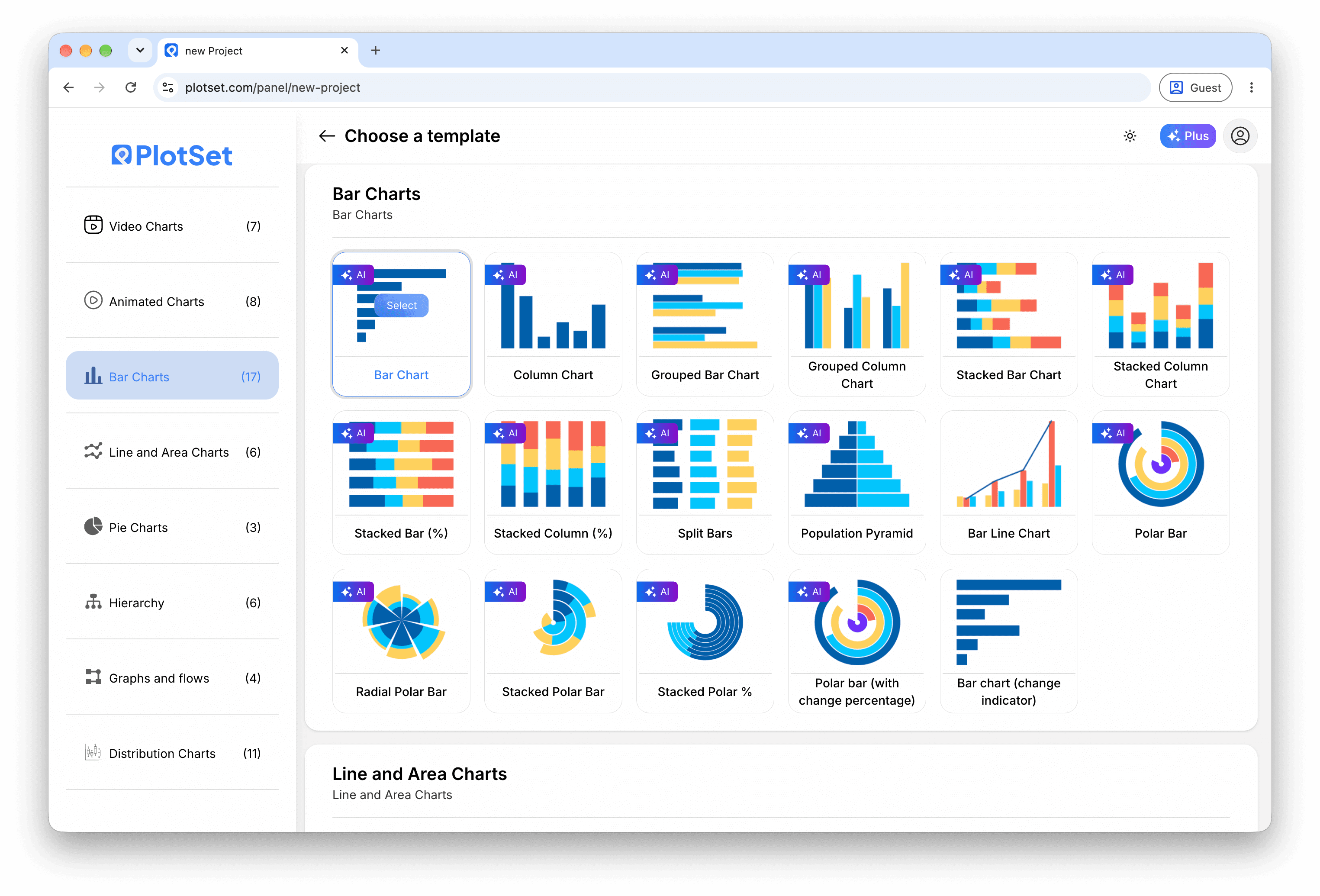
    PlotSet 的模板选择界面:左侧是图表分类列表,中间展开 Bar Charts 分类的模板网格,Bar Chart 模板卡片上显示「Select」按钮。
    每份指南都从这里开始:先选分类,再选模板,不管你要做哪种图表,用的都是同一个网格。
  2. 02

    Write the questions

    Edit the question rows, or import a CSV or .xlsx file. Give each one an input type and a correct answer, and add options for a multiple choice question.

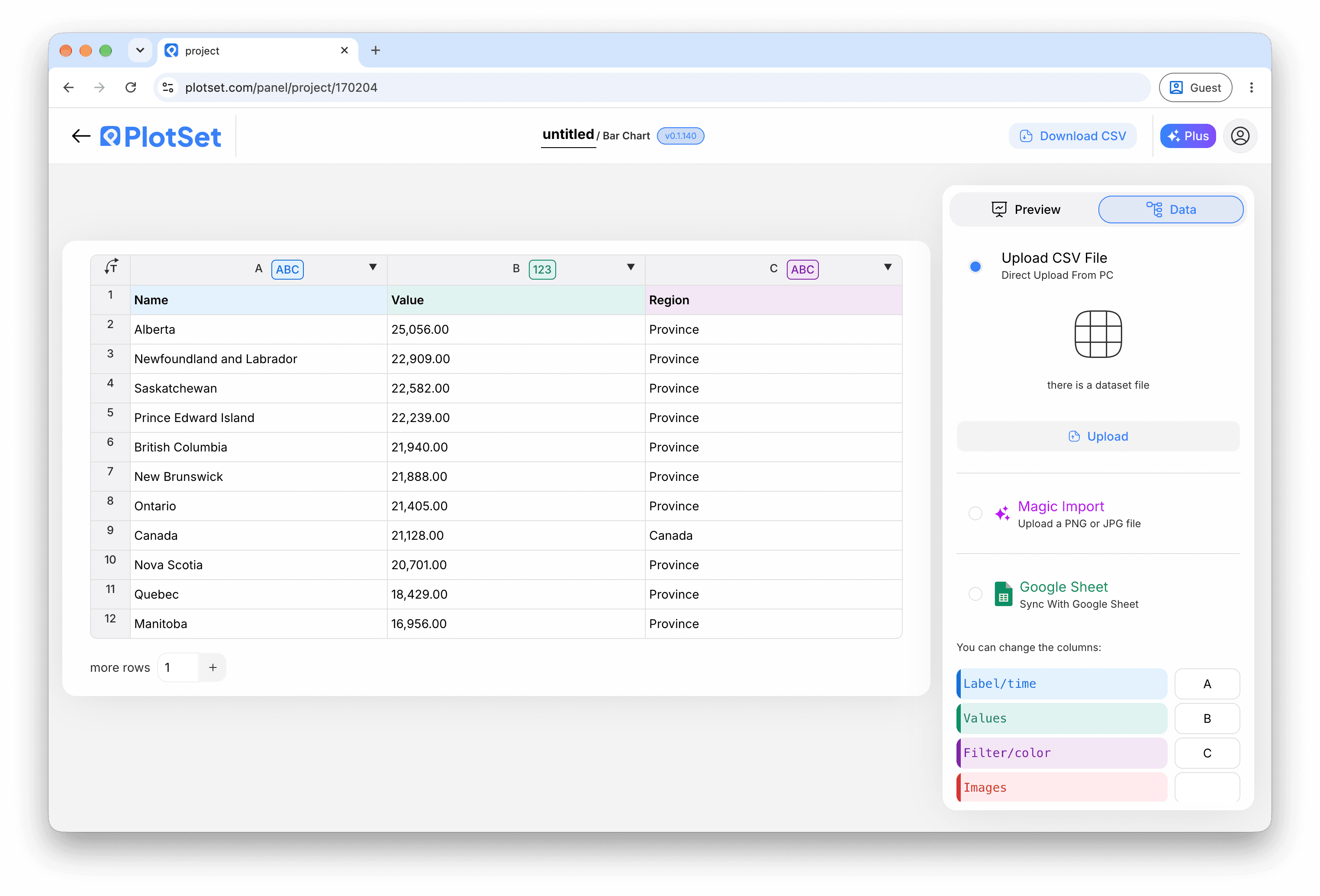
    PlotSet 编辑器的数据视图:表格中 Name、Value、Region 三列填着加拿大各省的数据,旁边的「Data」面板提供 CSV 上传、「Magic Import」和 Google Sheet 同步。
    这里的数据视图取自一个条形图项目。你可以上传 CSV、用「Magic Import」从图片里提取数字,或同步 Google Sheet,每种图表类型的面板都一样。
  3. 03

    Check the column bindings

    Bind the columns for the question, the correct answer, the input type and the choices, then the row type and the feedback text.

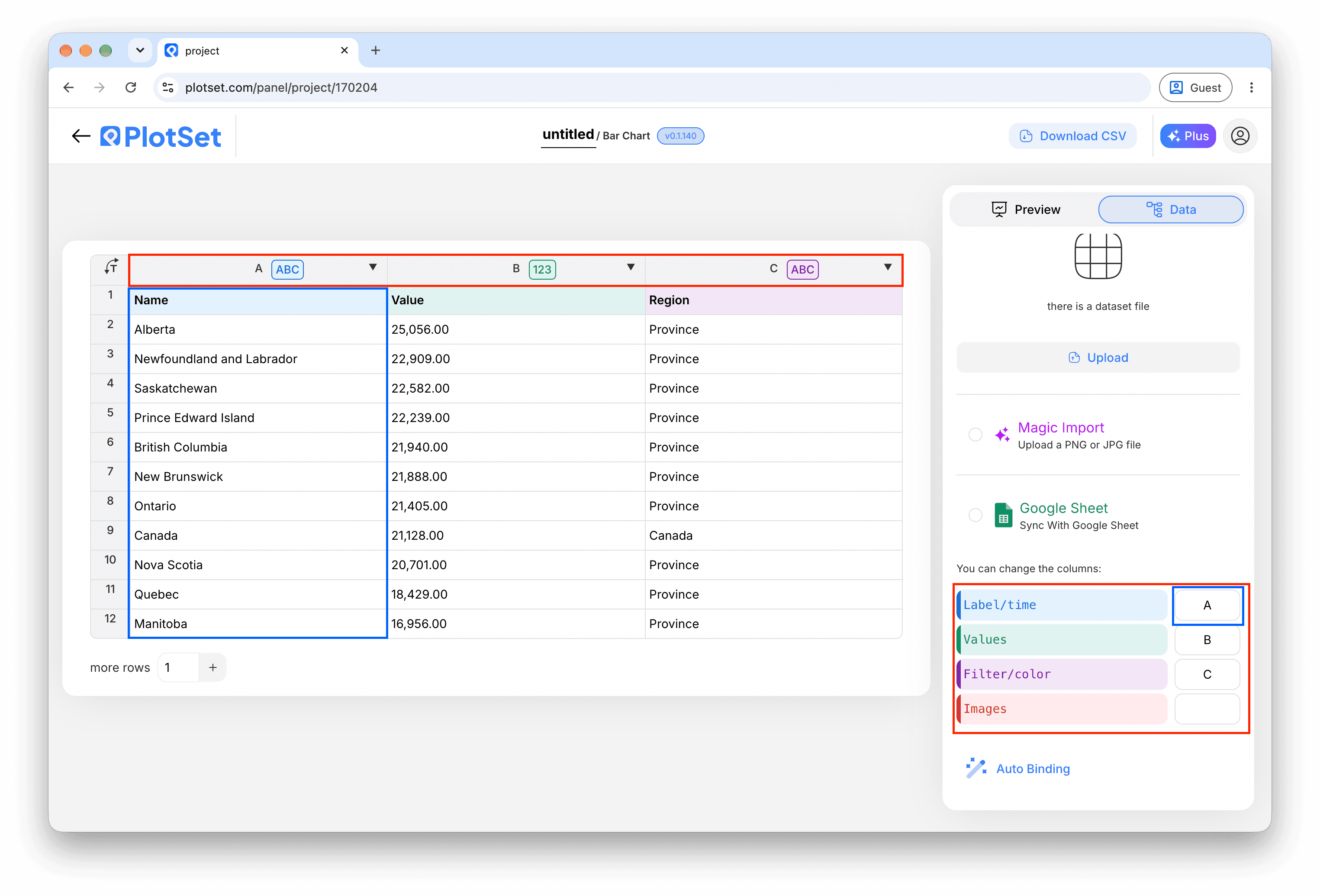
    PlotSet 数据面板中高亮的列绑定:「Label/time」对应 A 列,「Values」对应 B 列,「Filter/color」对应 C 列,下方是「Auto Binding」按钮。
    绑定决定哪一列作标签、哪一列提供数值、哪一列决定颜色。「Auto Binding」(自动绑定)会根据表头推测,所以要核对一遍,别想当然。
  4. 04

    Add feedback for each answer

    Add score rows that name a question and an answer, with a message and, if you like, an image link.

  5. 05

    Add result bands

    Add result rows for the total score, such as 0-3 and 3-5, each with a closing message.

  6. 06

    Choose the flow

    In the Quiz tab, show the questions stacked, one at a time or all at once, and decide whether an answer is required before moving on.

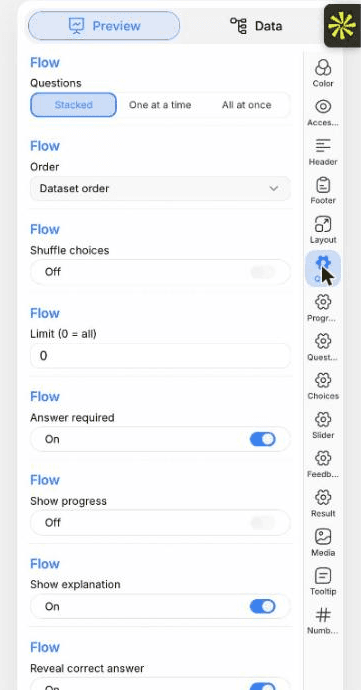
    PlotSet 编辑器停在「Preview」标签页:画布上是做好的 Quiz,右侧的设置面板用红框标出。
    Quiz 的「Preview」标签页。所有样式设置都在红框标出的这个面板里,每个设置各自占一个标签页:外观、标题、脚注,以及这种图表类型特有的选项。
  7. 07

    Set the sliders and labels

    The Slider tab sets how close a guess must be to count. The Quiz tab lets you reword every button.

  8. 08

    Publish and embed

    Publish for a live quiz and copy the embed code from the Share dialog. Take the quiz once yourself before you share it.

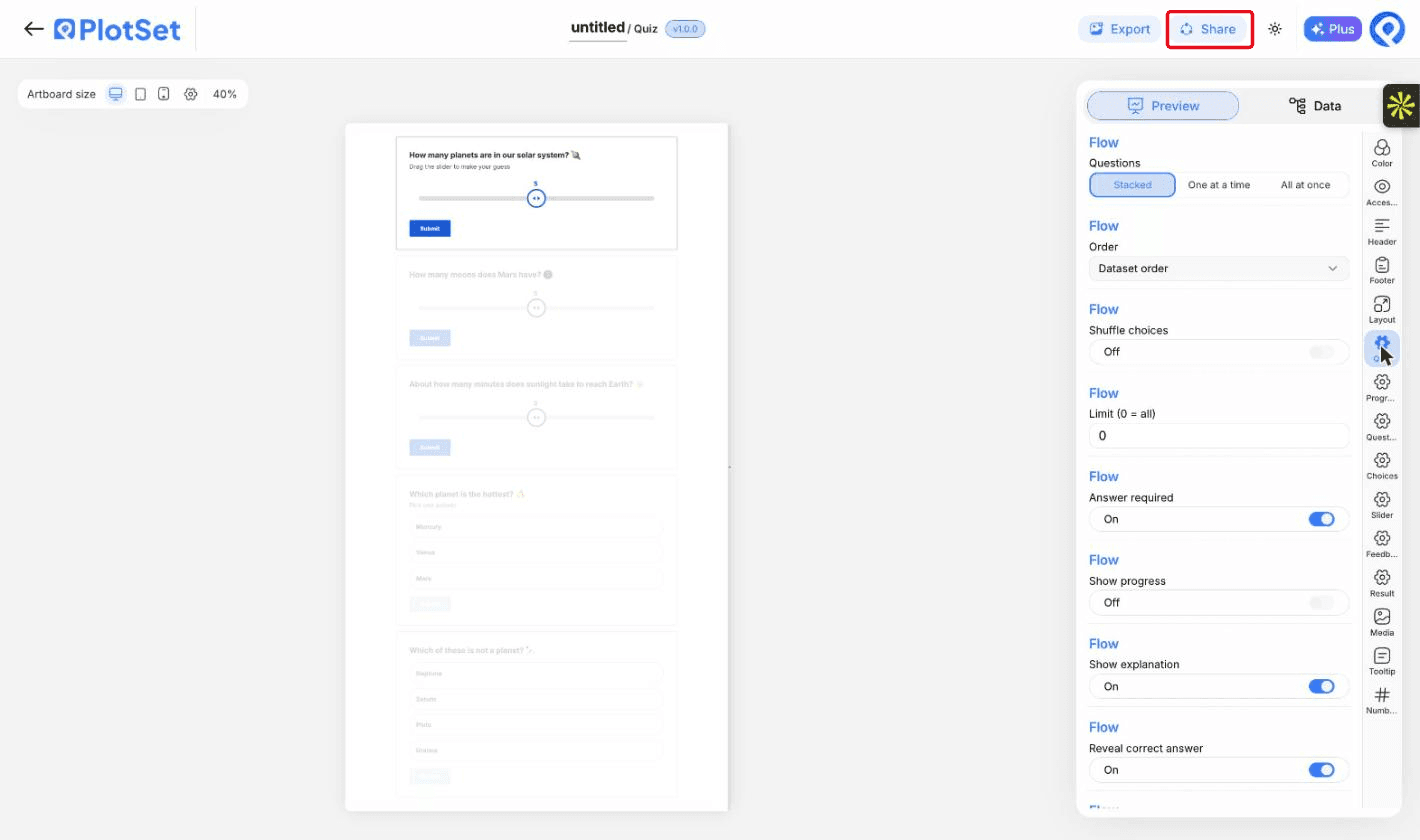
    PlotSet 编辑器工具栏中高亮的「Share」按钮,紧挨着「Export」按钮。
    点「Share」,完成的图表就会变成一个公开链接和一段嵌入代码。

从已加载示例数据的 Quiz 模板开始,再替换成你自己的数据。

打开模板

发布、嵌入或导出

最后一段路对每种图表都一样:「Share」(分享)把图表变成一个在线的公开链接和一段嵌入代码,「Export」(导出)把它输出成静态文件。

Share:公开链接与嵌入代码

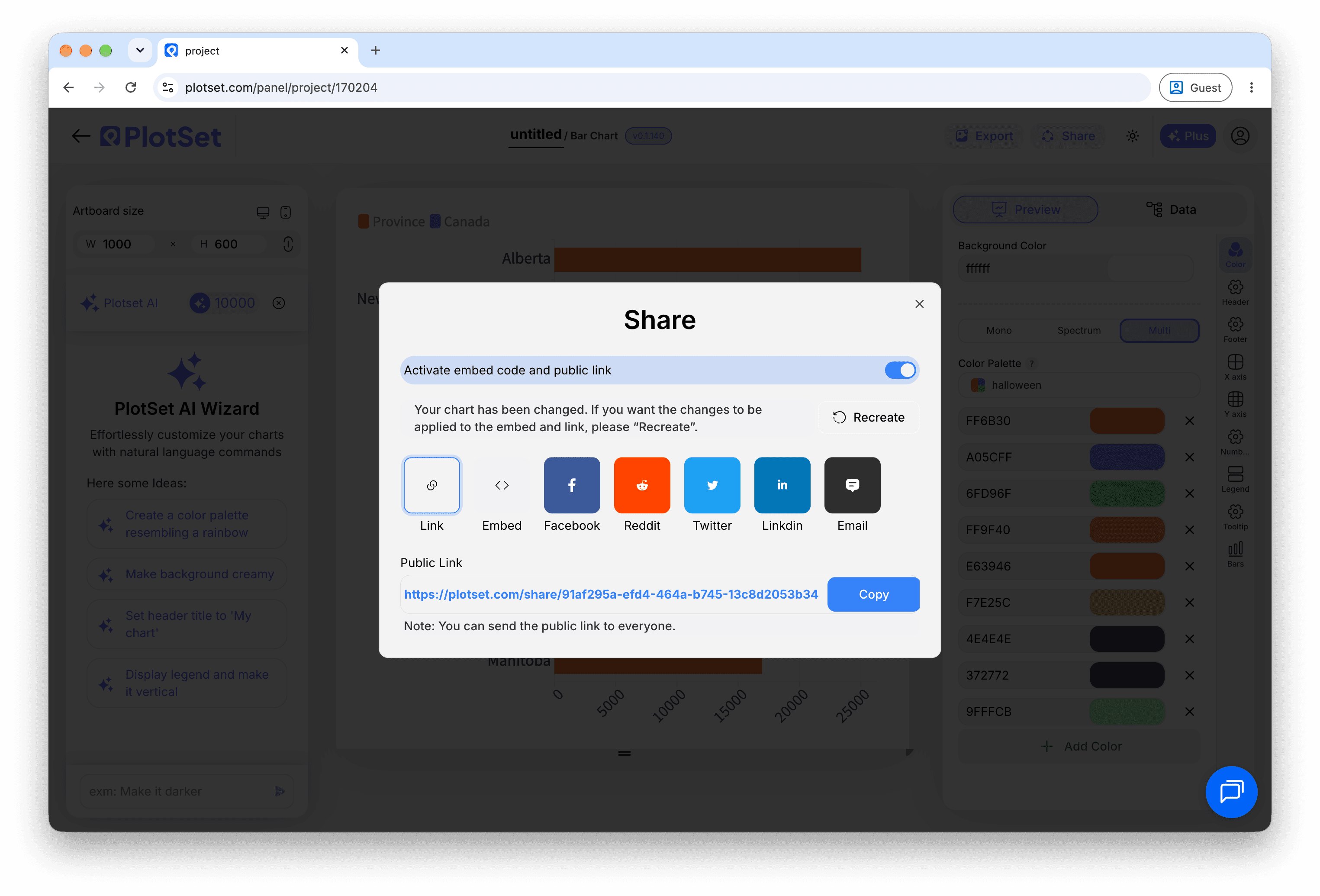
打开嵌入代码和公开链接的开关,图表就发布出去了。链接可以放心发给任何人;嵌入代码以 iframe 的形式放进任意页面,悬停提示和交互效果都会保留。之后修改了图表,点「Recreate」就能把改动同步到链接和嵌入代码两边。

PlotSet 编辑器工具栏中高亮的「Share」按钮,紧挨着「Export」按钮。
点「Share」,完成的图表就会变成一个公开链接和一段嵌入代码。
PlotSet 的「Share」对话框:用于启用嵌入代码和公开链接的开关,「Link」「Embed」「Facebook」「Reddit」「Twitter」「LinkedIn」「Email」几个按钮,以及带「Copy」按钮的图表公开链接。
打开嵌入代码和公开链接的开关,然后复制链接或取用 iframe。之后再修改图表,点「Recreate」就能把改动同步给所有已拿到链接的人。

Export:SVG、PNG 或 JPG

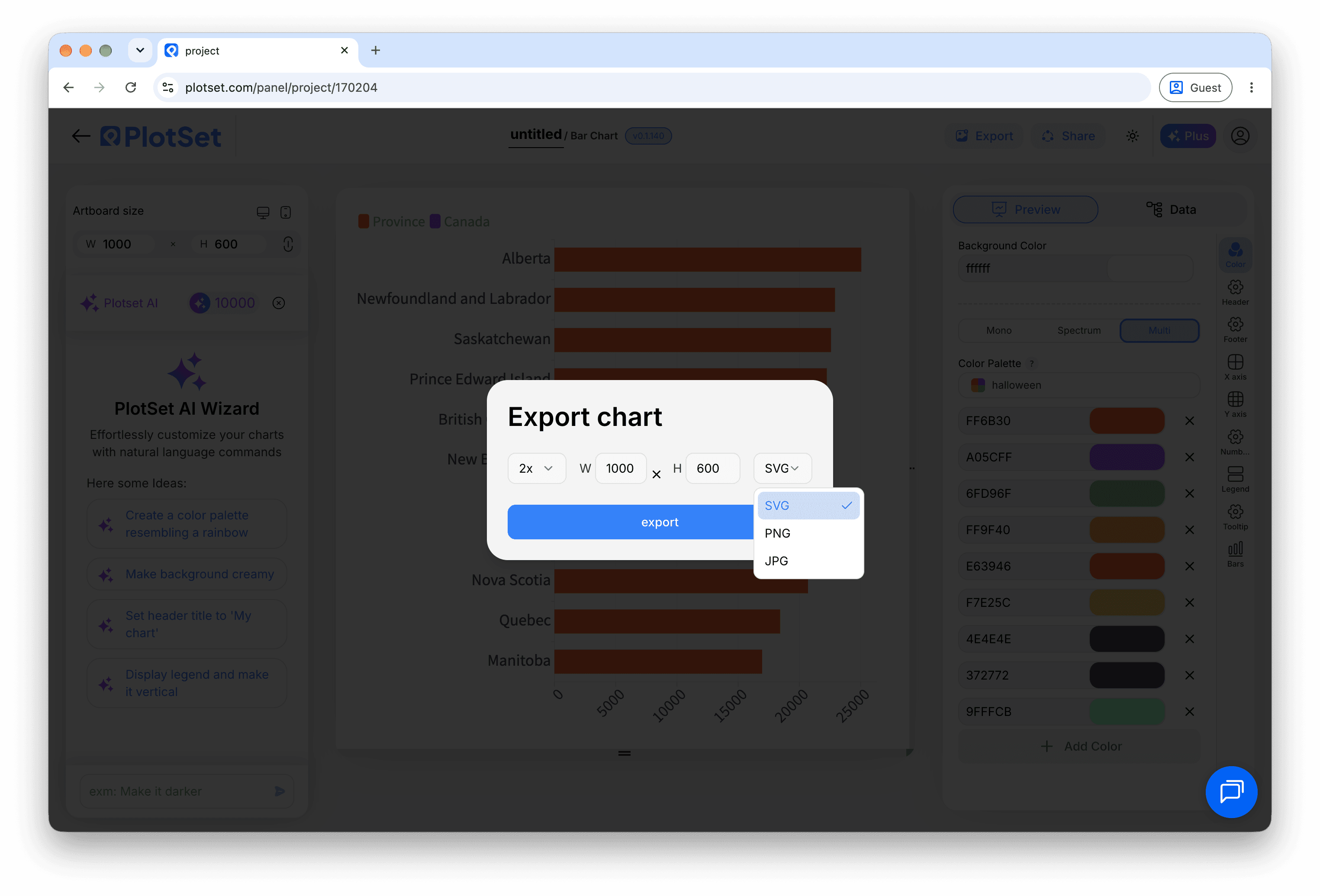
「Export」会按你需要的尺寸输出一份静态副本。SVG 放到多大都清晰,还能在设计工具里继续编辑;幻灯片和文档用 PNG 或 JPG 最稳妥。想让图片在高分屏上够锐利,关键就是那个倍数设置。

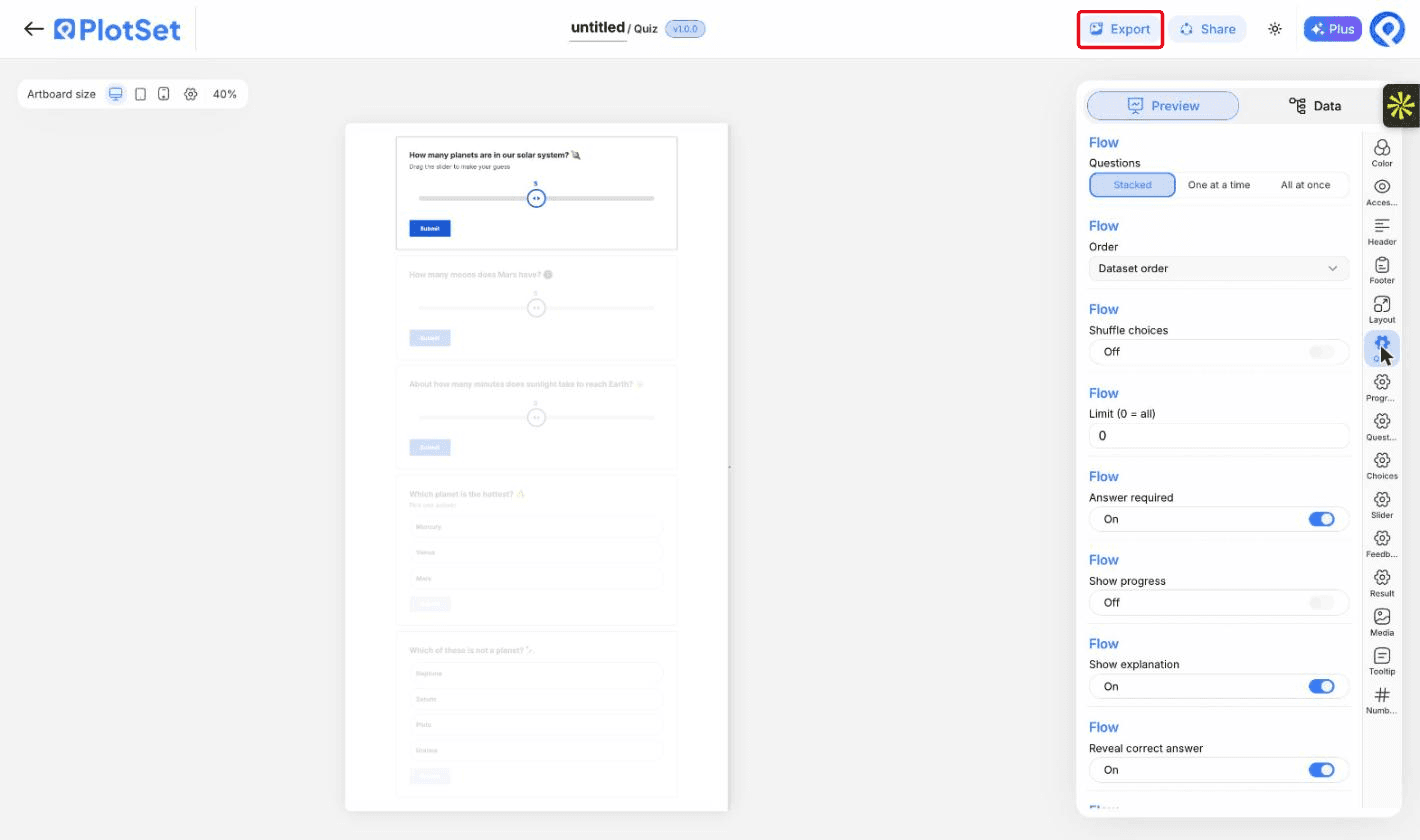
PlotSet 编辑器工具栏中高亮的「Export」按钮。
要做成幻灯片或报告里的静态文件,就走「Export」这条路。
PlotSet 的「Export chart」对话框:倍数选择器设为 2x,宽高输入框填的是 1000 和 600,展开的格式菜单里列出 SVG、PNG 和 JPG。
SVG 放到多大都清晰,还能在设计工具里继续编辑;做幻灯片用 PNG 或 JPG 最稳妥。导出前先设好倍数,图片在高分屏上才够锐利。

Quiz 的样式提示

Mix the question types

A slider or two between multiple choice questions keeps readers engaged.

Explain the answer

A line of explanation after each answer is what readers remember.

Keep it short

Five to ten questions suits most readers.

Use pictures sparingly

An image helps on feedback rows. Too many slow the page.

制作 Quiz 时的常见错误

A question is never marked correct

The answer text must match a choice exactly. Check spelling and spaces.

No feedback appears

The score row's question must match the question text exactly, or use its number.

The result card shows default text

No result band matched the final score. Check that the bands cover every possible score.

Everything is treated as a question

The type column is not bound. Bind it to separate questions, feedback and results.

深入了解 Quiz

不确定 Quiz 是否是正确选择?查看它是什么、何时使用以及何时不使用。

关于 Quiz

Quiz:常见问题

Yes. Set the input type to dropdown and list the options.

现在制作你的 Quiz

免费开始,600+ 模板任选。无需信用卡。