| Type | Question | Input type | Correct answer | Multiple choice options | Answer / Points | Text |
|---|---|---|---|---|---|---|
| question | How many planets are in our solar system? | slider | 8 | |||
| question | Which planet is the hottest? | multiple choice | Venus | Mercury :: Venus :: Mars | ||
| score | Which planet is the hottest? | Venus | Correct! | |||
| result | 0-3 | Keep exploring. |
How to Create a Quiz
A step by step walkthrough for building a graded quiz in PlotSet, with slider and multiple choice questions, feedback on each answer and a result at the end.
Environ 10 minutesYou will end up with an embeddable quiz that grades each answer, shows feedback and closes with a result for the reader's score.
Expect about ten minutes. Most of it goes on writing the questions and feedback in the sheet.
Les données dont vous avez besoin
One sheet with one row per question, feedback line or result band, told apart by a type column.
The type column holds question, score or result. Leave it unbound and every row is a question.
A number is the answer for a slider. Exact text is the answer for a choice.
Separate multiple choice options with a double colon.
A score row names its question and the answer it answers. Write *-* for any answer.
A result band stops just before its upper number, so 0-3 and 3-5 do not overlap.
Les étapes
Le parcours exact dans PlotSet, d'un modèle vierge à un graphique terminé.
- 01
Open the Quiz template
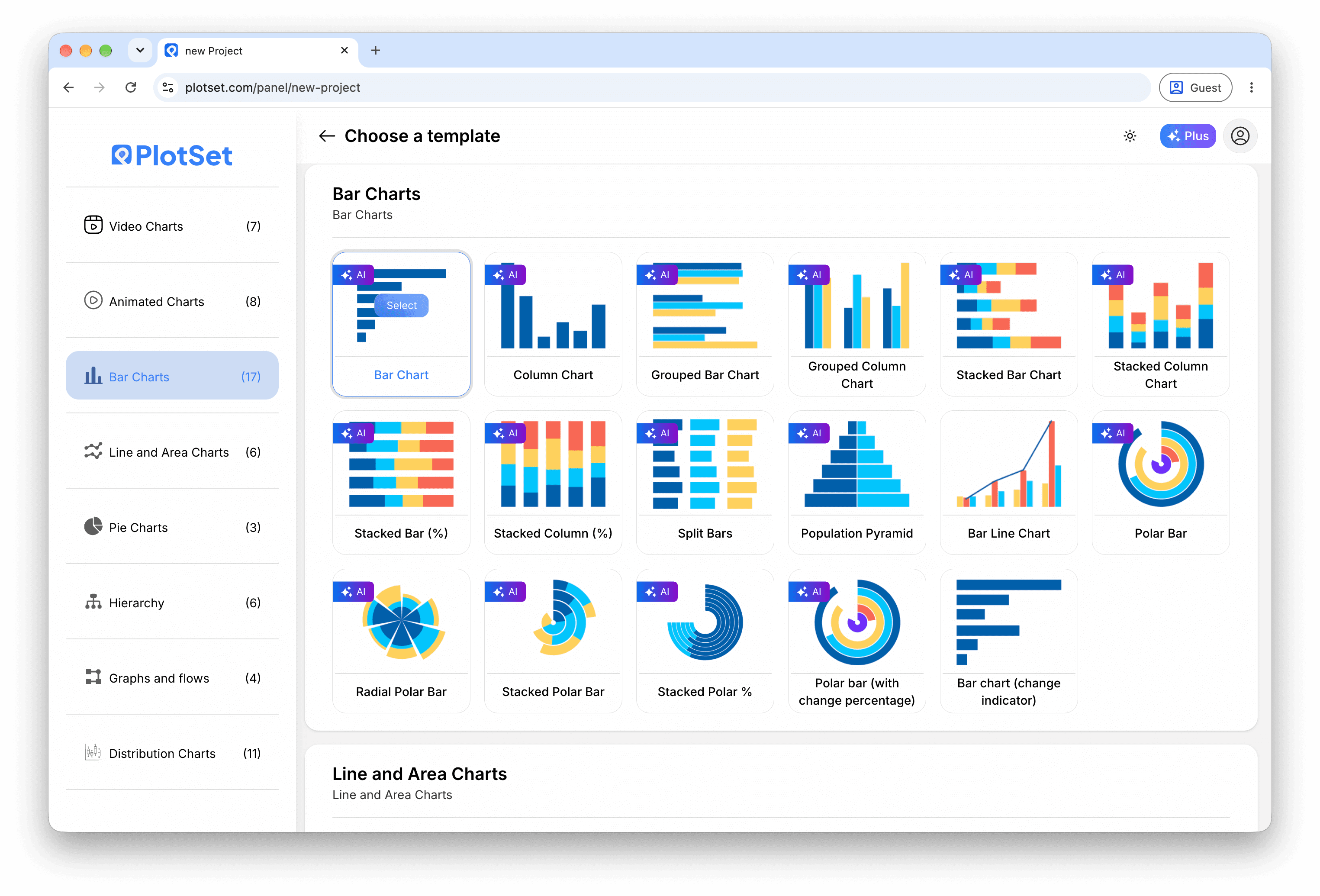
From the PlotSet dashboard, start a new project and search for Quiz. It opens with five questions about the solar system.

Chaque guide commence ici. Choisissez la catégorie, puis le modèle : c'est la même grille quel que soit le type de graphique visé. - 02
Write the questions
Edit the question rows, or import a CSV or .xlsx file. Give each one an input type and a correct answer, and add options for a multiple choice question.

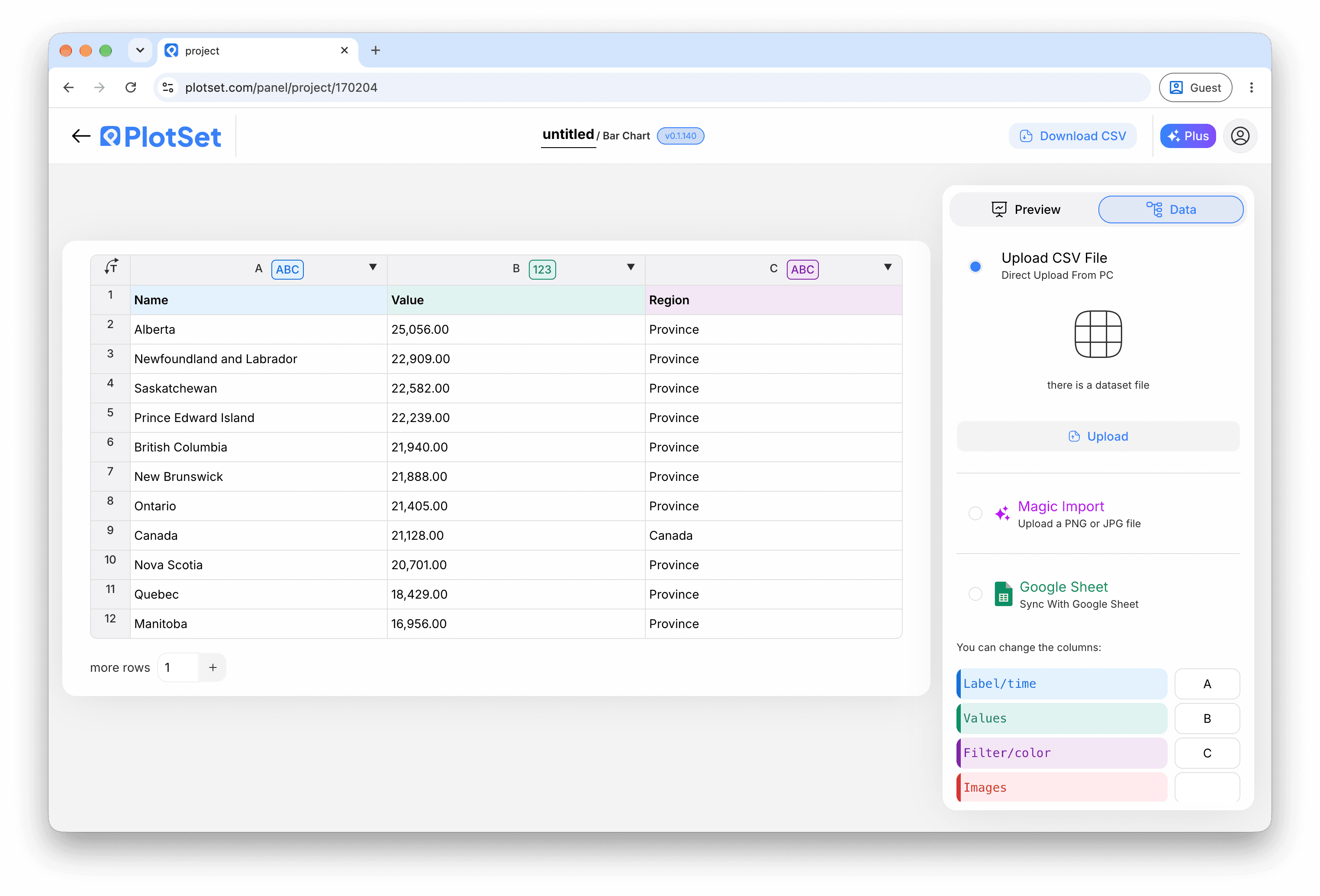
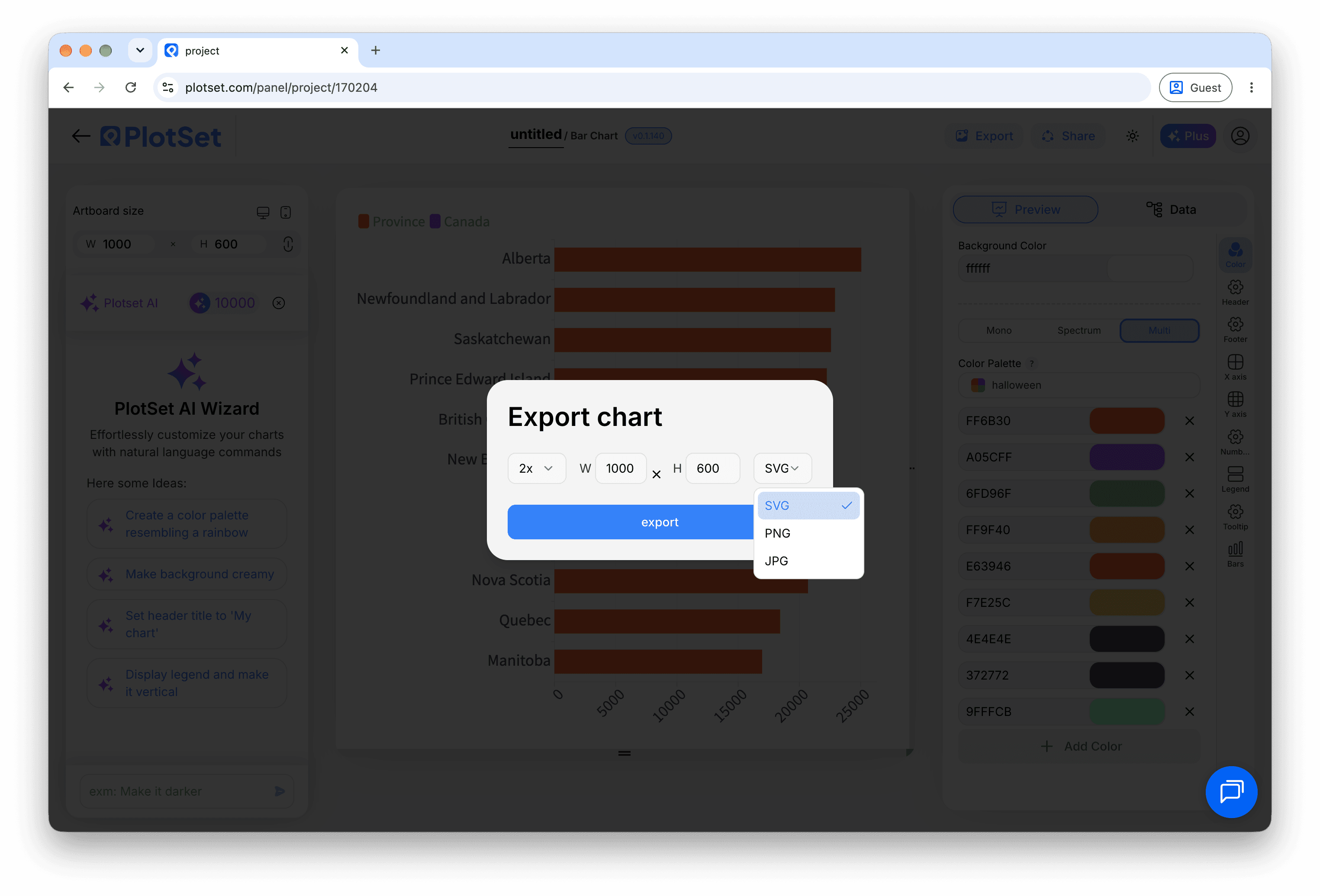
La vue données, ici sur un projet de graphique en barres. Importez un CSV, extrayez les chiffres d'une image avec 'Magic Import' ou synchronisez une Google Sheet. Le panneau est identique pour tous les types de graphique. - 03
Check the column bindings
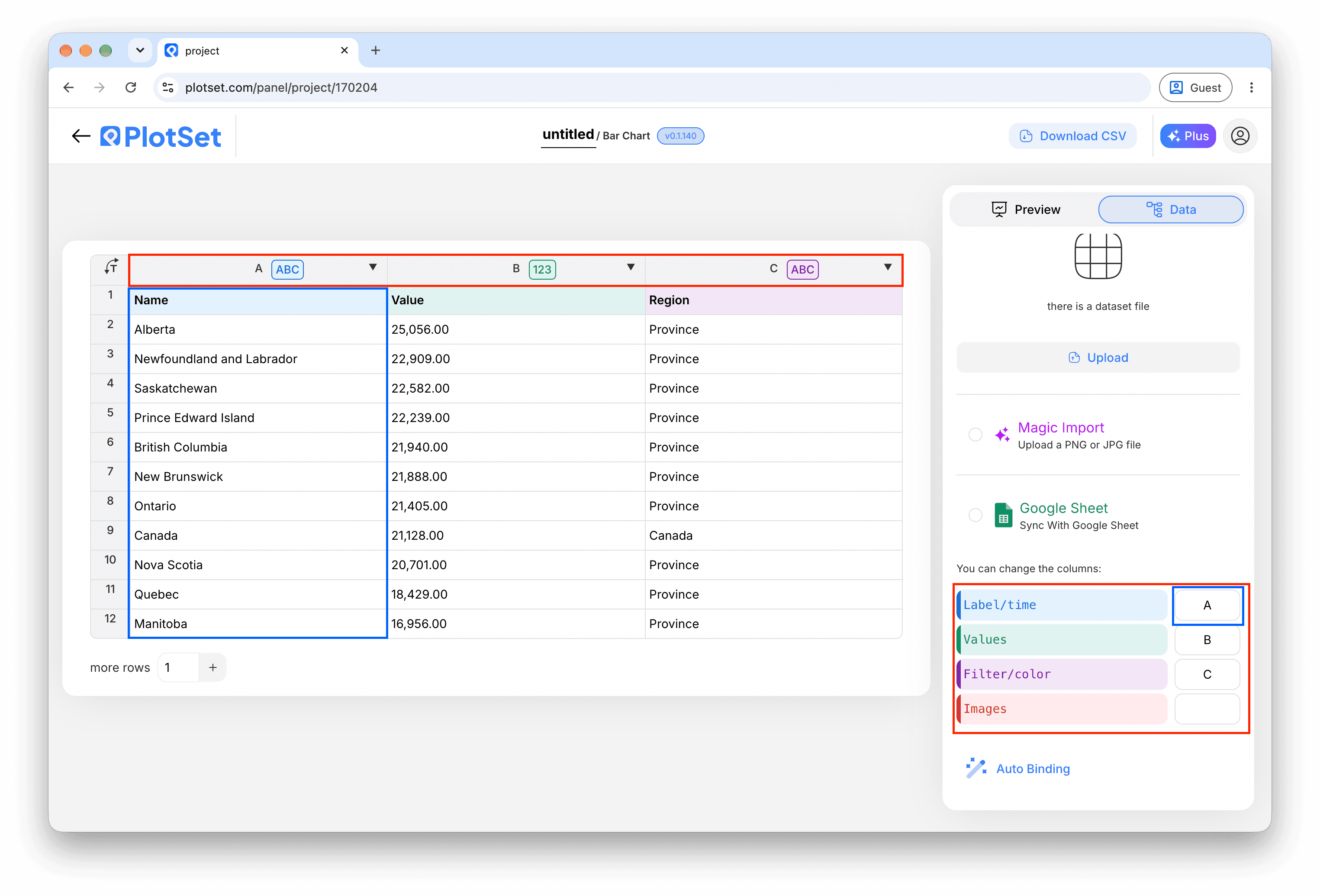
Bind the columns for the question, the correct answer, the input type and the choices, then the row type and the feedback text.

Les associations déterminent quelle colonne devient l'étiquette, laquelle fournit les valeurs et laquelle pilote la couleur. 'Auto Binding' les devine à partir de vos en-têtes : vérifiez-les plutôt que de les tenir pour acquises. - 04
Add feedback for each answer
Add score rows that name a question and an answer, with a message and, if you like, an image link.
- 05
Add result bands
Add result rows for the total score, such as 0-3 and 3-5, each with a closing message.
- 06
Choose the flow
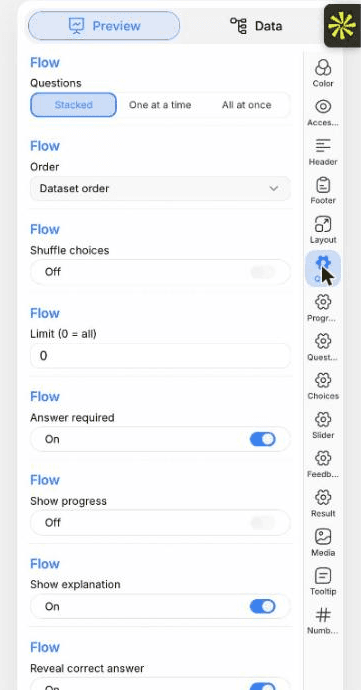
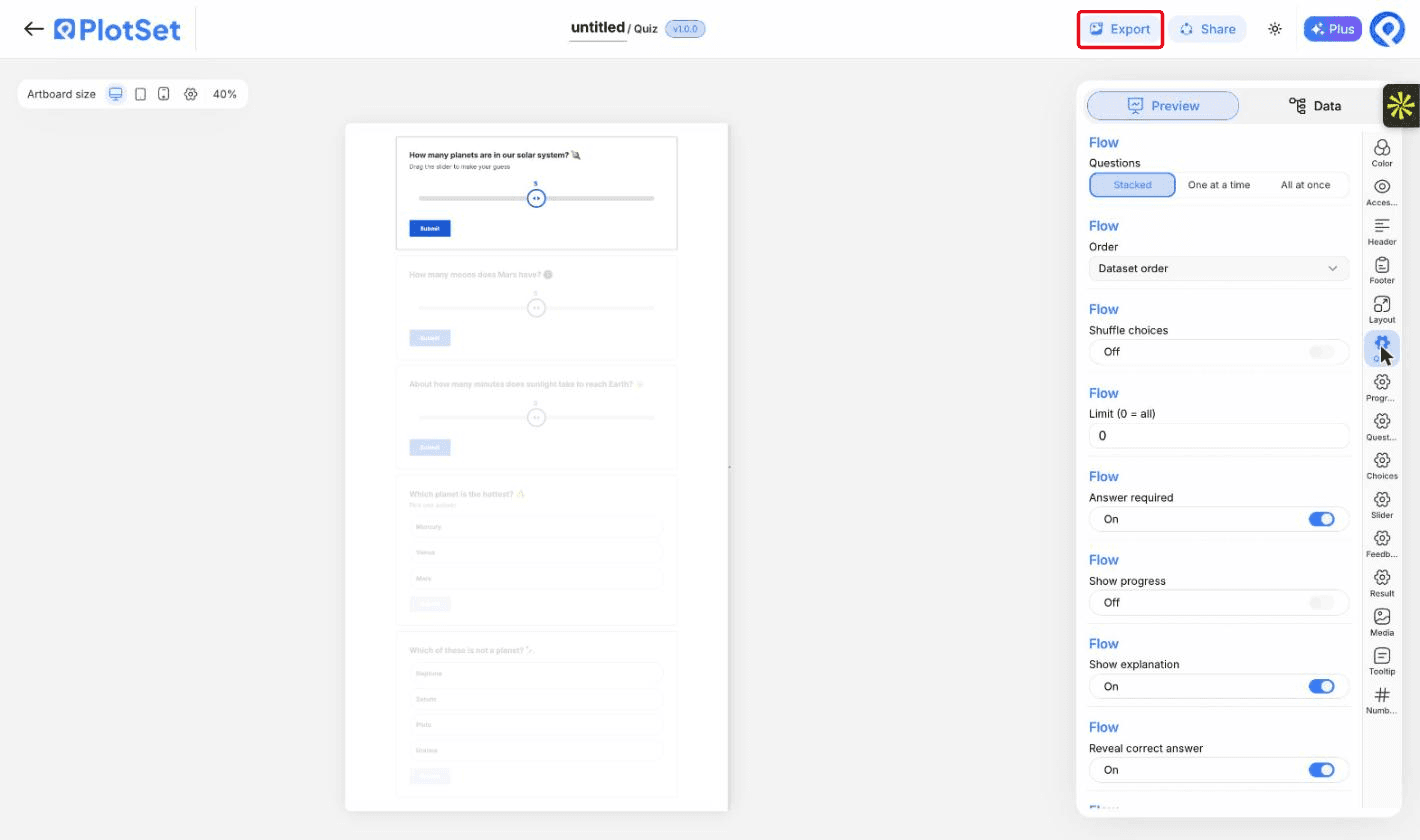
In the Quiz tab, show the questions stacked, one at a time or all at once, and decide whether an answer is required before moving on.

L'onglet 'Preview' pour un graphique Quiz. Tous les réglages de style se trouvent dans le panneau entouré en rouge : apparence, en-tête, pied de page et les options propres à ce type de graphique, chacun dans un onglet distinct. - 07
Set the sliders and labels
The Slider tab sets how close a guess must be to count. The Quiz tab lets you reword every button.
- 08
Publish and embed
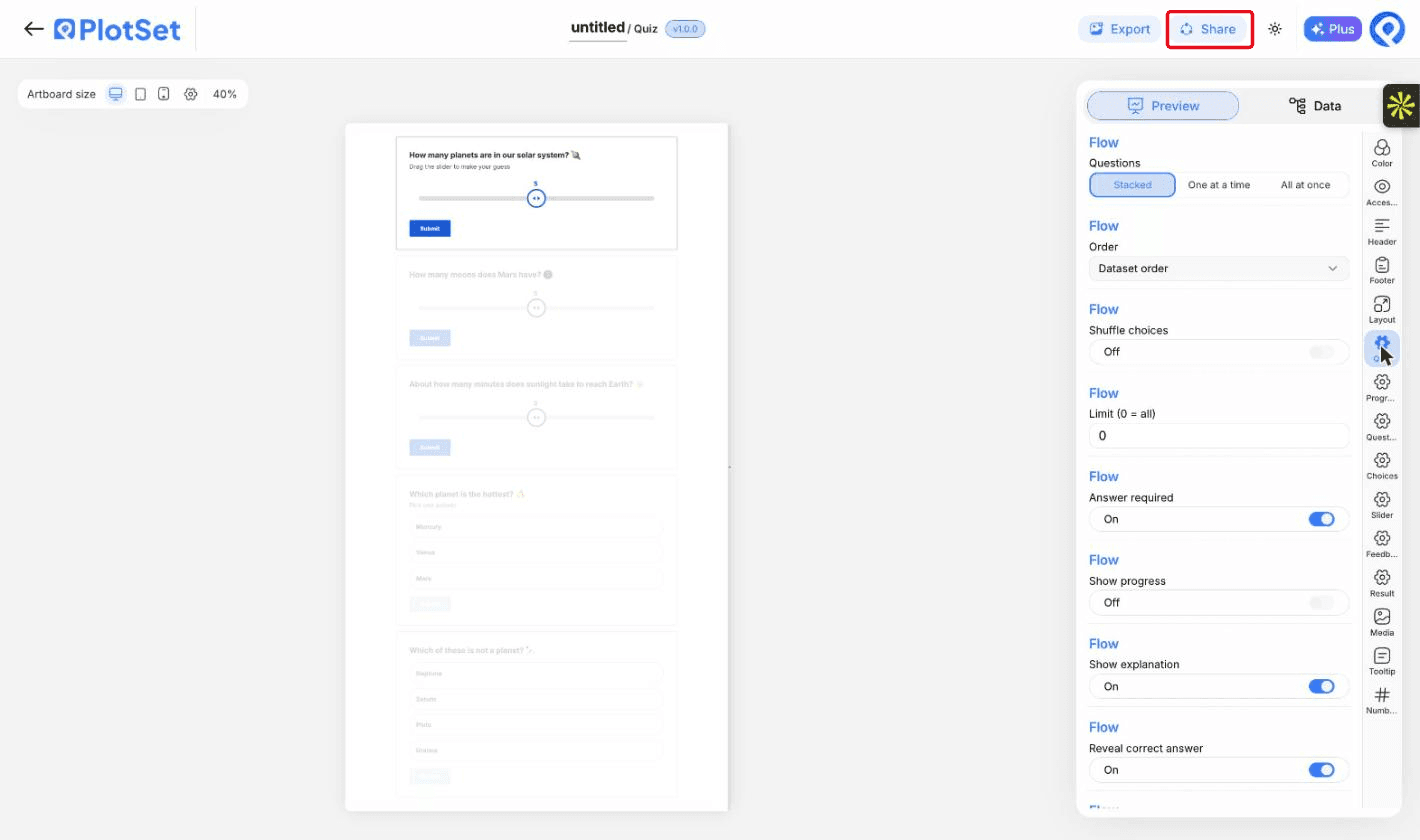
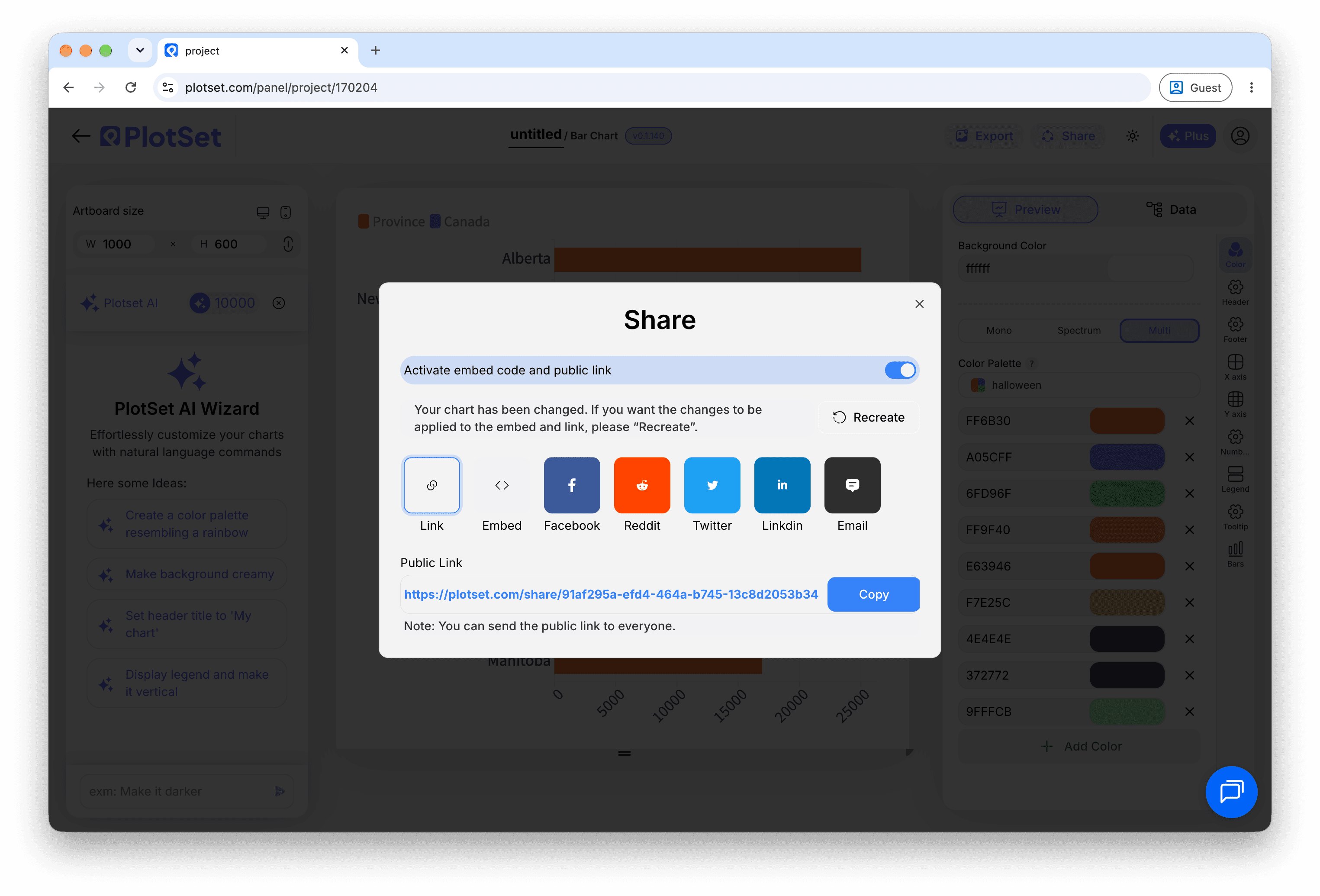
Publish for a live quiz and copy the embed code from the Share dialog. Take the quiz once yourself before you share it.

C'est par 'Share' qu'un graphique terminé devient un lien public et un code d'intégration.
Partez du modèle Quiz avec des données d'exemple déjà chargées, puis remplacez-les par les vôtres.
Ouvrir le modèleConseils de style pour un Quiz
Mix the question types
A slider or two between multiple choice questions keeps readers engaged.
Explain the answer
A line of explanation after each answer is what readers remember.
Keep it short
Five to ten questions suits most readers.
Use pictures sparingly
An image helps on feedback rows. Too many slow the page.
Erreurs courantes en créant un Quiz
A question is never marked correct
The answer text must match a choice exactly. Check spelling and spaces.
No feedback appears
The score row's question must match the question text exactly, or use its number.
The result card shows default text
No result band matched the final score. Check that the bands cover every possible score.
Everything is treated as a question
The type column is not bound. Bind it to separate questions, feedback and results.
En savoir plus sur le Quiz
Vous n'êtes pas sûr que le Quiz soit le bon choix ? Découvrez ce que c'est, quand l'utiliser et quand l'éviter.
Quiz : questions fréquentes
Yes. Set the input type to dropdown and list the options.
Créez votre Quiz maintenant
Gratuit pour commencer avec plus de 600 modèles. Aucune carte bancaire requise.