PlotSet LogoPlotSet

How to Create an Audio Player Playlist

A step by step walkthrough for turning a spreadsheet of titles and audio links into a published, embeddable playlist in PlotSet, with play buttons, progress bars and category filters.

Unos 6 minutos

A list of tracks with play buttons, progress bars and category filters, built from a spreadsheet and ready to embed: that is what you will have. Each row becomes one playable track, and adding a track later means adding a row.

If you already have direct links to your audio files, it takes about six minutes. The one prerequisite is hosting, since PlotSet streams from the links you give it rather than storing the files.

Los datos que necesitas

One row per track with up to four columns: title, an optional description, a direct audio file URL, and an optional category used for filtering and colour.

CSV de ejemplo
titlesubtitleurlfilter
Morning DriveA bright synth-pop instrumentalhttps://example.com/audio/morning-drive.mp3Electronic
Blue Room SessionsA laid-back jazz triohttps://example.com/audio/blue-room.mp3Jazz
Open HighwayGuitar-driven rock with a steady backbeathttps://example.com/audio/open-highway.mp3Rock
Notas

The URL must point directly at an audio file such as an MP3, OGG or WAV, not at a page that contains a player.

A row with a title but no link still appears, dimmed and not playable. A row with neither title nor link is dropped.

Keep category spellings identical, or the filter will list the same group twice.

The hosting server must allow direct linking and, ideally, range requests so seeking and the buffered bar work.

Los pasos

El camino exacto en PlotSet, desde una plantilla en blanco hasta el gráfico terminado.

  1. 01

    Open the Audio template

    From the PlotSet dashboard, start a new project and choose Audio from the Other category. It loads with a sample playlist so you can see how each row becomes a track.

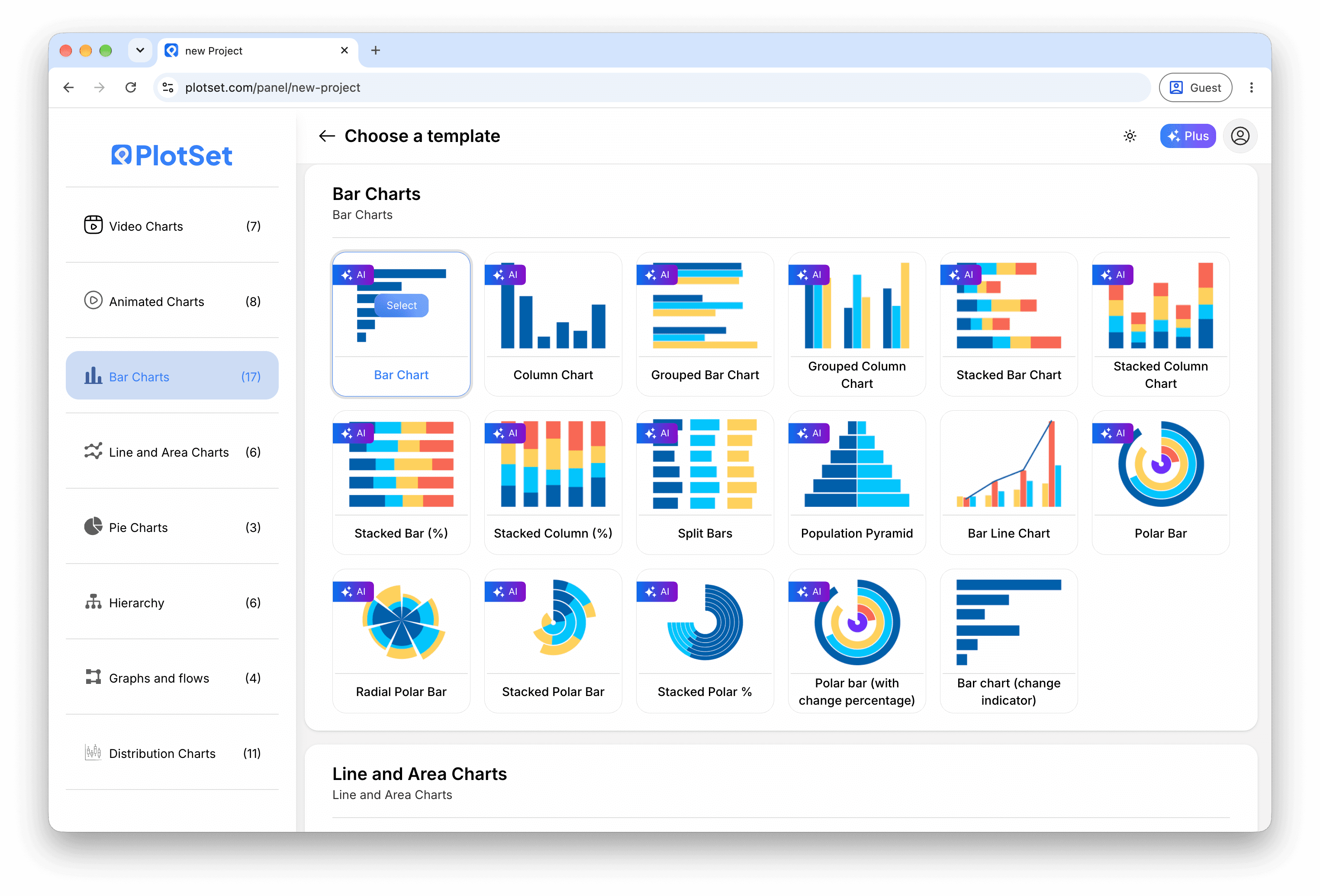
    El selector de plantillas de PlotSet: las categorías de gráficos en la columna izquierda, la cuadrícula Bar Charts abierta y la tarjeta de la plantilla Bar Chart con su botón Select visible.
    Todas las guías empiezan aquí. Elige la categoría y luego la plantilla. Es la misma cuadrícula sea cual sea el tipo de gráfico que busques.
  2. 02

    Prepare your track list

    Give each track a title and a direct file link, plus a description and category if you want them. Open each link in a browser tab first to confirm it plays.

  3. 03

    Upload the file, or connect it live

    Import a CSV or .xlsx file from the data panel, paste rows from a spreadsheet, or connect a Google Sheet so new tracks appear without re-embedding. The first row is read as the headers.

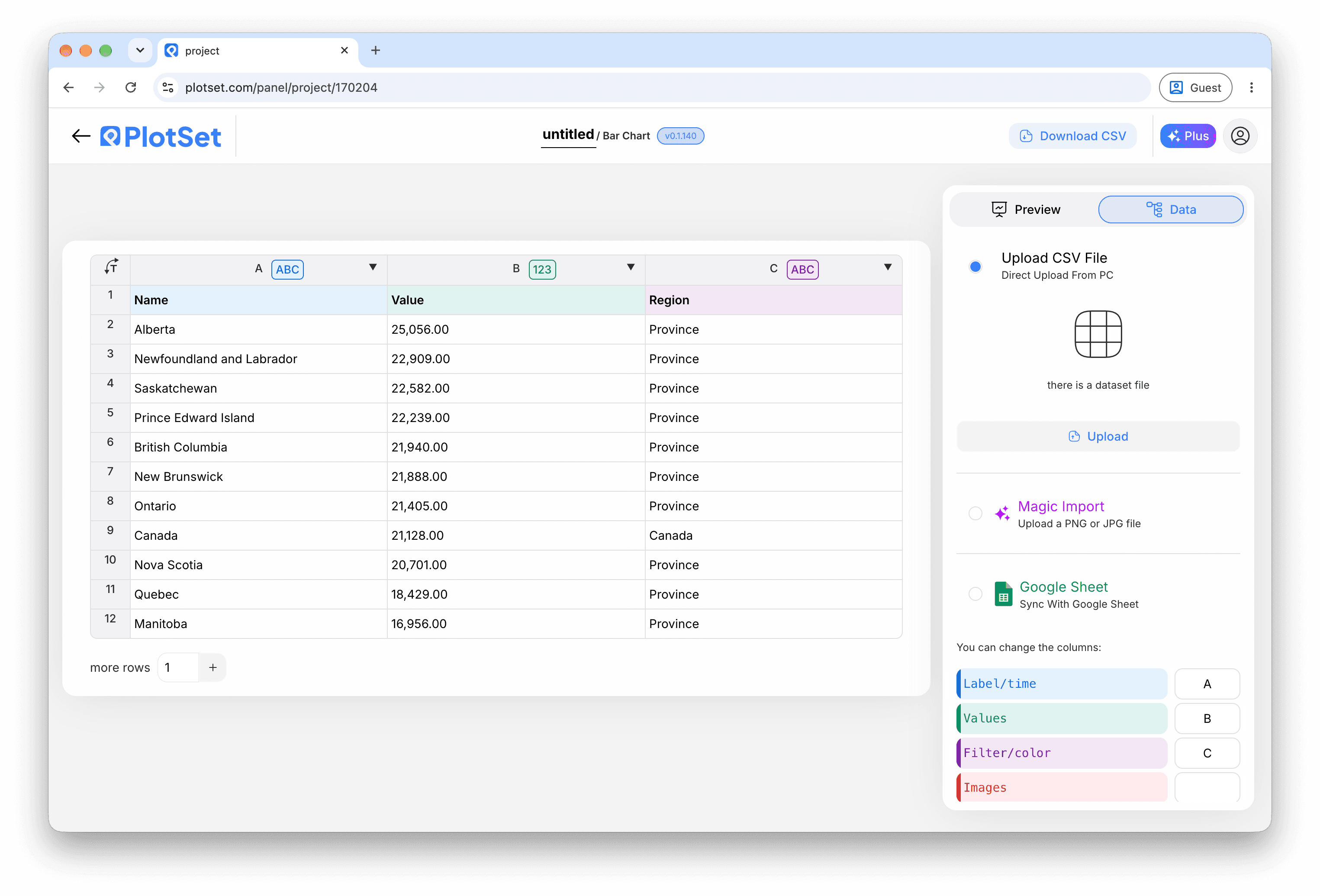
    La vista de datos del editor de PlotSet: una hoja de cálculo con las columnas Name, Value y Region llenas de cifras de provincias canadienses, junto al panel Data, que ofrece subida de CSV, Magic Import y sincronización con Google Sheet.
    La vista de datos, aquí en un proyecto de gráfico de barras. Sube un CSV, saca los números de una imagen con Magic Import o sincroniza una Google Sheet. El panel es el mismo en todos los tipos de gráfico.
  4. 04

    Check the column bindings

    Confirm which column is the title, the description, the audio URL and the category. This is usually right automatically when the headers are clear.

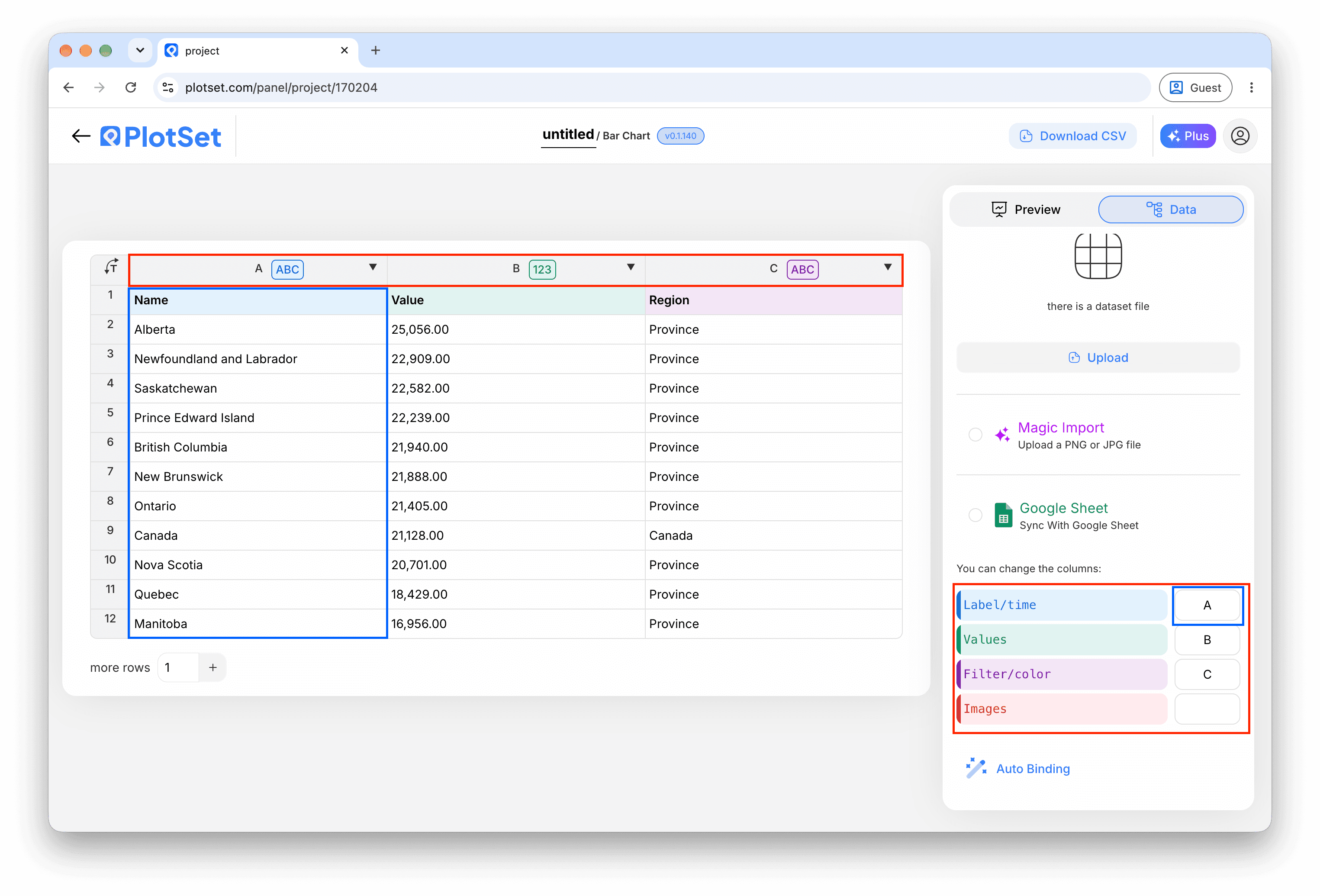
    El panel de datos de PlotSet con las asignaciones de columnas resaltadas: Label/time apuntando a la columna A, Values a la columna B y Filter/color a la columna C, con el botón Auto Binding debajo.
    Las asignaciones deciden qué columna se convierte en la etiqueta, cuál aporta los valores y cuál define el color. Auto Binding las deduce de tus encabezados, así que revísalas en lugar de darlas por buenas.
  5. 05

    Style the player

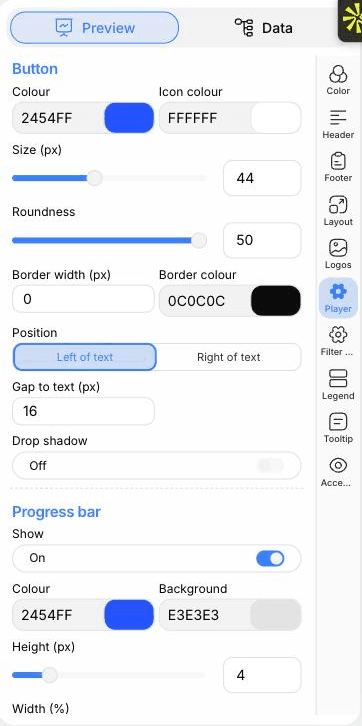
    Open the Player tab to set the button colour, size and roundness, put it left or right of the text, and show or hide the progress bar. You can also choose one, two or three columns.

    El editor de PlotSet en la pestaña Preview: un gráfico de tipo Audio Player ya terminado en el lienzo y, a la derecha, el panel de ajustes rodeado por un recuadro rojo.
    La pestaña Preview de un gráfico de tipo Audio Player. Todos los controles de estilo están en el panel enmarcado: apariencia, encabezado, pie de página y las opciones propias de este tipo de gráfico, cada grupo en su propia pestaña.
  6. 06

    Add category filters

    In the Filter controls tab choose pill buttons, a dropdown or a stepped slider. In the Color tab you can tint the rows by category too.

  7. 07

    Set the size and pagination

    Adjust the artboard height so the rows you want fit. Longer lists are paginated with a pager underneath rather than scrolled.

  8. 08

    Publish it or embed it

    Publish for a live playlist and copy the embed code for your page. A PNG or PDF export captures only the page of tracks currently showing.

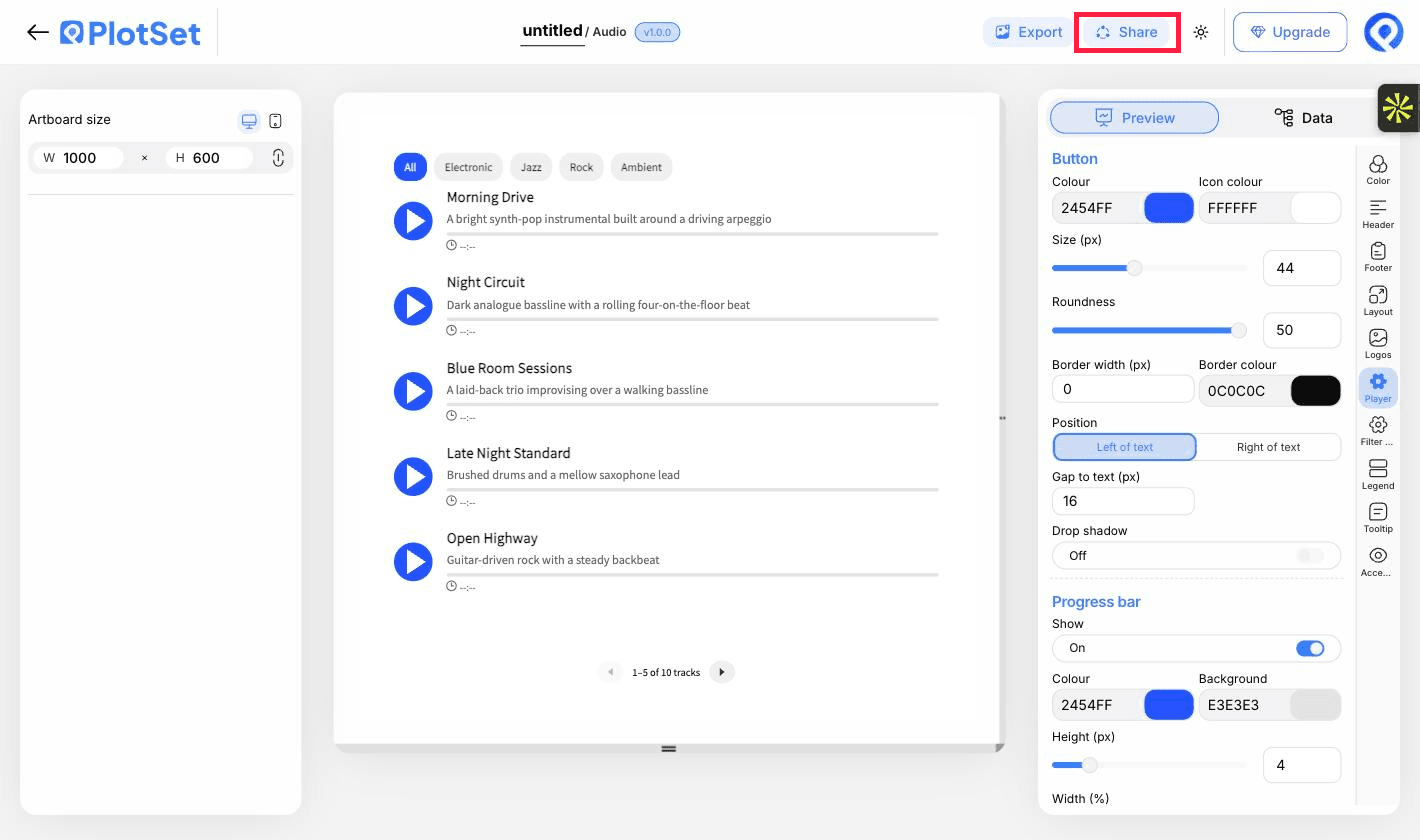
    La barra de herramientas del editor de PlotSet con el botón Share resaltado, justo al lado del botón Export.
    Share es lo que convierte un gráfico terminado en un enlace público y un código de incrustación.

Empieza con la plantilla de Audio Player, que ya trae datos de ejemplo cargados, y sustitúyelos por los tuyos.

Abrir la plantilla

Publícalo, incrústalo o expórtalo

El último tramo es igual en todos los tipos de gráfico: Share convierte el gráfico en un enlace público en vivo y un código de incrustación, y Export lo guarda como un archivo estático.

Share: enlace público y código de incrustación

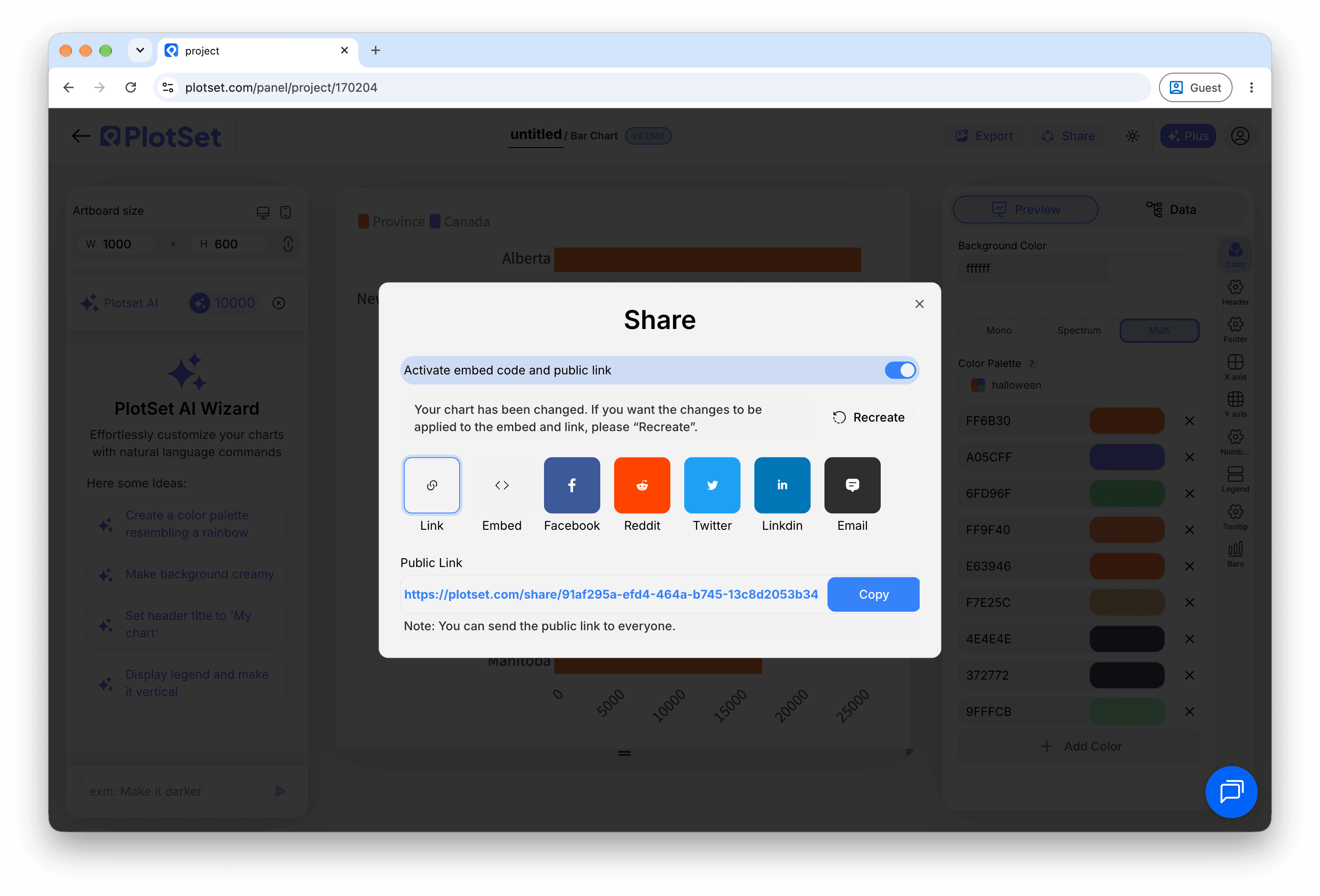
Al activar el código de incrustación y el enlace público, el gráfico queda publicado. El enlace se lo puedes enviar a cualquiera sin problema, y el código de incrustación se coloca en cualquier página como un iframe que conserva los tooltips al pasar el cursor y toda la interactividad. Si editas el gráfico más adelante, haz clic en Recreate para llevar esos cambios a ambos.

La barra de herramientas del editor de PlotSet con el botón Share resaltado, justo al lado del botón Export.
Share es lo que convierte un gráfico terminado en un enlace público y un código de incrustación.
El diálogo Share de PlotSet: el interruptor que activa el código de incrustación y el enlace público, los botones Link, Embed, Facebook, Reddit, Twitter, LinkedIn y Email, y el enlace público del gráfico con un botón Copy.
Activa el código de incrustación y el enlace público, y después copia el enlace o llévate el iframe. Recreate envía las ediciones posteriores a todos los que ya lo tengan.

Export: SVG, PNG o JPG

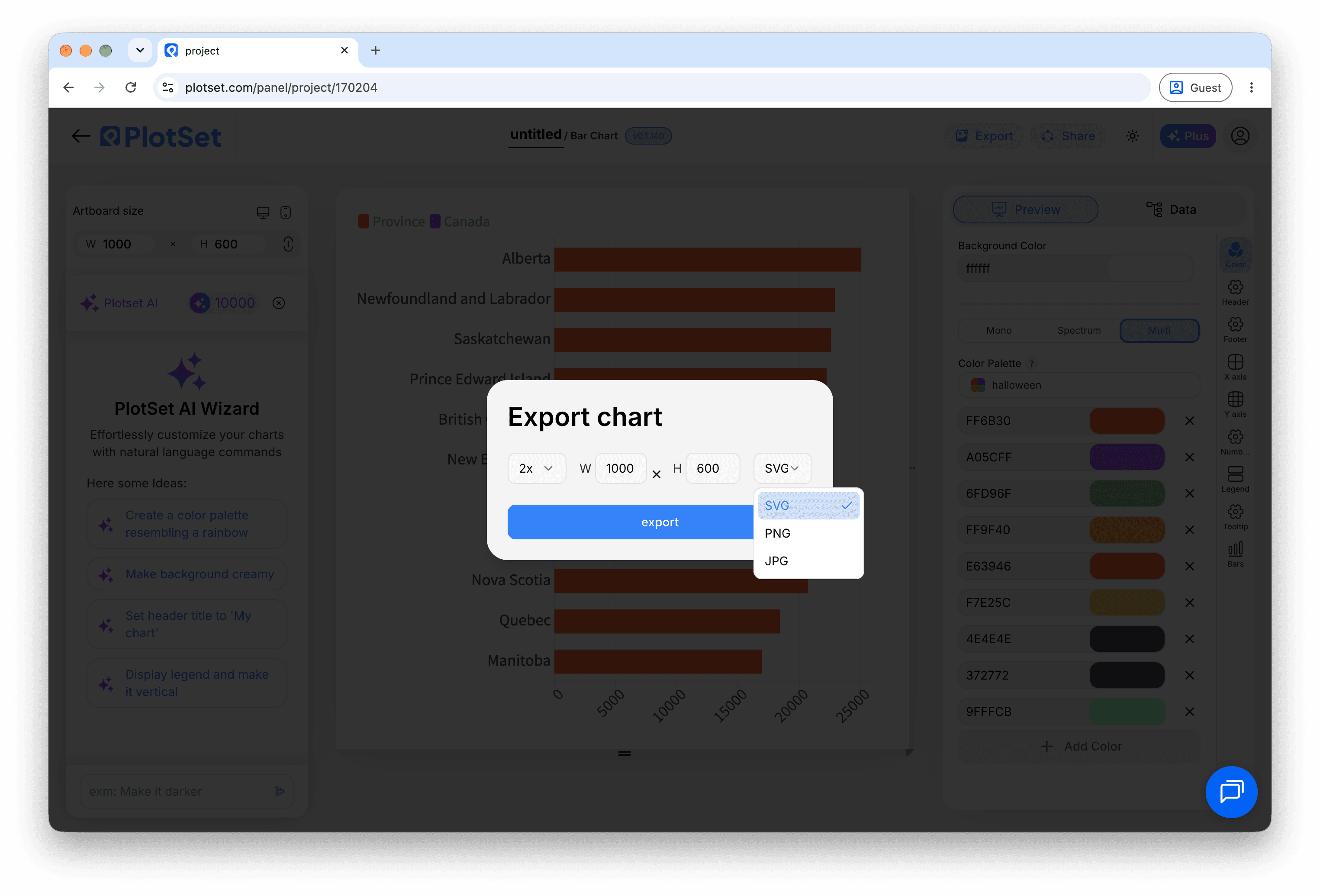
Export guarda una copia estática en el tamaño que necesites. El SVG se mantiene nítido a cualquier escala y se puede seguir editando en una herramienta de diseño; PNG y JPG son la opción segura para diapositivas y documentos. El multiplicador de escala es lo que te da una imagen nítida en una pantalla retina.

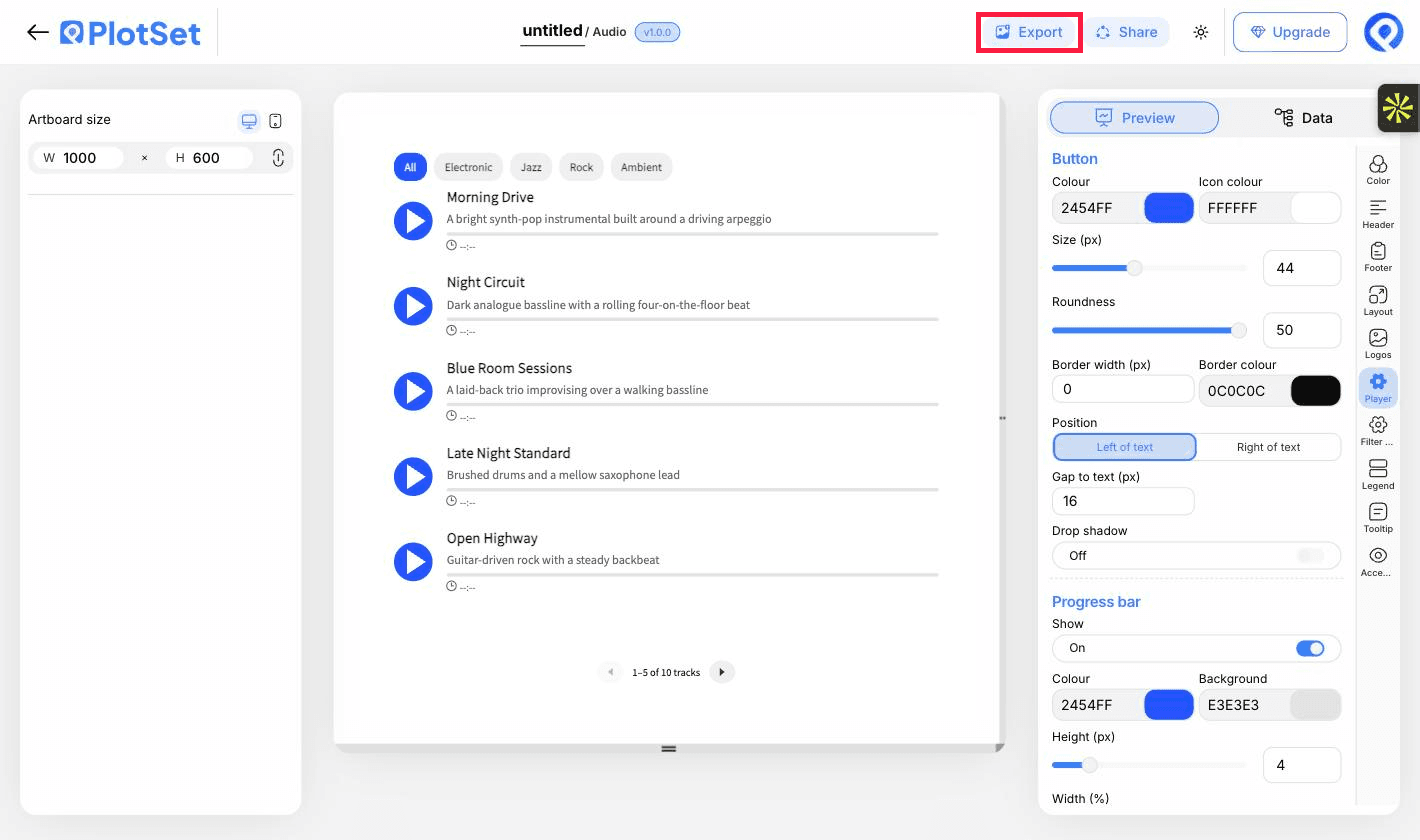
La barra de herramientas del editor de PlotSet con el botón Export resaltado.
Export es el camino hacia un archivo estático para una diapositiva o un informe.
El diálogo Export chart de PlotSet: un selector de escala en 2x, los campos de ancho y alto fijados en 1000 por 600, y el menú de formato abierto con SVG, PNG y JPG.
El SVG se mantiene nítido a cualquier tamaño y se puede seguir editando en una herramienta de diseño; PNG y JPG son la apuesta segura para una presentación. Ajusta la escala antes de exportar para que la imagen se vea nítida en una pantalla retina.

Consejos de estilo para un Audio Player

Write short titles

Titles and descriptions truncate to a set number of lines. Keep titles short and let the description carry the detail; the full text appears on hover.

Colour by category

Tinting play buttons by category makes groups recognisable at a glance and makes the legend useful.

Match button size to the page

A larger button is easier to tap on mobile. Check the preview at the phone artboard size.

Order tracks deliberately

Rows play in sheet order, so put the clip you most want heard first.

Errores comunes al hacer un Audio Player

A track is dimmed and will not play

The row has a title but no usable link. Check the URL column for blanks, and that it ends in a real audio file.

Clicking play does nothing

The link probably points to a web page, or the host blocks direct linking. Open the URL on its own in a browser tab to test it.

The seek bar will not jump ahead

The server may not support range requests. Host the files somewhere that does, or accept that seeking is limited.

Aprende más sobre el Audio Player

¿No estás seguro de que el Audio Player sea la opción correcta? Descubre qué es, cuándo usarlo y cuándo no.

Sobre el Audio Player

Audio Player: preguntas frecuentes

A title and a direct audio file link for each track. A description and a category are optional.

Crea tu Audio Player ahora

Gratis para empezar con más de 300 plantillas. No se necesita tarjeta de crédito.