
Beispiel-CSV
| Metric | Value |
|---|---|
| Trees planted | 1284500 |
| Volunteers | 18430 |
| Countries reached | 64 |
| Schools supported | 1207 |
A step by step walkthrough for building an animated counter in PlotSet, for one headline figure or a grid of statistics, with an embed code you can paste anywhere.
Etwa 5 MinutenYou will end up with a large number that counts up to its value when the page loads, with an optional prefix, suffix and caption.
Expect about five minutes. A single figure takes two, and a grid of statistics takes a little longer.
For a single figure no data is needed. For a grid, one row per statistic with a label and a value.
| Metric | Value |
|---|---|
| Trees planted | 1284500 |
| Volunteers | 18430 |
| Countries reached | 64 |
| Schools supported | 1207 |
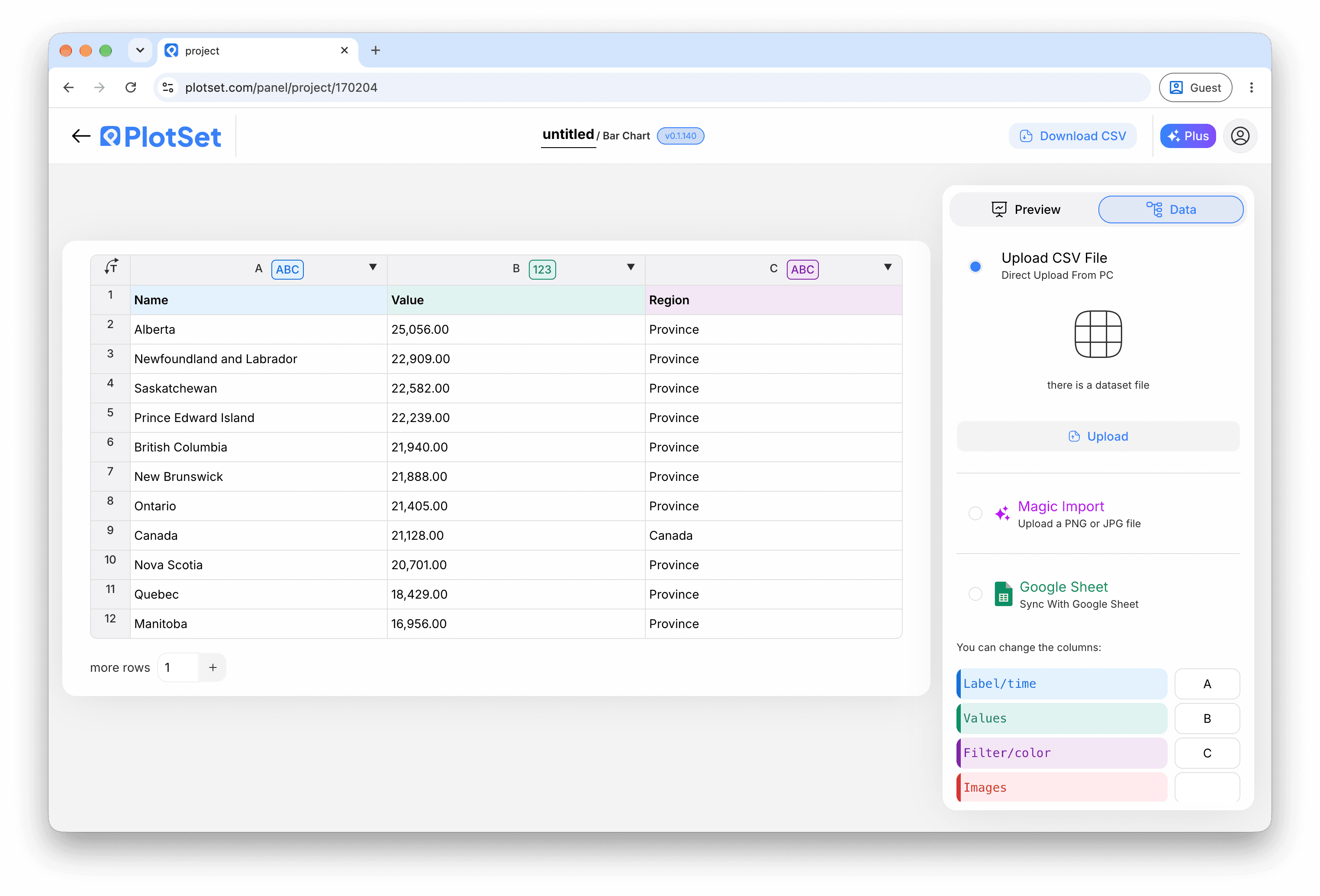
The value column is read as a number.
The label column becomes the caption under each counter.
In Single mode you can type the number in the settings and leave the sheet alone.
Write numbers without thousands separators in the sheet. The ticker adds them.
Der genaue Klickpfad in PlotSet, von einer leeren Vorlage bis zum fertigen Diagramm.
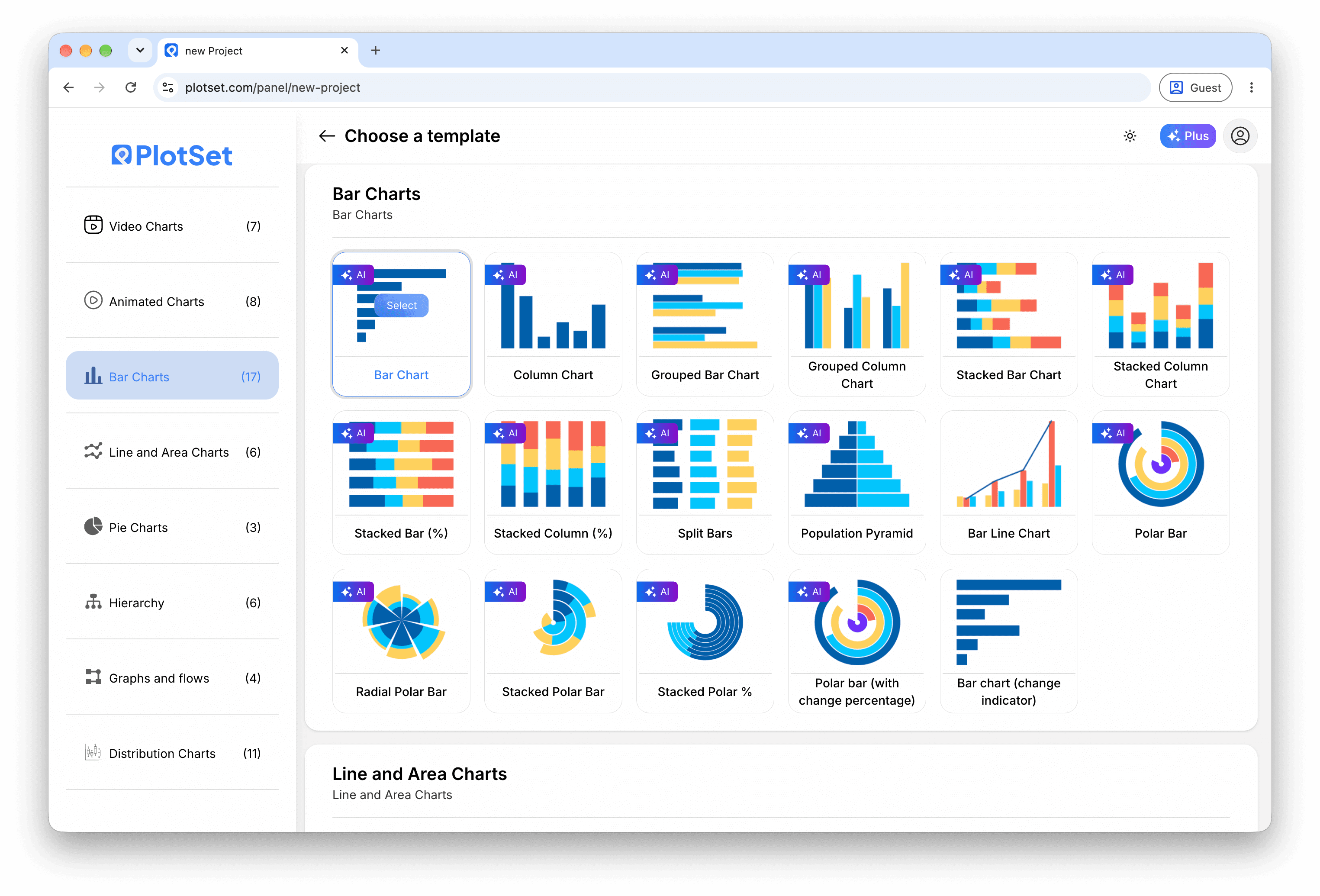
From the PlotSet dashboard, start a new project and search for Number Ticker. It opens with a single counter that counts up to 1000.
In the Value tab, choose Single for one number, Template for text with numbers inside it, or From data for a counter per row.
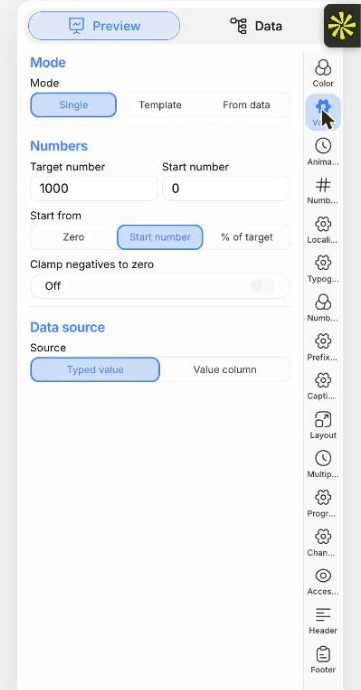
In Single mode, type the target and the start number. In From data mode, paste rows or import a CSV or .xlsx file.
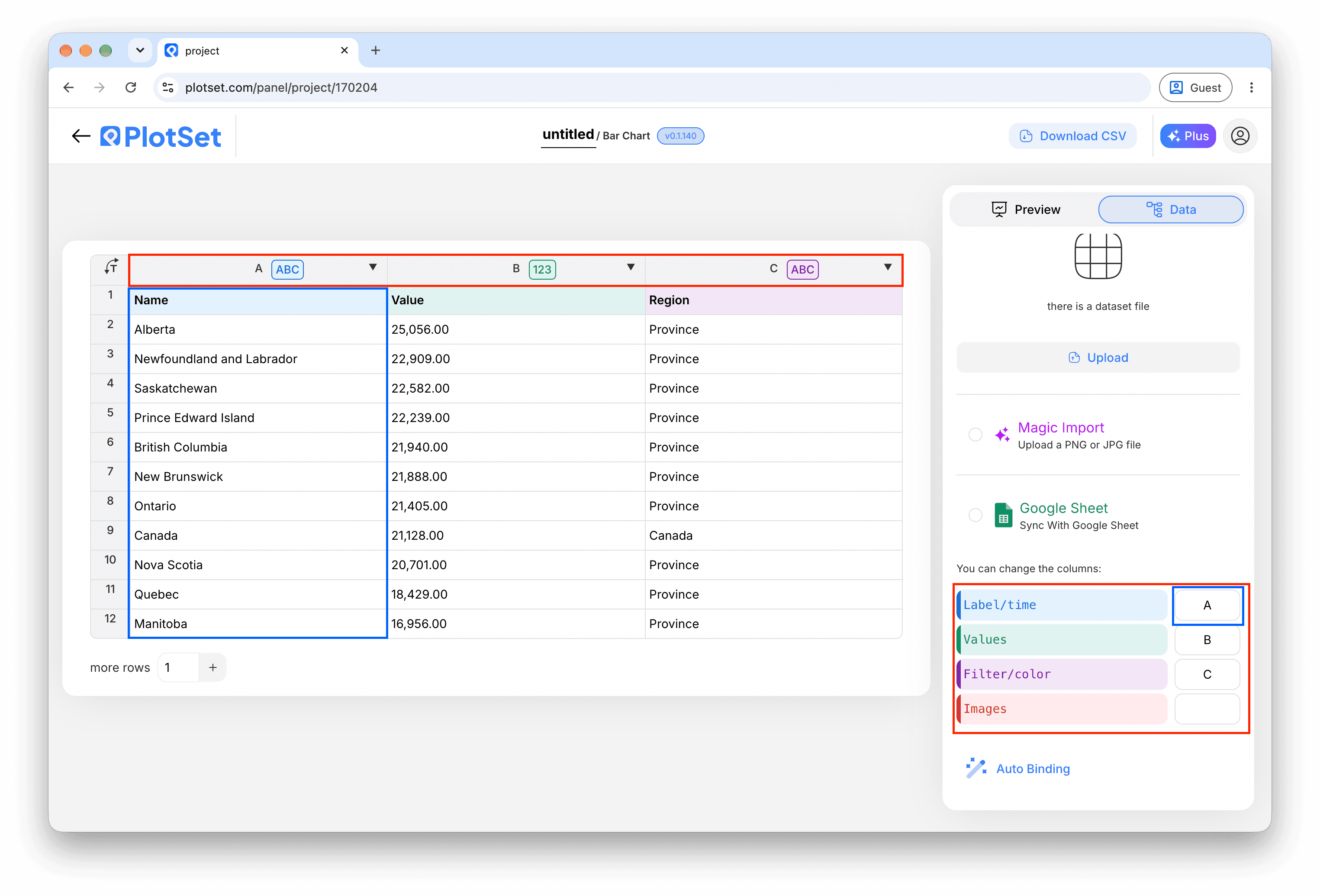
Bind the value column to Value and the label column to Label. In Single mode with a typed value, you can skip this.
In the Number format tab, add a prefix or suffix, set the decimals and choose the grouping, or abbreviate large numbers.
In the Animation tab, set the duration and easing, and choose whether the count repeats or runs once.
The Typography and Number color tabs set the font, the size and the colour, including a gradient or a colour that changes with progress.
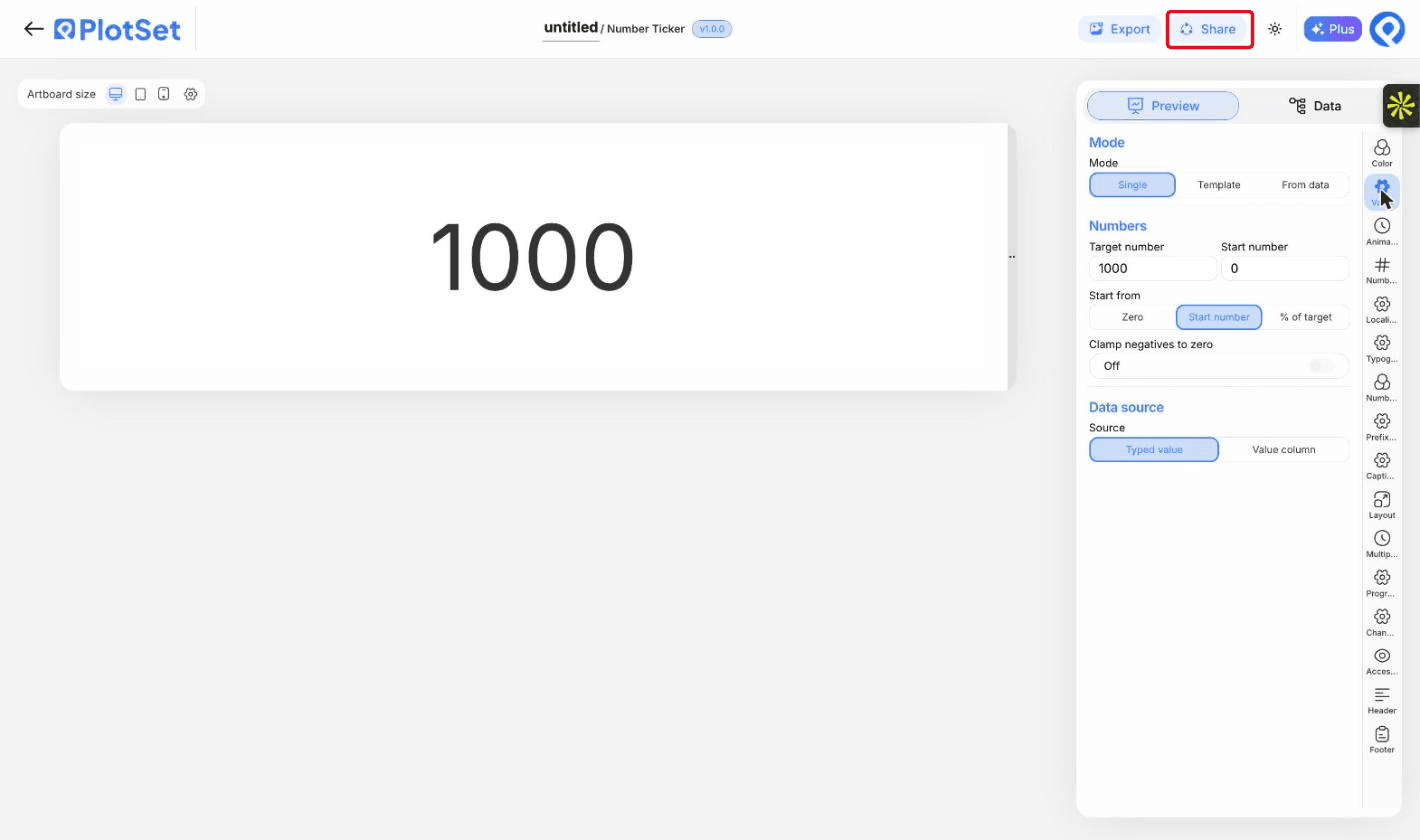
Publish for a live chart and copy the embed code from the Share dialog. Reload the page to watch the count run.
Starten Sie mit der Number Ticker-Vorlage samt bereits geladenen Beispieldaten und ersetzen Sie diese durch Ihre eigenen.
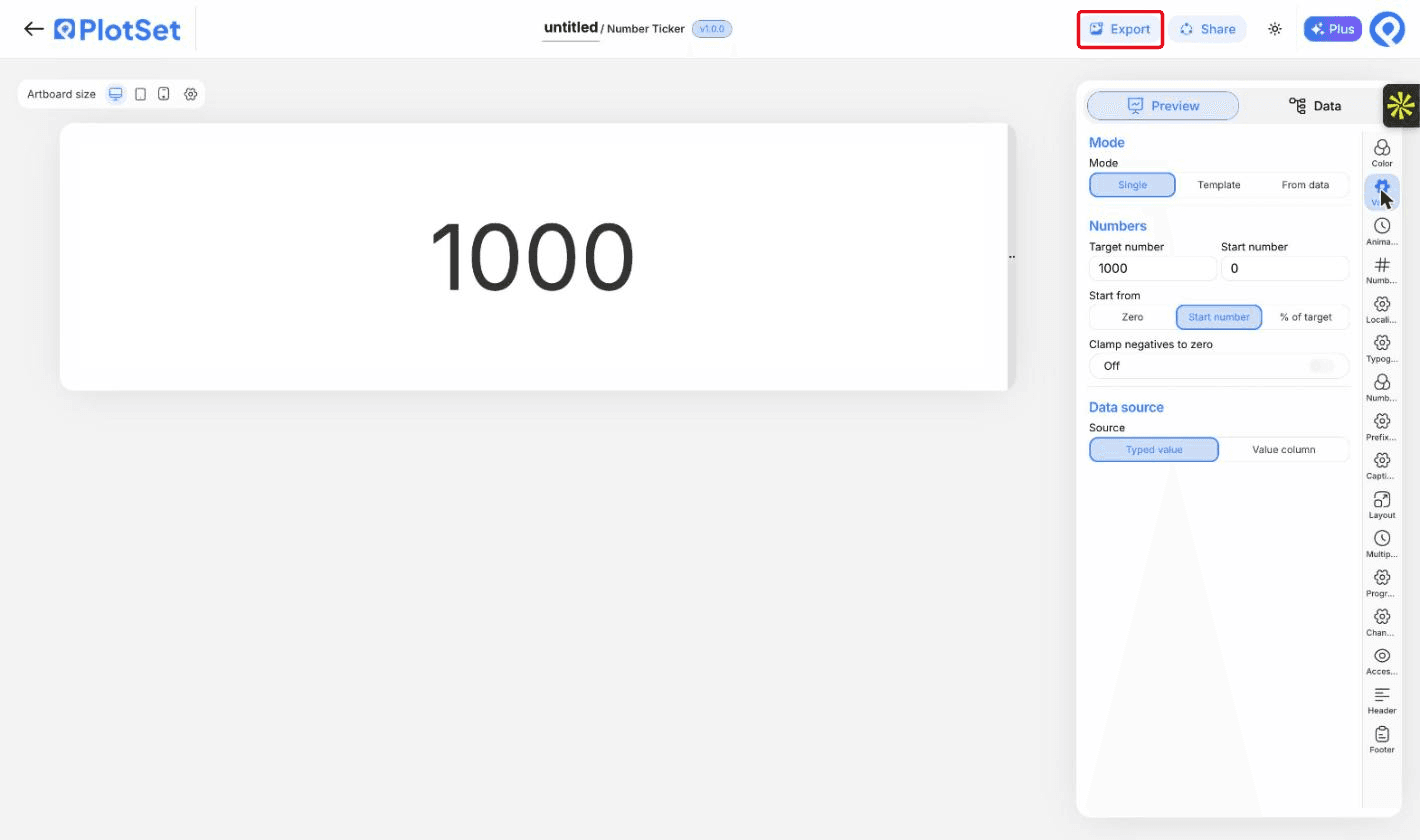
Vorlage öffnenDer letzte Abschnitt ist bei jedem Diagrammtyp gleich: "Share" macht aus dem Diagramm einen öffentlichen Live-Link und einen Einbettungscode, "Export" schreibt es als statische Datei heraus.
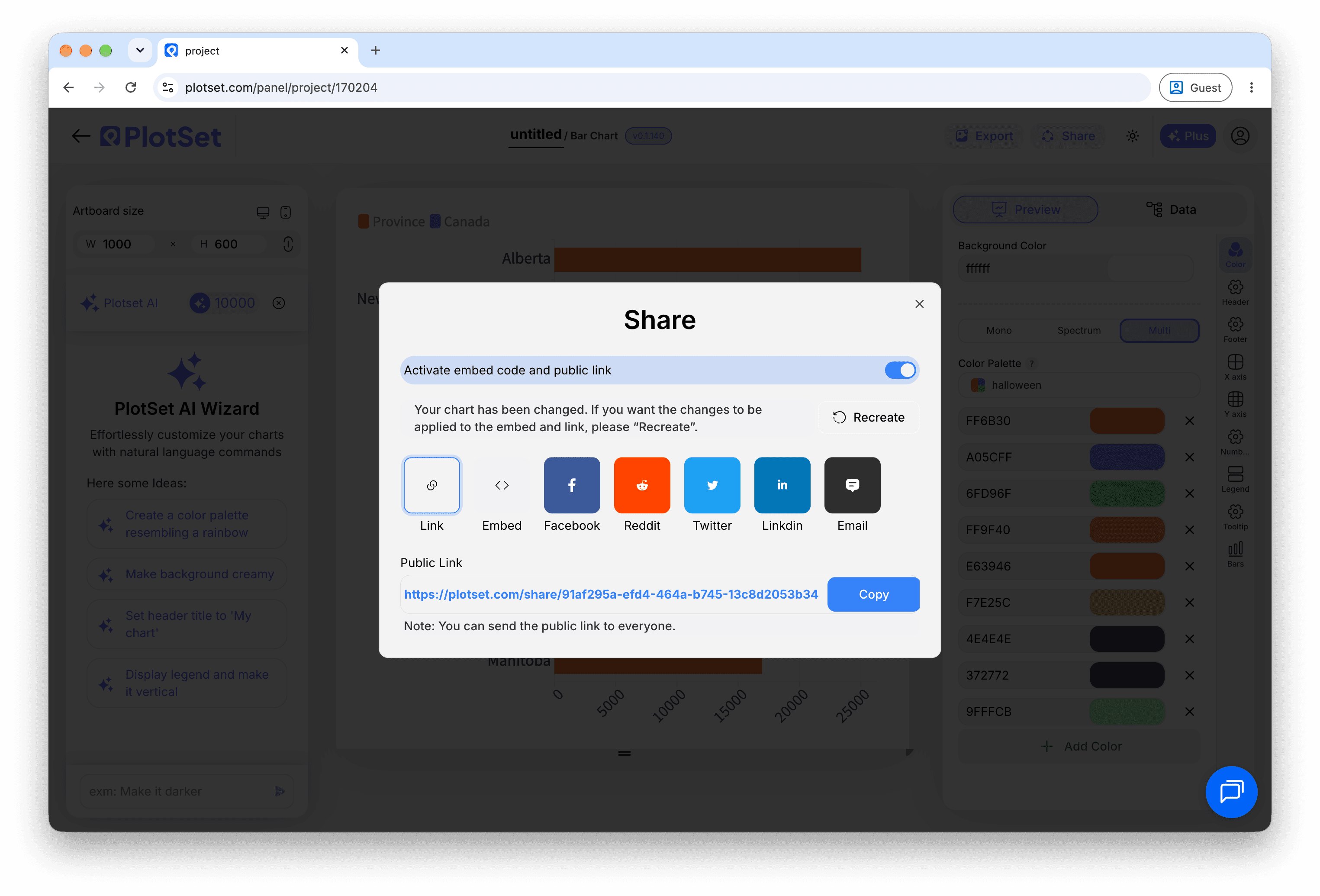
Aktivieren Sie den Einbettungscode und den öffentlichen Link, um das Diagramm zu veröffentlichen. Den Link können Sie bedenkenlos an alle weitergeben, und der Einbettungscode fügt sich als iframe in jede Seite ein. Die Tooltips beim Überfahren mit der Maus und die volle Interaktivität bleiben erhalten. Wenn Sie das Diagramm später bearbeiten, überträgt "Recreate" die Änderungen auf Link und Einbettung.
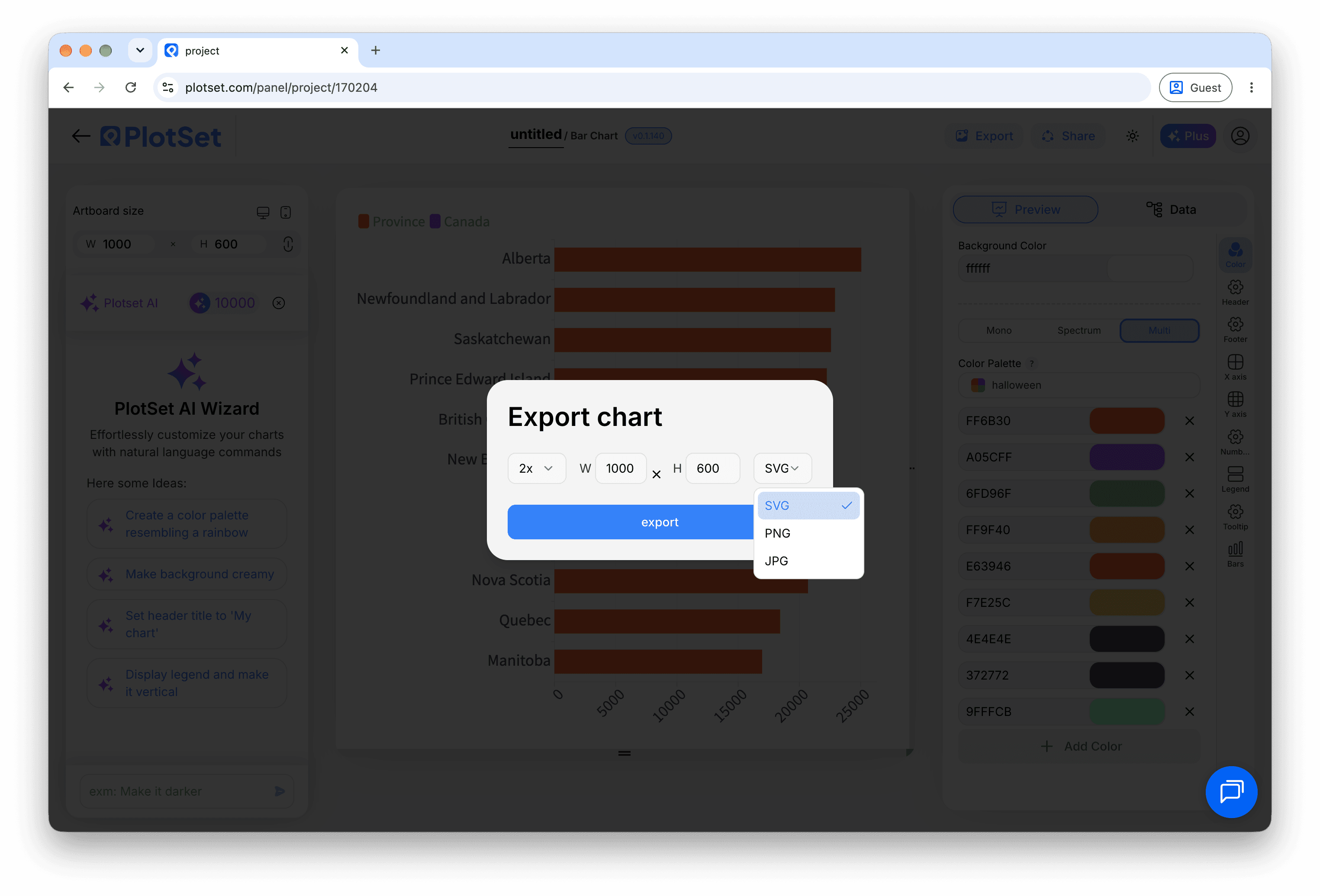
"Export" schreibt eine statische Kopie in der Größe heraus, die Sie brauchen. SVG bleibt in jeder Skalierung scharf und lässt sich weiterhin in einem Design-Tool bearbeiten; PNG und JPG sind die sichere Wahl für Folien und Dokumente. Der Skalierungsfaktor sorgt dafür, dass das Bild auf einem Retina-Display gestochen scharf wirkt.
A start number close to the target shows growth honestly. Start at zero for a figure that is new.
Two to three seconds is enough for most pages.
A short line under the number says what it counts.
1.3M reads faster than 1,284,500 in a narrow embed.
Four digit numbers print without one. Figures of 10,000 and over get it.
From data mode needs a value column. Check that it is bound and holds numbers.
It runs when the chart loads. Reload the page to see it again.
Auto-fit shrinks the figures to the smallest cell. Reduce the columns or shorten the longest value.
Nicht sicher, ob Number Ticker die richtige Wahl ist? Erfahren Sie, was es ist, wann Sie es verwenden sollten und wann nicht.
Yes. Set a start number higher than the target.
Kostenlos starten mit über 600 Vorlagen. Keine Kreditkarte erforderlich.