| title | subtitle | url | filter |
|---|---|---|---|
| Morning Drive | A bright synth-pop instrumental | https://example.com/audio/morning-drive.mp3 | Electronic |
| Blue Room Sessions | A laid-back jazz trio | https://example.com/audio/blue-room.mp3 | Jazz |
| Open Highway | Guitar-driven rock with a steady backbeat | https://example.com/audio/open-highway.mp3 | Rock |
How to Create an Audio Player Playlist
A step by step walkthrough for turning a spreadsheet of titles and audio links into a published, embeddable playlist in PlotSet, with play buttons, progress bars and category filters.
Environ 6 minutesA list of tracks with play buttons, progress bars and category filters, built from a spreadsheet and ready to embed: that is what you will have. Each row becomes one playable track, and adding a track later means adding a row.
If you already have direct links to your audio files, it takes about six minutes. The one prerequisite is hosting, since PlotSet streams from the links you give it rather than storing the files.
Les données dont vous avez besoin
One row per track with up to four columns: title, an optional description, a direct audio file URL, and an optional category used for filtering and colour.
The URL must point directly at an audio file such as an MP3, OGG or WAV, not at a page that contains a player.
A row with a title but no link still appears, dimmed and not playable. A row with neither title nor link is dropped.
Keep category spellings identical, or the filter will list the same group twice.
The hosting server must allow direct linking and, ideally, range requests so seeking and the buffered bar work.
Les étapes
Le parcours exact dans PlotSet, d'un modèle vierge à un graphique terminé.
- 01
Open the Audio template
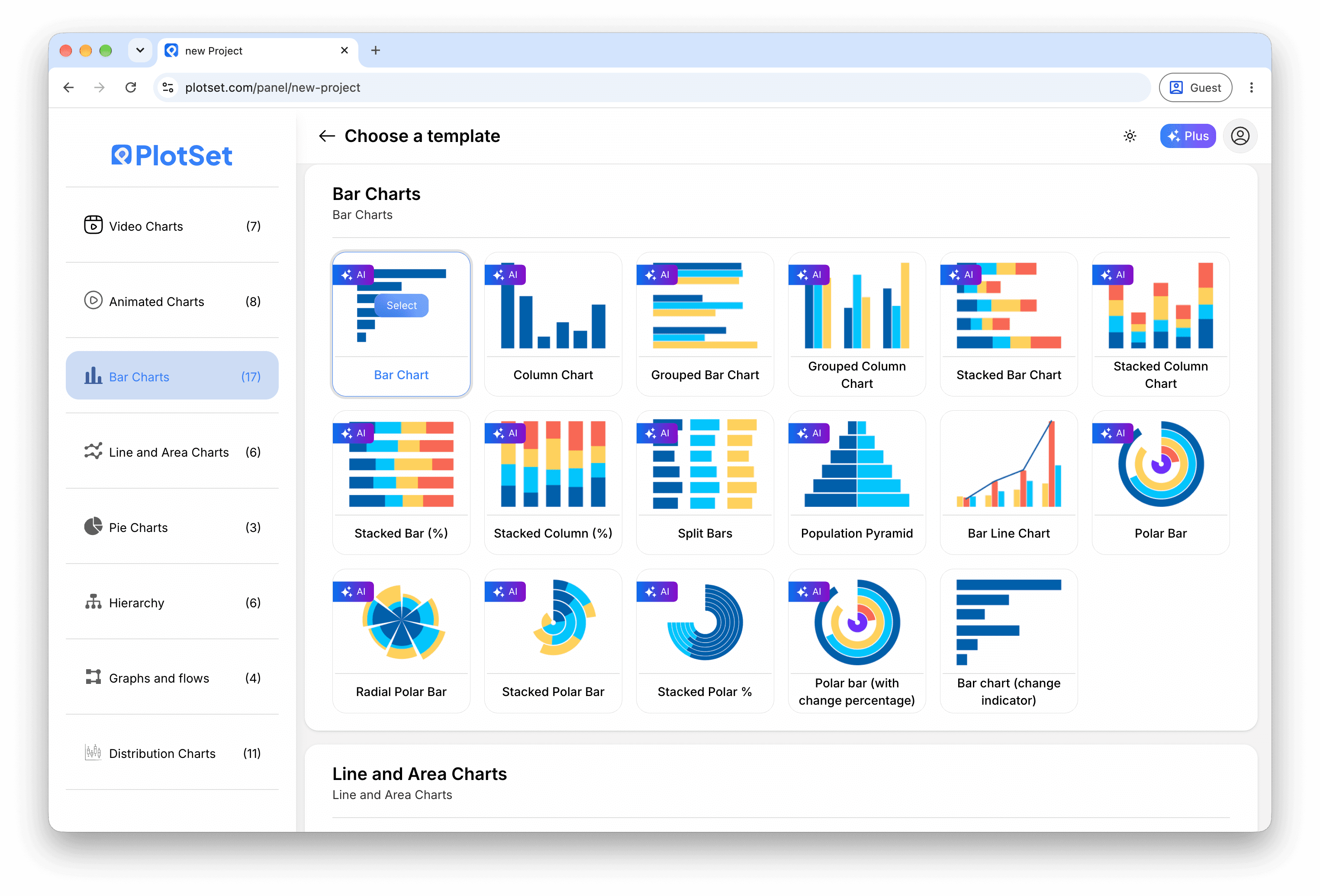
From the PlotSet dashboard, start a new project and choose Audio from the Other category. It loads with a sample playlist so you can see how each row becomes a track.

Chaque guide commence ici. Choisissez la catégorie, puis le modèle : c'est la même grille quel que soit le type de graphique visé. - 02
Prepare your track list
Give each track a title and a direct file link, plus a description and category if you want them. Open each link in a browser tab first to confirm it plays.
- 03
Upload the file, or connect it live
Import a CSV or .xlsx file from the data panel, paste rows from a spreadsheet, or connect a Google Sheet so new tracks appear without re-embedding. The first row is read as the headers.

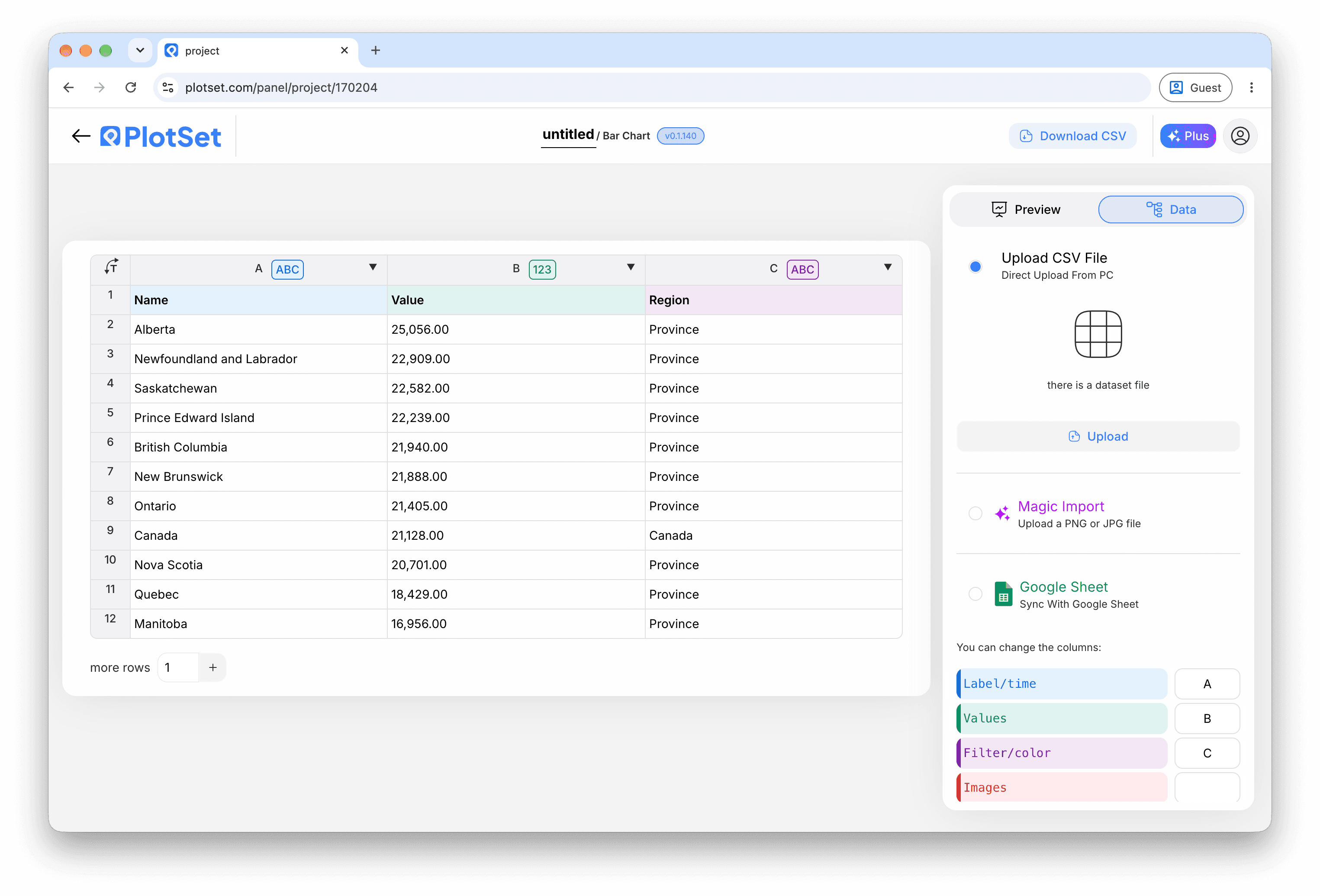
La vue données, ici sur un projet de graphique en barres. Importez un CSV, extrayez les chiffres d'une image avec 'Magic Import' ou synchronisez une Google Sheet. Le panneau est identique pour tous les types de graphique. - 04
Check the column bindings
Confirm which column is the title, the description, the audio URL and the category. This is usually right automatically when the headers are clear.

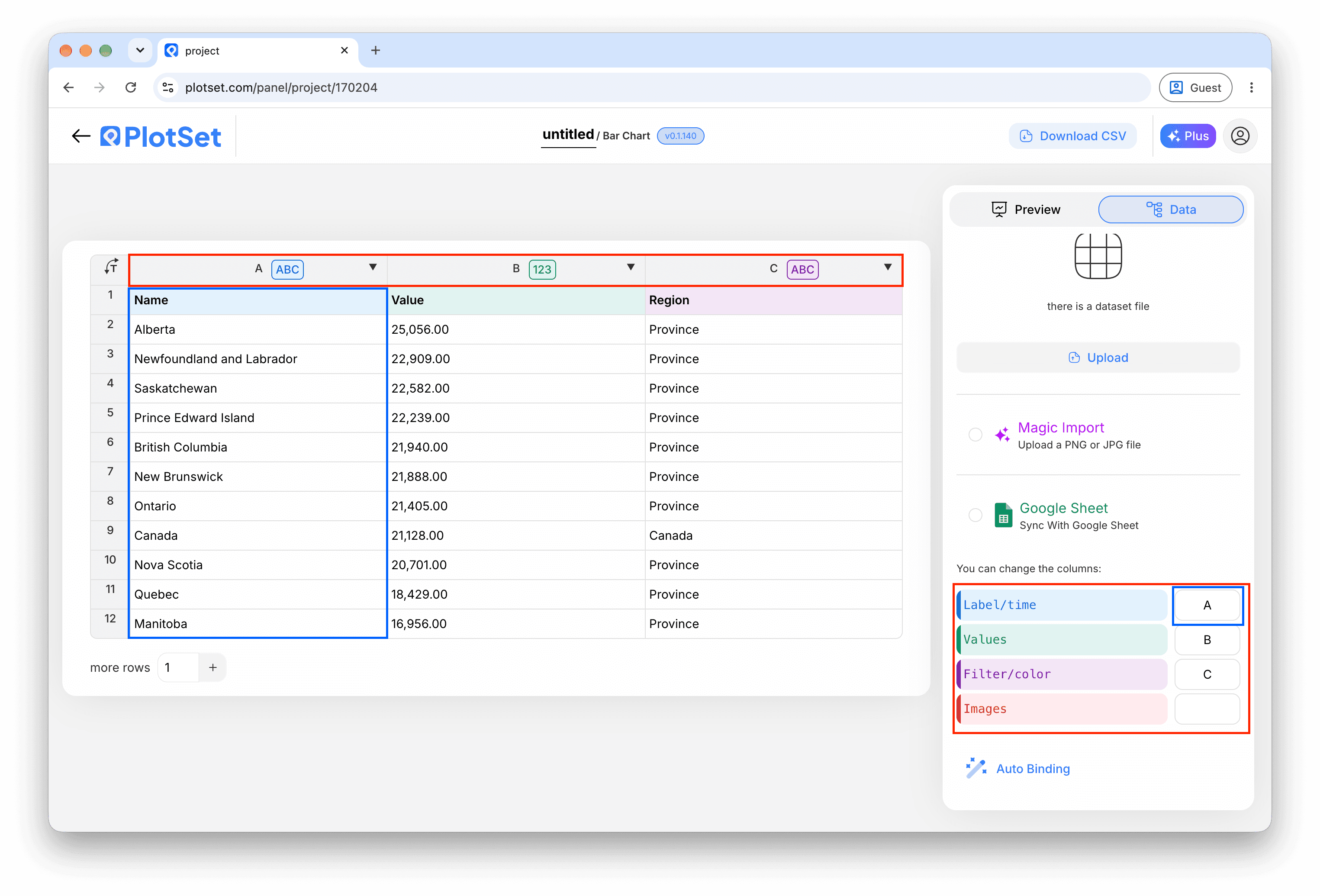
Les associations déterminent quelle colonne devient l'étiquette, laquelle fournit les valeurs et laquelle pilote la couleur. 'Auto Binding' les devine à partir de vos en-têtes : vérifiez-les plutôt que de les tenir pour acquises. - 05
Style the player
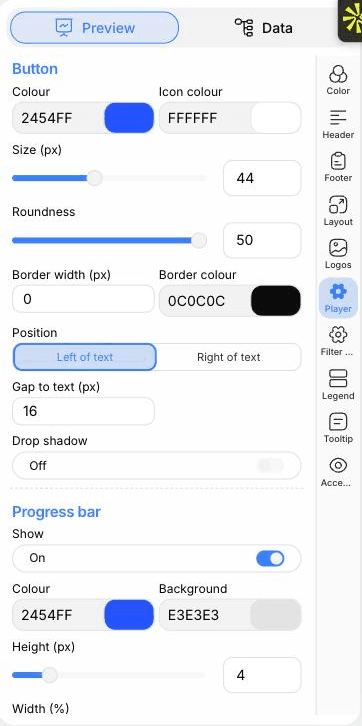
Open the Player tab to set the button colour, size and roundness, put it left or right of the text, and show or hide the progress bar. You can also choose one, two or three columns.

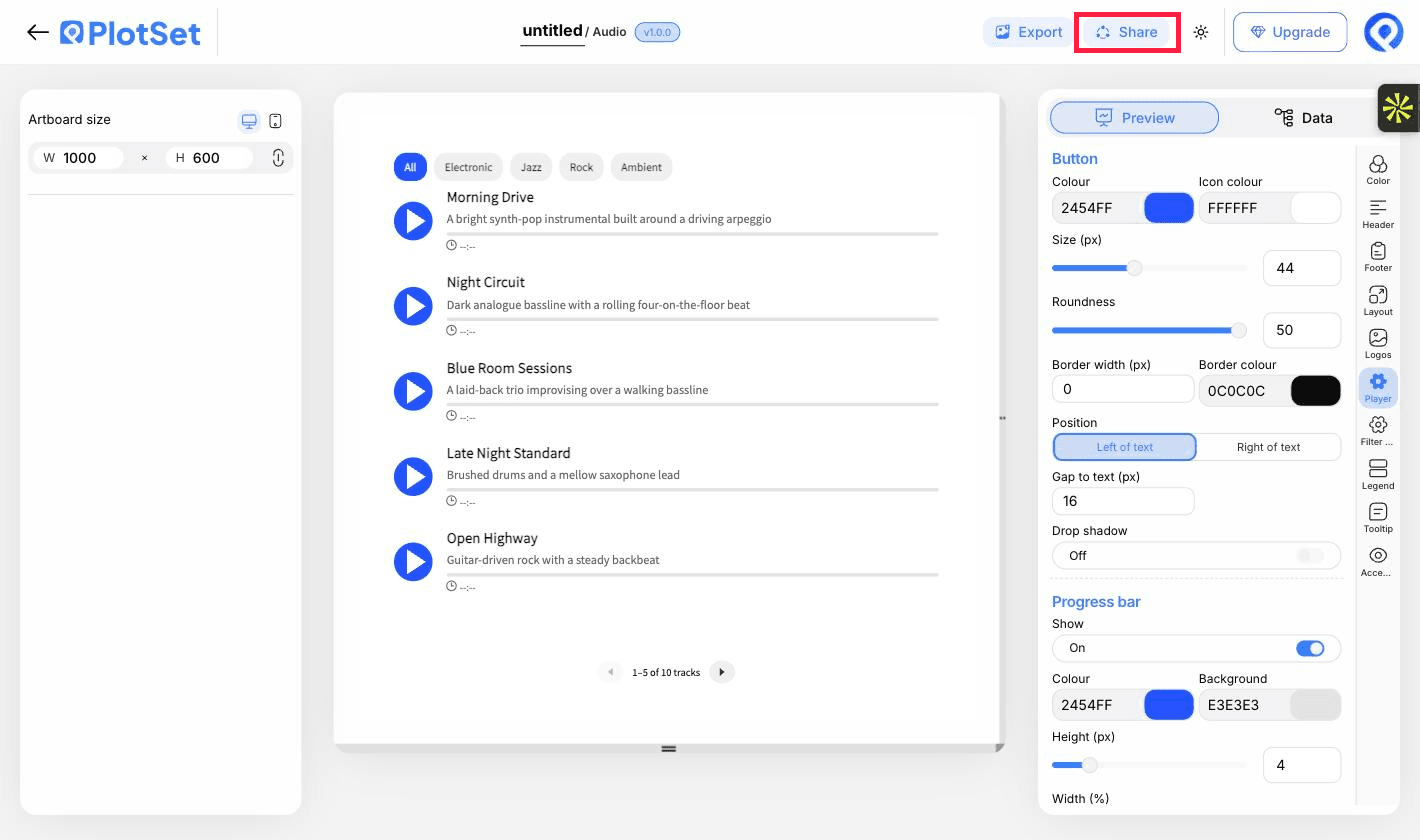
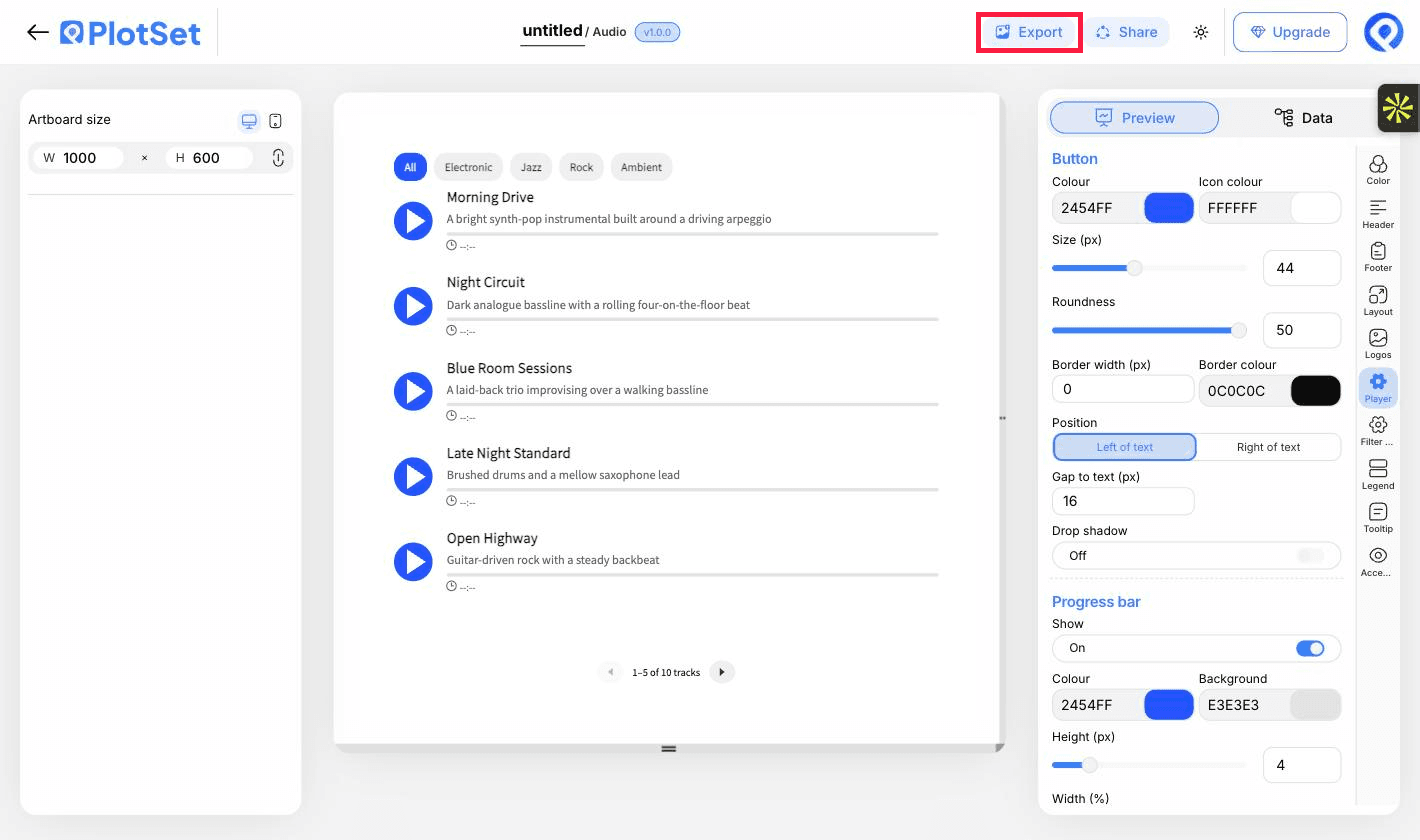
L'onglet 'Preview' pour un graphique Audio Player. Tous les réglages de style se trouvent dans le panneau entouré en rouge : apparence, en-tête, pied de page et les options propres à ce type de graphique, chacun dans un onglet distinct. - 06
Add category filters
In the Filter controls tab choose pill buttons, a dropdown or a stepped slider. In the Color tab you can tint the rows by category too.
- 07
Set the size and pagination
Adjust the artboard height so the rows you want fit. Longer lists are paginated with a pager underneath rather than scrolled.
- 08
Publish it or embed it
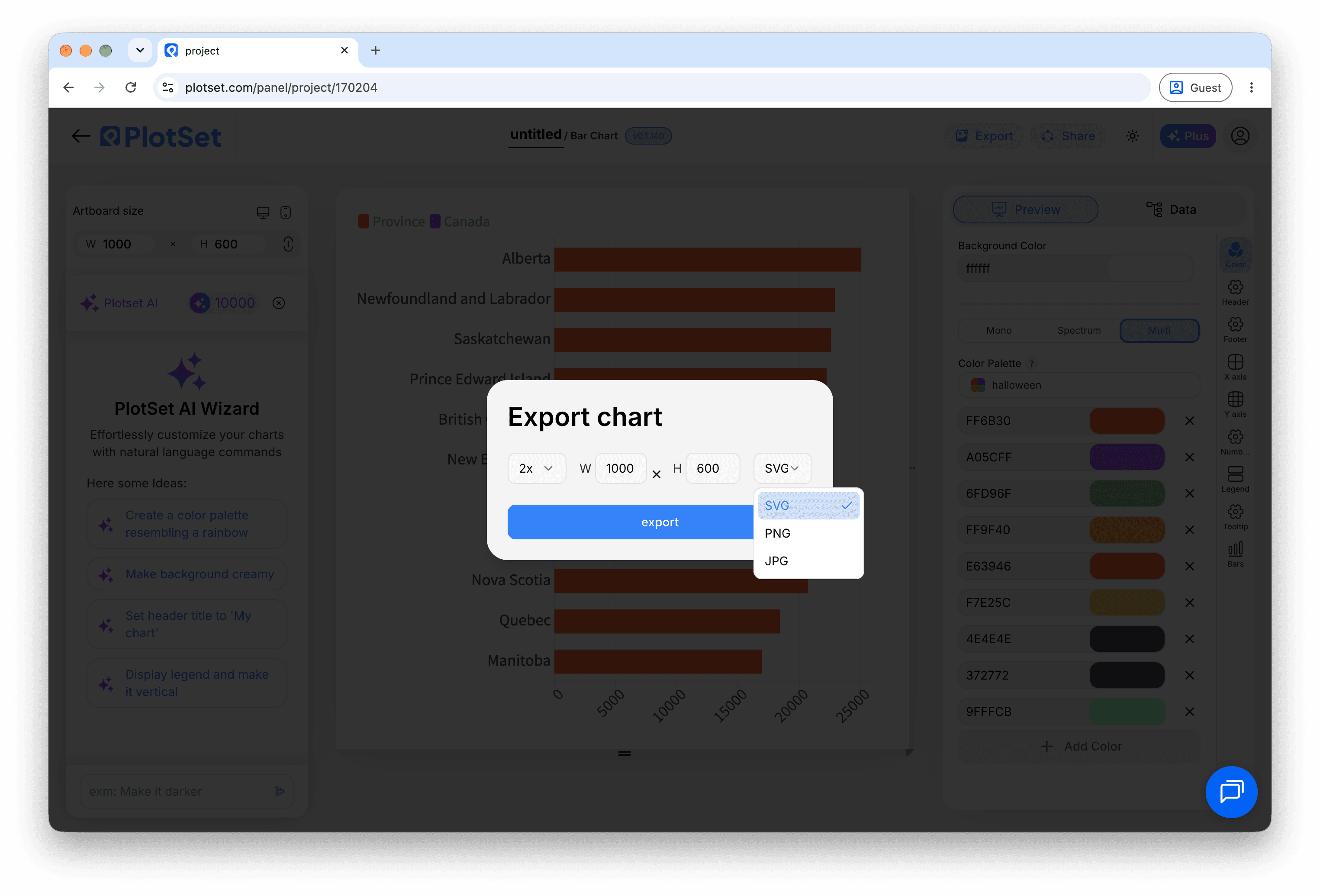
Publish for a live playlist and copy the embed code for your page. A PNG or PDF export captures only the page of tracks currently showing.

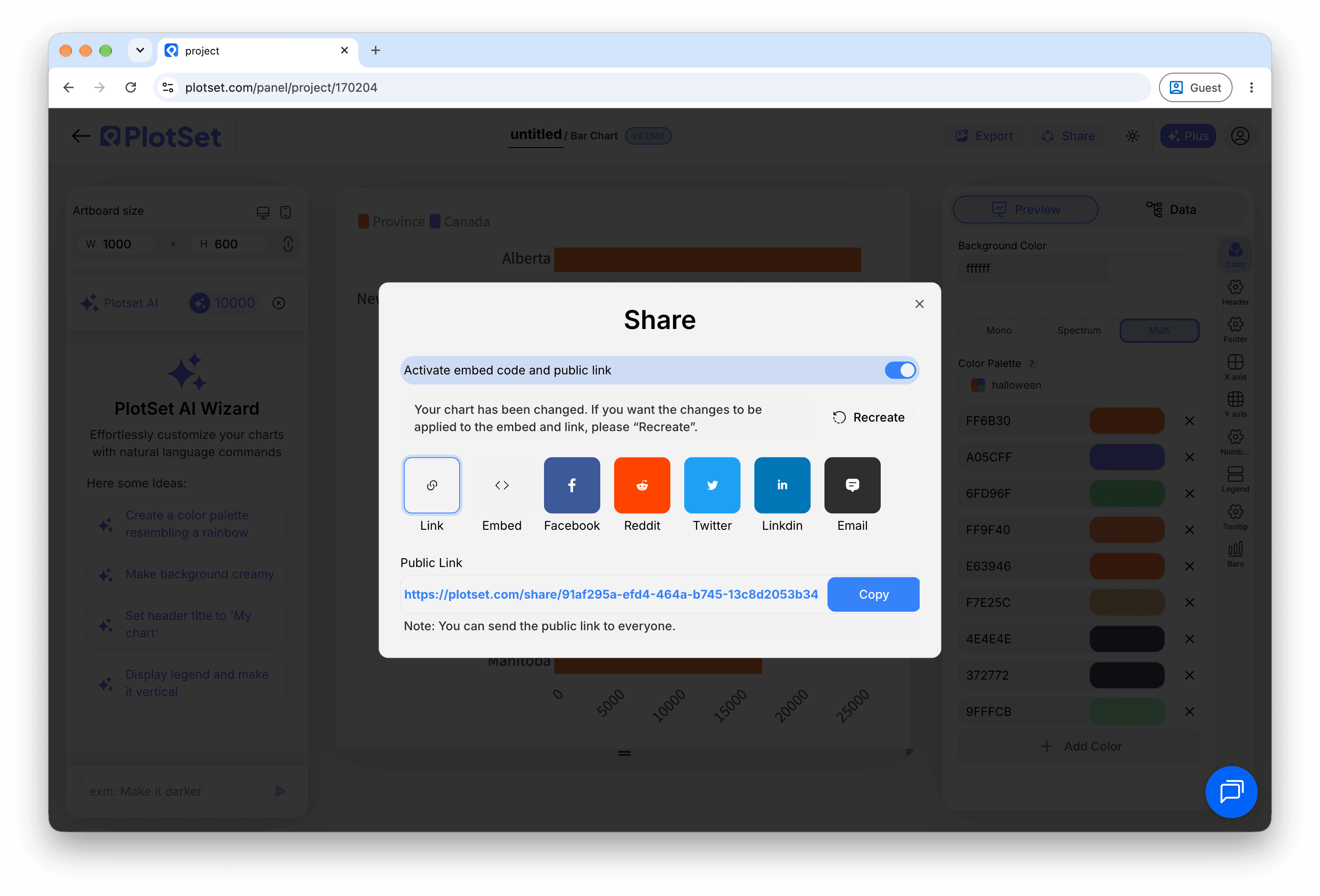
C'est par 'Share' qu'un graphique terminé devient un lien public et un code d'intégration.
Partez du modèle Audio Player avec des données d'exemple déjà chargées, puis remplacez-les par les vôtres.
Ouvrir le modèleConseils de style pour un Audio Player
Write short titles
Titles and descriptions truncate to a set number of lines. Keep titles short and let the description carry the detail; the full text appears on hover.
Colour by category
Tinting play buttons by category makes groups recognisable at a glance and makes the legend useful.
Match button size to the page
A larger button is easier to tap on mobile. Check the preview at the phone artboard size.
Order tracks deliberately
Rows play in sheet order, so put the clip you most want heard first.
Erreurs courantes en créant un Audio Player
A track is dimmed and will not play
The row has a title but no usable link. Check the URL column for blanks, and that it ends in a real audio file.
Clicking play does nothing
The link probably points to a web page, or the host blocks direct linking. Open the URL on its own in a browser tab to test it.
The seek bar will not jump ahead
The server may not support range requests. Host the files somewhere that does, or accept that seeking is limited.
En savoir plus sur le Audio Player
Vous n'êtes pas sûr que le Audio Player soit le bon choix ? Découvrez ce que c'est, quand l'utiliser et quand l'éviter.
Audio Player : questions fréquentes
A title and a direct audio file link for each track. A description and a category are optional.
Créez votre Audio Player maintenant
Gratuit pour commencer avec plus de 300 modèles. Aucune carte bancaire requise.